
When it happens
When a list, a panel or a page in MyFitnessClient cannot load, an error card appears in place of that content, instead of a blank space. The card covers only the part that failed, a section or the whole page, and says what happened and what to do. It appears on the website and in the app, for professionals and for clients.
When an action fails, such as saving, deleting or sending, this card does not appear: a temporary notice appears instead, or an error message inside the window or next to the field.
The cards and what to do
On most pages of the website, the card title tells you the type of failure:
| Card title | When it appears | What to do |
|---|---|---|
| “We could not load this information” | A failure that is none of the others in this table, for example when the server does not respond in time. The text says “A temporary failure occurred. Your data was not changed.” | Try again. |
| “Service temporarily unavailable” | The server failed or is temporarily down. | Wait a few seconds and try again. |
| “You are offline” | The browser could not reach the server, for example because the network is down. | Turn on Wi-Fi or mobile data and try again. |
| “Content not found” | The content was removed or is no longer available, or the link you opened is old or wrong. | Go back to the list and open the content from there. |
| “You do not have access to this area” | The server refused to show this content to your account. | See the common problem “You do not have access to this area” when you should have access. |
| “This information changed in the meantime” | The same content was changed somewhere else in the meantime. | Reload the page before saving again. |
| “Too many requests” | Many requests were made in a short time. | Wait a moment and try again. |
Some pages use their own title, such as “Couldn't load”, or show the same card for any failure. In those cases the title does not tell you the type of failure: try again and, if the card stays, contact support.
When the server gives a more precise reason, most cards show that sentence under the title, instead of the usual text. The same happens when the MyFitnessClient security protection stops the request before it reaches the server: the card shows “The request was blocked by the security protection…”. See “The request was blocked by the security protection”: what to do.
Short notices can appear in the corner of the screen: “The response is taking longer than usual”, “You are offline” and “Connection restored”. They are not error cards: they say that the network is slow, that it dropped or that it is back. While a full-page card, or another card that already explains the failure, is on the screen, these notices do not appear, so they do not repeat the same failure.
Steps
To resolve an error card:
- Read the card title and find it in the table “The cards and what to do”.
- Do what the table says for that title, for example turn on the network or wait a moment.
- Select Try again 1.
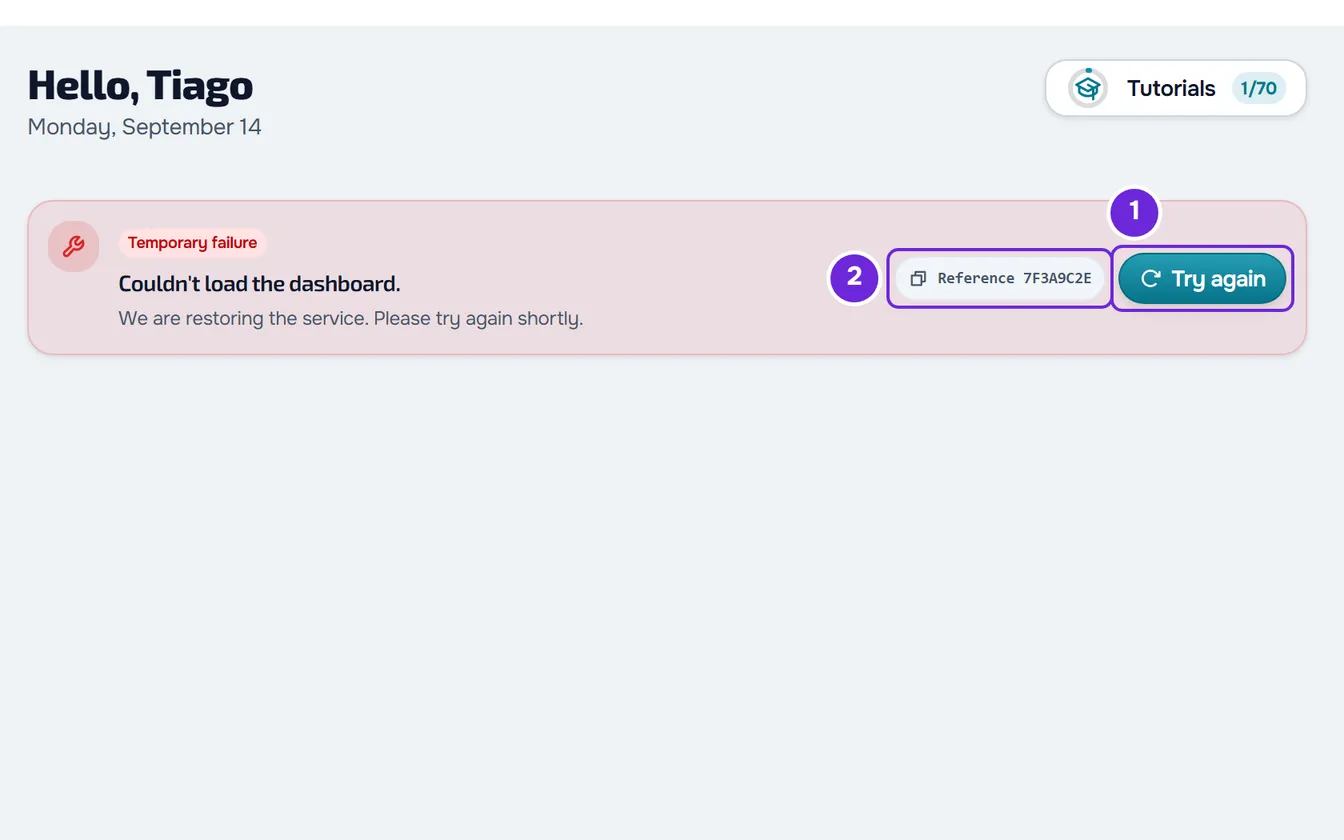
- On the website, if the card stays, select the Reference 2 button, followed by an 8-character code. The full code is copied and the button shows Copied for a few moments.
- Contact support as described in “If this did not solve it”, paste the reference into the message and say what you were doing.
When the request goes through, the content appears in place of the card. A small card, with only the title, has no buttons: reload the page to try again.
The Reference button
The reference is the code of the request that failed. The same code travels with the request to the MyFitnessClient server; giving it to support helps find that request.
The button shows “Reference” and the first 8 characters of the code, in capital letters. When you select it, you copy the full code. With the pointer over the button, you see the full code.
Not every card has this button. If the browser does not allow copying, the button does not show “Copied”: hold the pointer over the button and type the code by hand.
In the app
In the app, when a page does not load, a card appears with a sentence about what failed, for example “Could not load your habits.”, and the Try again button. When the server gives a more precise reason, the card shows that sentence. The app does not have the Reference button: tell support the exact sentence and what you were doing.
Without a network, the app does not show the error card: it shows “No internet connection”, with the text “This page needs a connection. It'll refresh on its own as soon as you're back online.”, and the page loads again on its own when the connection returns. See The app says “Offline” or takes a long time to load.
Common problems
“You do not have access to this area” when you should have access
The server refused to show the content to your account. The most common causes:
- You are a member of a team and do not have permission for that area. Ask whoever manages the team for it.
- You are a client and that part is not included in what your professional gave you. The card may say “This isn't part of your plan. Talk to your professional.” See “Not in your plan”: a section of the app has disappeared.
- The feature is not available on the professional's account. The card may say “This feature is not included in the current plan.”
“This information changed in the meantime”
Someone else, or you in another tab or on another device, changed the same content. Reload the page to see the current version and only then make your change again.
The card comes back after Try again
Wait a few minutes and try again. Try another network, for example mobile data instead of Wi-Fi. If the server is still unavailable, see Server temporarily unavailable or too many requests in a row. If it continues, contact support with the reference.
An action failed and no card appeared
The card is only for what did not load. When saving, deleting or sending fails, a temporary notice or a message inside the window appears, with the error sentence. These notices do not have the Reference button: write down the exact sentence for support.
Questions
Why did I not see any error if the page did not update?
When the page updates on its own, for example when you return to the tab, and that update fails with data already on the screen, no card appears: the data you see stays until the next update. When you make the request yourself, for example by changing a filter or opening a page, the failure shows the card.
Does the card try again on its own?
On the website, no: to try again, select Try again. Many pages also request the data again when you change a filter or return to the tab. In the app, the “No internet connection” state reloads the page on its own when the network returns.
If this did not solve it
Write to the MyFitnessClient team through the contact in the “Didn't find what you're looking for?” card, at the end of the Help Center home page. In the app, the same card, at the end of the Help Centre, shows the email for problems with the app. If you are a professional, you can also create a request in Support, in Settings. Send:
- the card title and the sentence under it, exactly as they appear;
- on the website, the reference copied from the Reference button;
- what you were doing and on which page;
- the day and time;
- whether you use the website, and with which browser, or the app, and on which phone.