
Before you start
- In a team workspace, creating a food requires the Nutrition > Create permission; without it, Add does not appear. Editing a workspace food requires Nutrition > Edit.
- Only foods in My foods can be edited. To change a food from the Catalog, copy it to your foods first: see Copy a catalog food to your foods.
- Have the product's label at hand. For a supermarket product, the online search can fill in the values for you: see Add a product by name or barcode.
Interactive tutorial
Opens in the app and needs you to be signed in.
Steps
To create a food of your own:
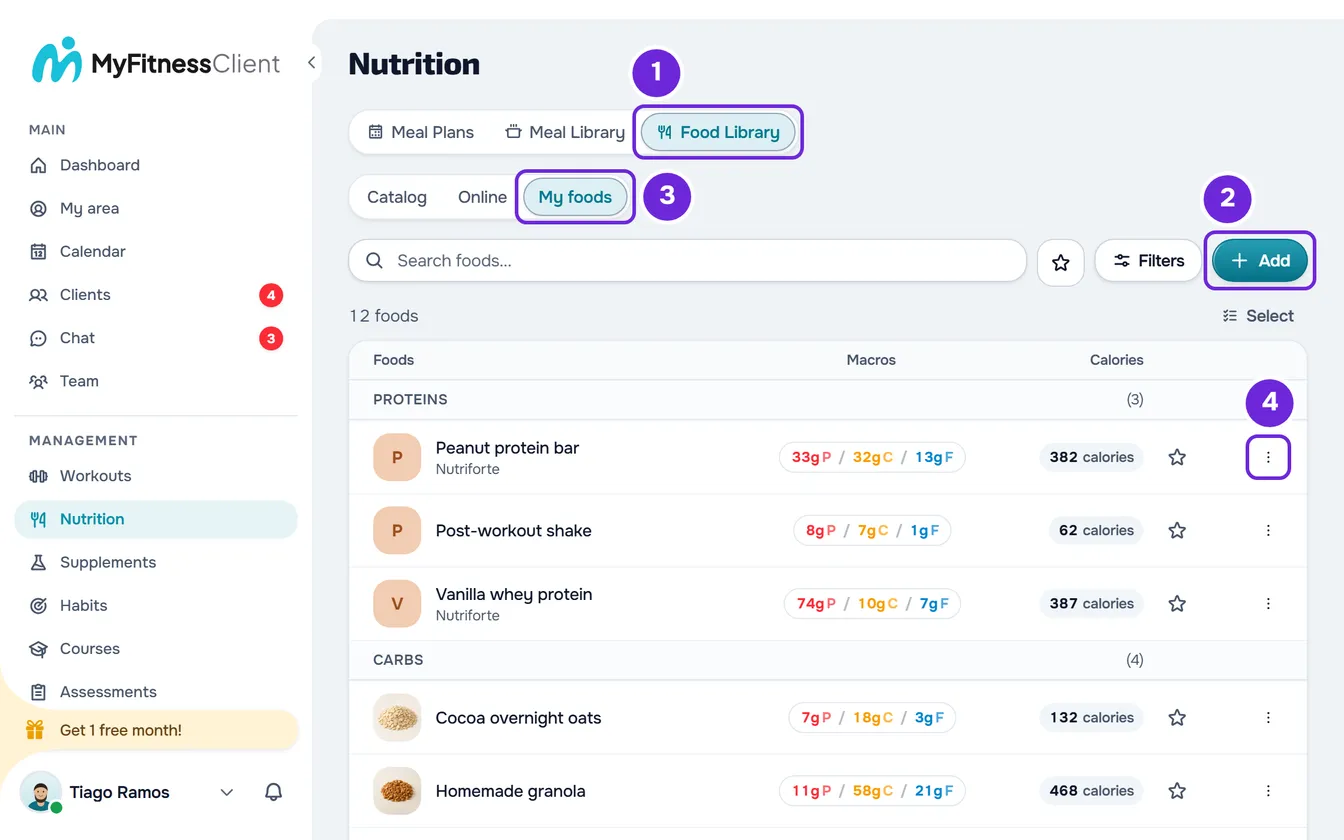
- In the side menu, select Nutrition.
- Select the Food Library 1 tab. On a narrow screen, such as a phone's, the tab is called Foods.
- Select Add 2.
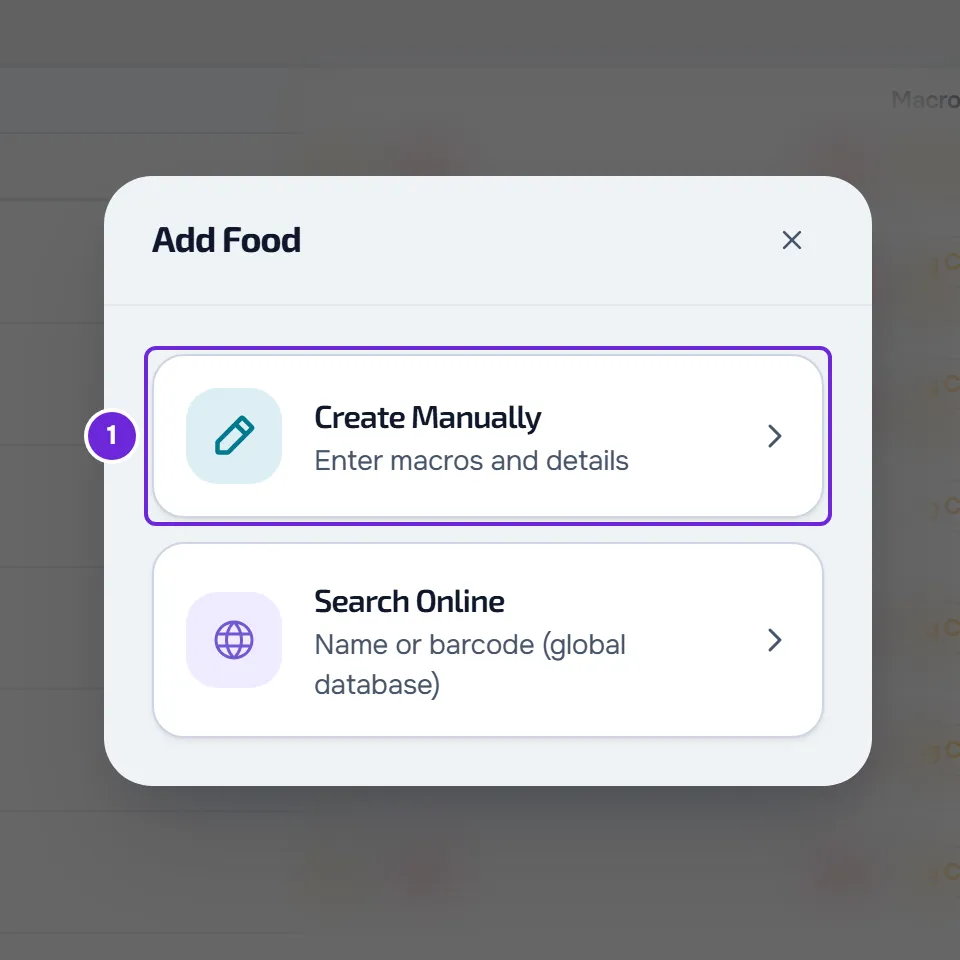
- In the Add Food window, select Create Manually 1. The New Food window opens.
- In Name 1, type the food's name, with 2 to 255 characters.
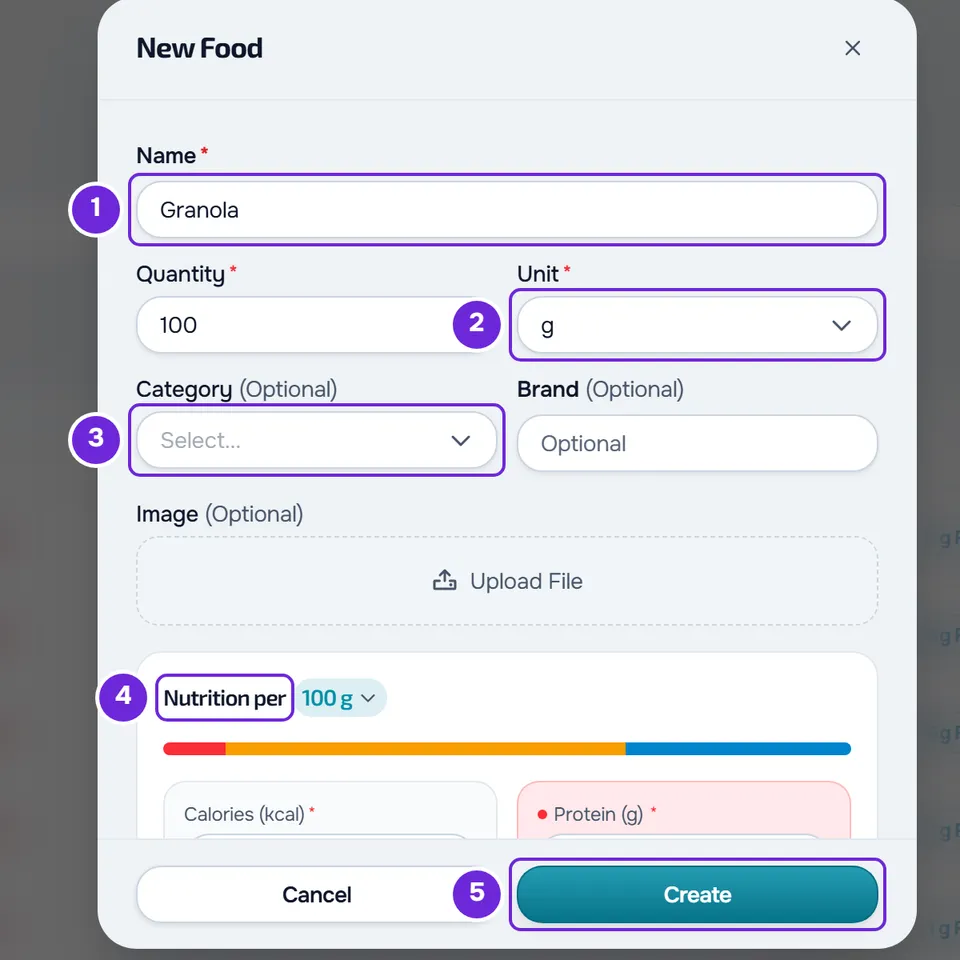
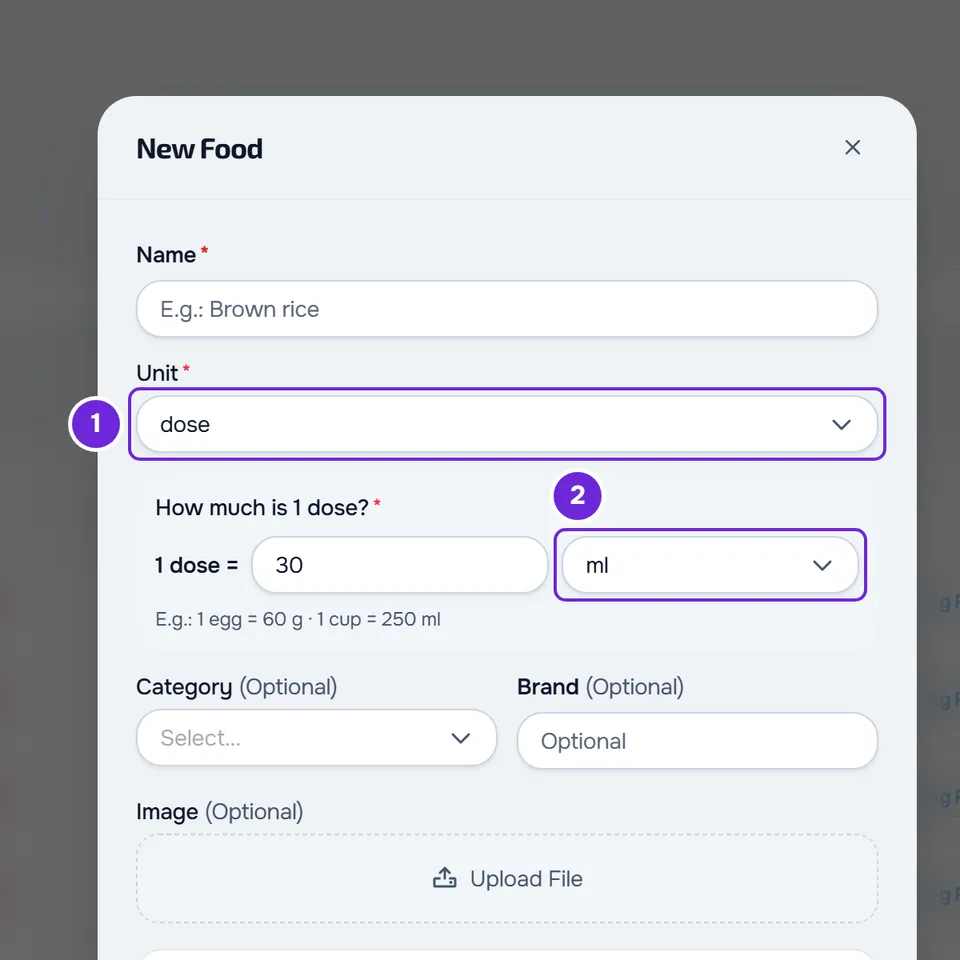
- In Unit 2, choose the unit the food is measured in, for example g for a solid food, ml for a drink or piece for an egg.
- If the unit is not g, ml, kg, l or mg, type in the “How much is 1 …?” block how much one unit weighs or measures, in g or ml 2, for example 1 egg = 60 g.
- Optional: choose the Category 3, type the Brand and add a photo in Image.
- In the Nutrition per 4 block, type the label's values per 100 g or 100 ml: Calories (kcal), Protein (g), Carbs (g) and Fat (g). These four are required; if the food doesn't have one of them, type 0. Sugar, salt, fiber, saturated fat and potassium are optional.
- Select Create 5.
The window closes, the screen shows My foods and “Food created” appears. The food is ready for meal plans and for library meals.
In a list with no foods, the Create Food button opens the New Food window straight away.
Choosing the unit
The Unit list has 15 units, from most used to least used: g, ml, piece, serving, slice, tablespoon, teaspoon, glass, cup, dose, can, packet, kg, l and mg. What the form asks for next depends on the unit:
- With g and ml, Quantity appears next to the unit. It's the quantity the food picker suggests when you add the food to a meal, for example 500 for a 500 ml bottle of water. It goes from 1 to 5000 and starts at 100; if it's empty or 0, it goes back to 100 when you leave the field.
- With kg, l and mg there is no quantity or weight: the values stay per 100 g, or per 100 ml for the liter.
- With the other units, the “How much is 1 …?” block appears with the unit's name, for example “How much is 1 dose?”. It's required and must be greater than 0: MyFitnessClient uses that weight to convert the unit into grams or milliliters in meals. For the slice, the weight is always in g; for the glass, the cup, the spoons and the dose, the choice defaults to ml; for the rest, to g.
For a unit that isn't in the list, type it in the Custom field, at the end of the list, and select the check mark or press Enter. The unit must start with a letter, have up to 20 characters, have no parentheses and not be g, kg, mg, ml or l; until then, the check mark stays disabled. A unit of your own always requires the “How much is 1 …?” block. In the list, it appears with an X, which removes it and goes back to g.
Values per 100 g or for the quantity
The food is always saved per 100 g or per 100 ml, as on most labels. The Nutrition per heading shows the basis: 100 g, or 100 ml for ml, for l and for the units you measured in ml.
If the label only gives the values per serving, change the basis in the heading itself: select “100 g” and choose the form's quantity, for example “30 g (quantity)” or “1 dose (31 g) (quantity)”. The numbers you already typed are converted to the new basis (for a unit with “How much is 1 …?”, after you type the weight), and from then on you type the values for that quantity. When you save, the form converts everything to 100 g or 100 ml, with 2 decimal places (3 for salt).
- The heading only has this choice with g, ml and the units with “How much is 1 …?”. With kg, l and mg, the values are always per 100.
- With the basis on the quantity, changing the Quantity recalculates the typed values for the new quantity, and the food stays the same per 100 g.
- The form always opens on the 100 g or 100 ml basis, also when editing.
A colored bar in the block shows how the energy is split between protein, carbs and fat, at 4, 4 and 9 kcal per gram. An empty optional field is left as not declared and the food's detail view shows “-”; a typed 0 is a declared zero.
Adding a photo
The photo appears in the list, in the food's detail view and in the meals where you use it. To add it:
- In Image, select Upload File and choose an image from your computer or phone.
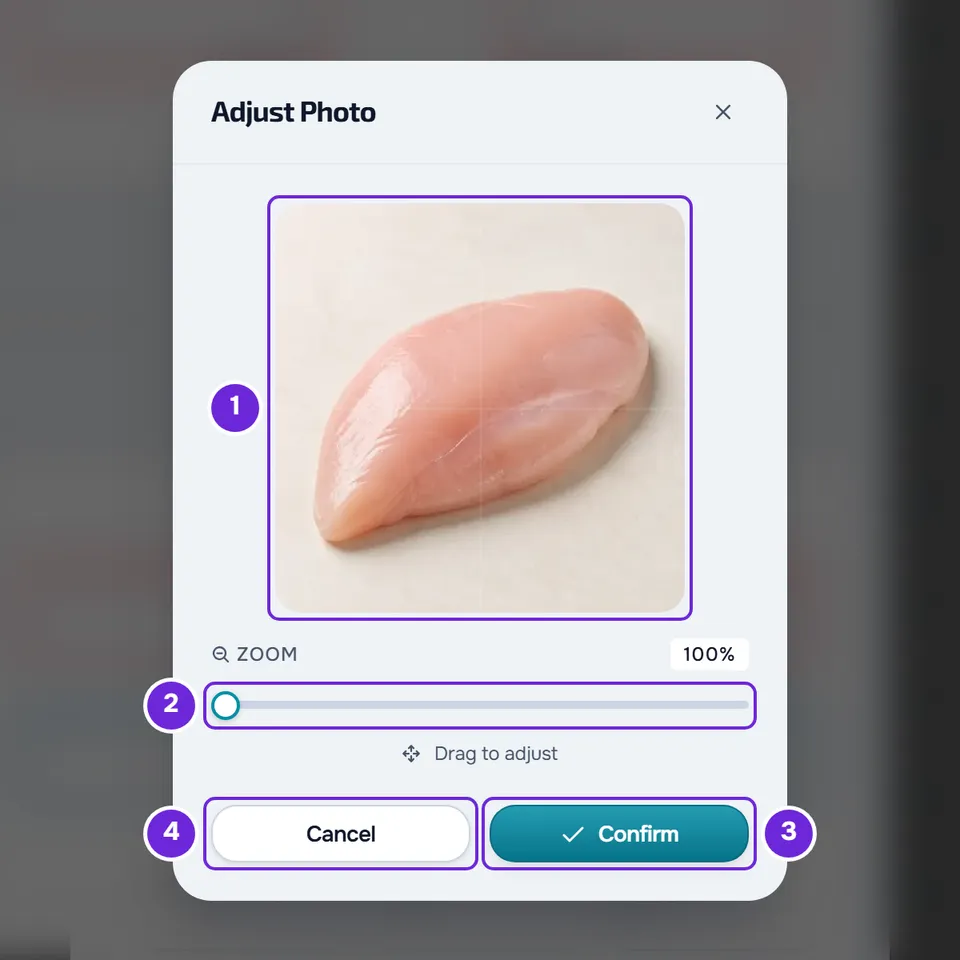
- In the Adjust Photo window, drag the image to frame it in the square and zoom in with Zoom, from 100% to 300%; on a computer also with the mouse wheel and on a phone with two fingers. Select Confirm, or Cancel to not use the image.
- The photo is cropped to a 400 by 400 pixel square and uploaded. The thumbnail appears in place of the button, with Change and Remove; selecting the thumbnail opens it at full size.
The photo takes up storage space in the account. When editing, Remove or a new photo only replace the old one when you select Save, and the old file is only deleted if no other food, plan, meal or food log uses it.
If the photo doesn't upload, “Error uploading image” appears at the end of the form: try again or save the food without a photo. If the storage space has run out, see “Storage limit exceeded”: how to free up space. If “Couldn't open the image.” appears when you select Confirm, the browser couldn't read the image: choose another one, for example in JPG or PNG.
Editing a food
- In My foods, open the ⋮ menu on the food's row, or right-click the row, and select Edit. You can also select the row to open the detail view and then Edit Food.
- The Edit Food window opens, with the values saved per 100 g or 100 ml. Change what you need, with the same rules as a new food, and select Save.
- “Food updated” appears and the list shows the new values.
- If you clear an optional value, it becomes not declared and the detail view shows “-”.
- The unit, the Quantity and the “How much is 1 …?” weight apply the next times you add the food to a meal.
Closing without saving
The form doesn't save drafts. If you close the window with unsaved changes, with Cancel, with the X, with Esc or outside the window, “Save before leaving?” appears:
- Discard closes the window and loses what you typed.
- Save and leave saves the food, with the same checks as Create and Save. It stays disabled while Name is empty.
- The X on the prompt goes back to the form.
Common problems
“Set how much 1 dose is (in g or ml).”
The chosen unit needs the weight of one unit, and the “How much is 1 …?” block is empty or 0. Type how much one unit weighs or measures and save again. The message shows the unit's short name, for example “un” instead of “piece” or “c.sopa” instead of “tablespoon”.
The food doesn't save and a red message appears
The form checks the values before storing them, for example whether the calories are over 900 per 100 g or whether saturated fat is higher than fat. A one-letter name passes the form, but the server refuses it with “Invalid data. Check the fields.”. For each message and its fix, see Can't save a food.
The new food doesn't appear in My foods
The search, the filters and the favorites star stay active when you switch tabs: clear them and search again.
I don't see Edit in a food's menu
Only foods in My foods have Edit; Catalog foods must be copied first. As a team member, you only see Edit with the Nutrition > Edit permission, and Add with Nutrition > Create: ask the workspace owner for the one you are missing. See “No permission to access” and menu items missing for a member.
If this did not solve it, contact support with the food's name, the chosen unit and the exact message that appeared.
Questions
Can I share a food of mine with other professionals?
No. The foods you create stay in your workspace. In a team, members with the Nutrition > View permission see them in My foods.
How many foods can I create?
MyFitnessClient doesn't limit the foods you create. The other limits, such as the 255 characters of the name and the 100 of the brand, are in Food and meal library limits.
Does the client see the foods I create?
Only the ones you use in their meal plan. To add a food to a meal in the plan, see Add, edit and remove foods in a meal.