
Every supplement in a plan has at least one period. In each period you choose the frequency, the duration and how many doses there are per day; in each dose, the amount, the time of day, the day type and a note. This decides what the client sees each day and the reminders they get.
Before you start
- In a team, you need the Supplements permission with Edit (on the plan creation screen, with Create). Without Edit, the plan opens read-only.
- The supplement has to be in the plan: Add and arrange supplements in a supplement plan. For a supplement with several periods, like loading and maintenance, see Split a supplement into periods: loading and maintenance.
- The unit and the quantity type belong to the whole period and are the same in every dose; the amount belongs to each dose. That way you can ask for, for example, 500 mg at breakfast and 250 mg before bed.
- On the plan page, every change saves on its own and reaches the clients who already have the plan right away. On the plan creation screen, the fields are the same, but nothing is saved until you select Create.
Steps
To set what the client takes each day of a period:
- In the side menu, in the Management group, select Supplements and, on the Supplement plans tab, open the plan.
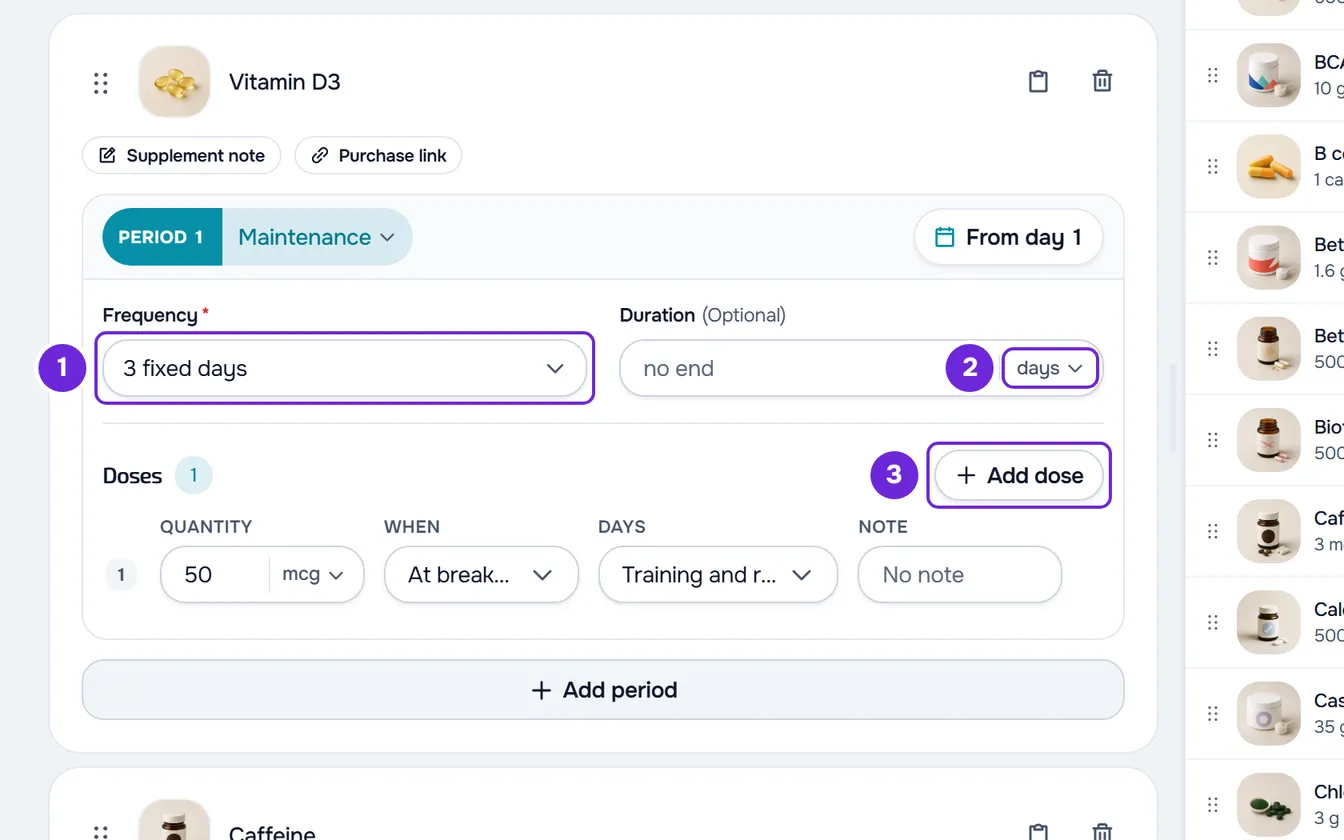
- On the supplement's card, in the period's box, select the Frequency field and choose Every day, Days of the week 1, N days per week, Every N days or As needed.
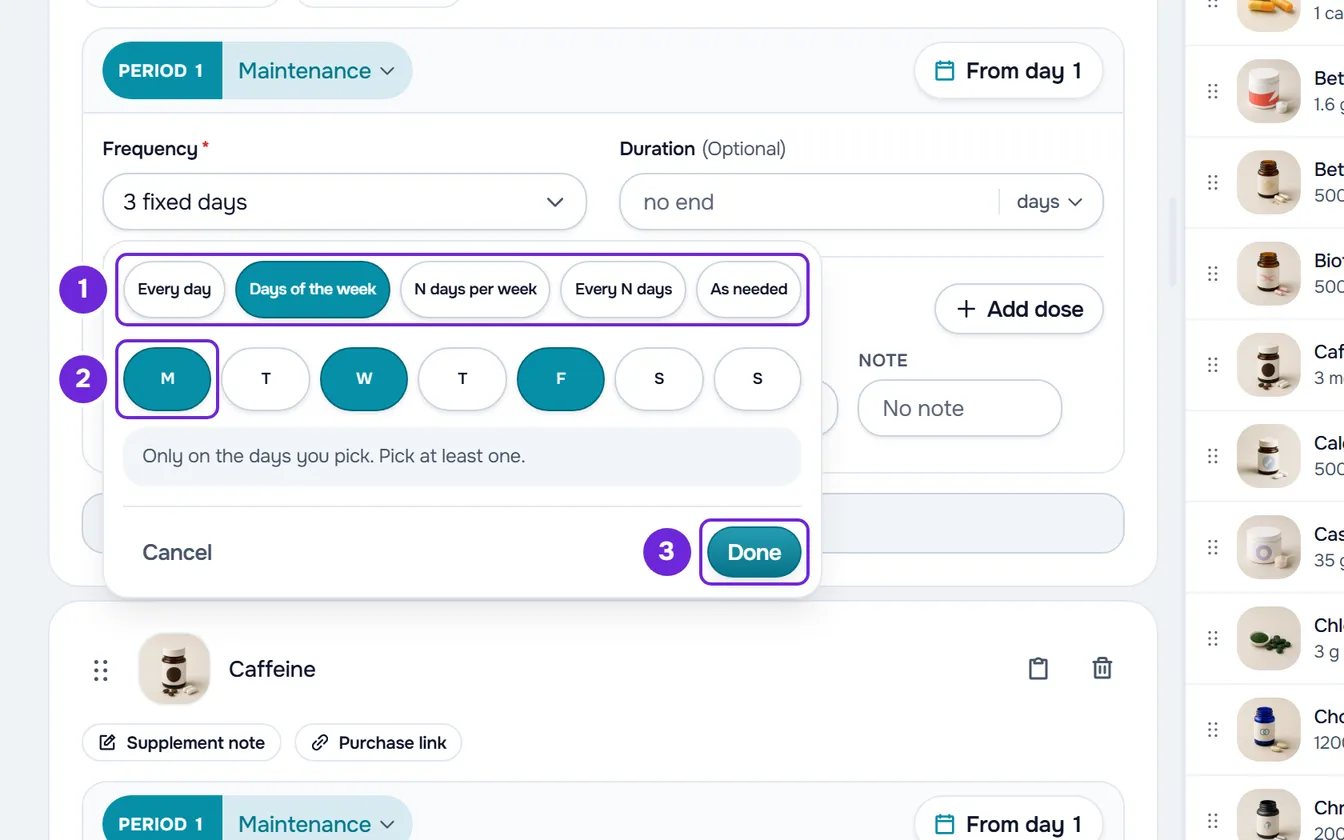
- If the option needs more, complete it in the same panel: the days in Days of the week 2, how many days, from 1 to 7, in N days per week, or the interval, from 1 to 365 days, in Every N days. Then select Done 3.
- Optional: in the Duration field, first choose days, weeks or months 2, then type how long the period lasts. Empty means no end.
- In Doses, select the number next to the heading, type how many doses per day the client takes, from 1 to 20, and select Done. To add just one, select Add dose 3.
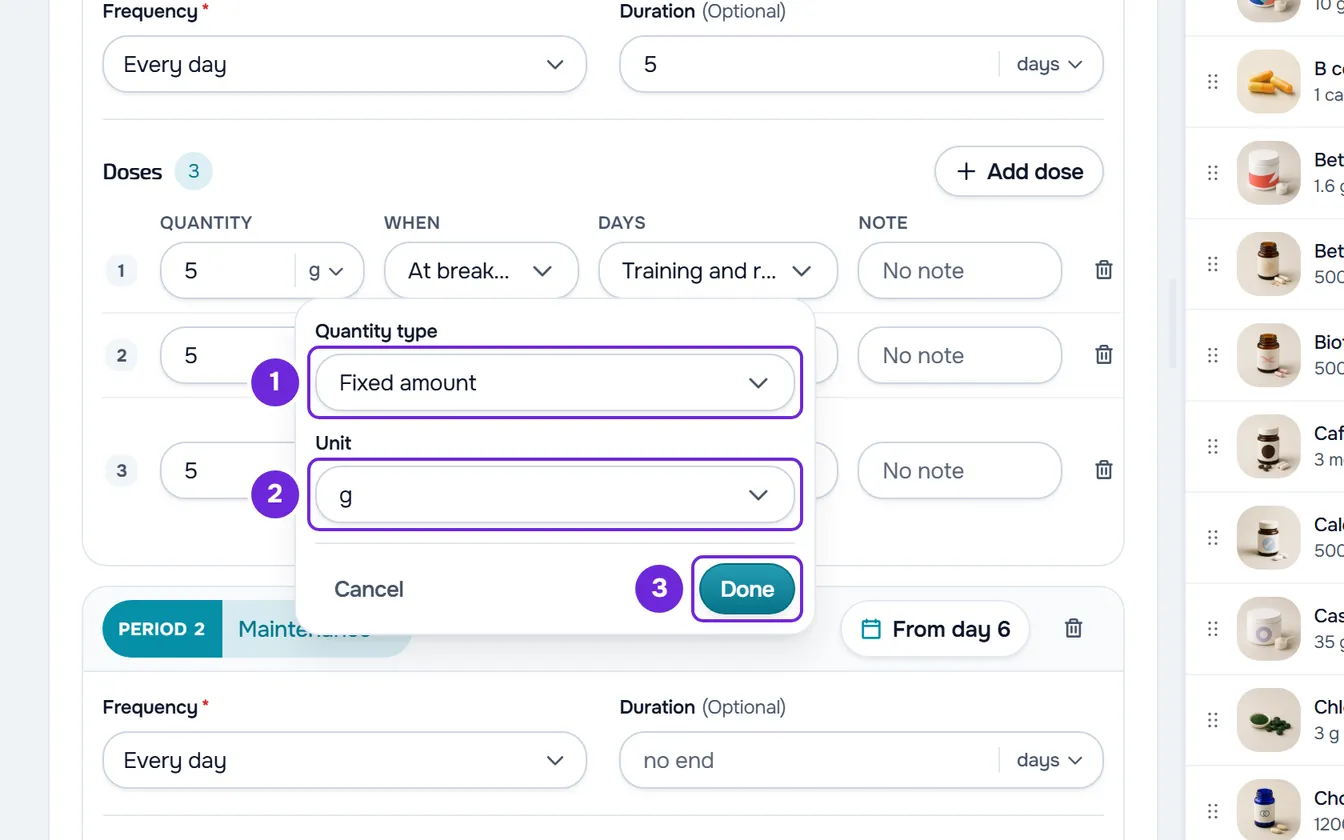
- In a dose's amount field, select the unit, for example g, choose the Quantity type 1 and the Unit 2, and select Done 3. With Between minimum and maximum, also type the Minimum and the Maximum and skip the next step.
- In each dose, type the amount in the Quantity 2 column. Commas and periods both work.
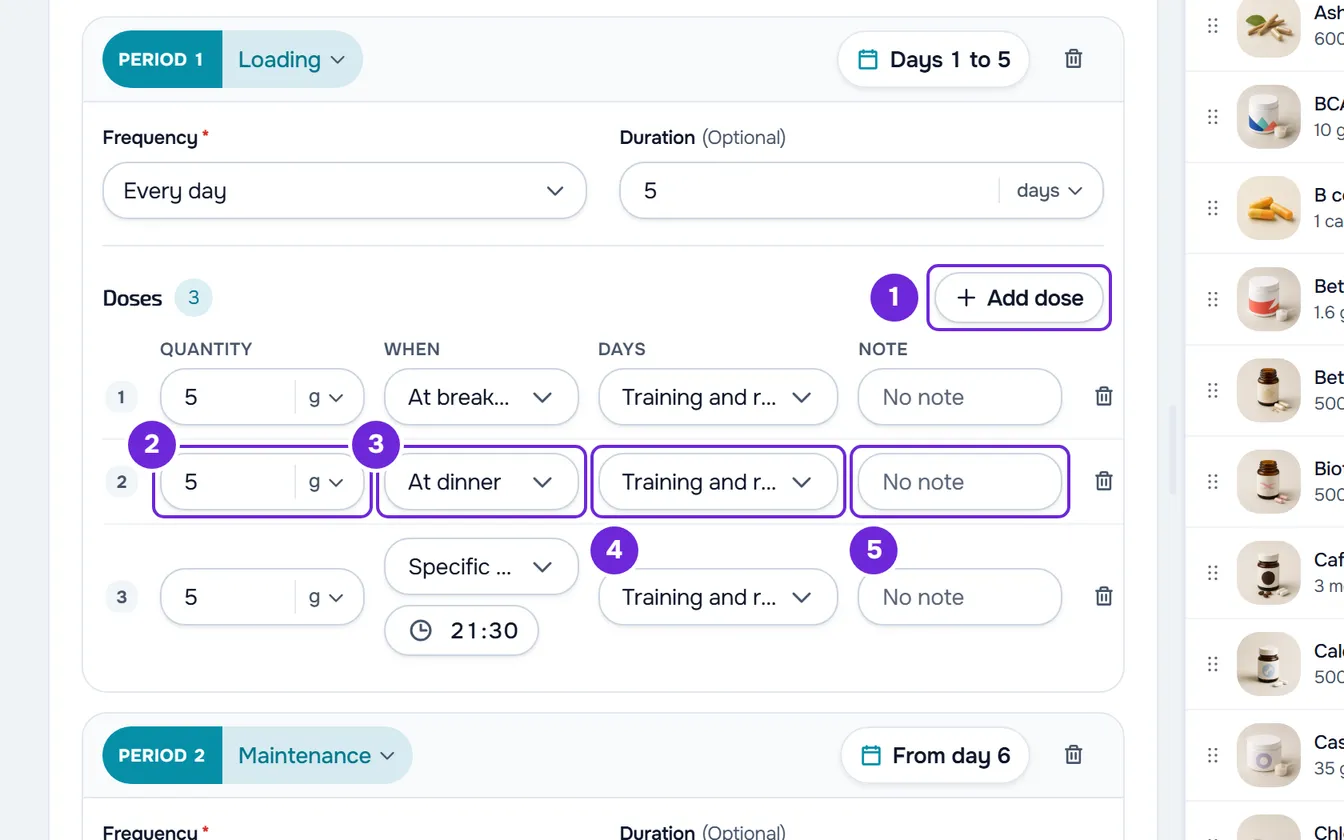
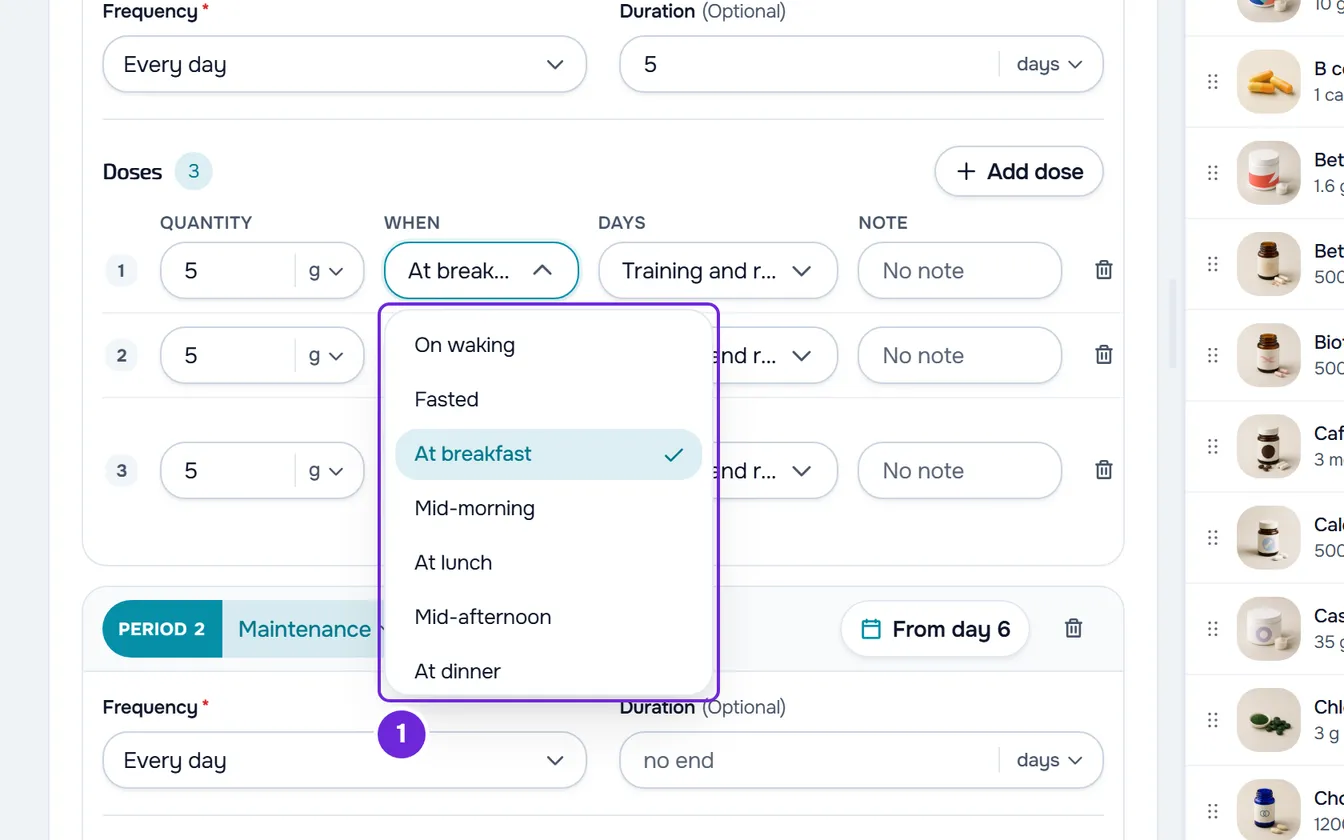
- In each dose, choose the time of day in When 1. With Specific time, also choose the time in the time field that appears.
- In each dose, choose in Days 4 whether it is for Training and rest, Training days only or Rest days only.
- Optional: in Note 5, type what the client should know about that dose, up to 500 characters.
The lists, the quantity type and the unit save as soon as you choose; the Duration, the amount and the note save half a second after the last keystroke or when you leave the field. The Frequency panel and the dose count panel save when they close, with Done, with Esc or when you select anywhere outside them, and Cancel closes them without saving. The Minimum and the Maximum save when you close the unit panel or leave it. At the end, the Frequency field shows your choice, for example “3 fixed days”, “3 days per week” or “every 3 days”. On a narrow screen, the doses grid scrolls sideways. In a Washout period, the box doesn't show Doses: on those days the client has no doses of that supplement.
The five frequencies
The frequency sets the days on which the client gets the supplement in that period:
| Frequency | What you choose | What the client gets |
|---|---|---|
| Every day | Nothing else. | The supplement every day. |
| Days of the week | The days, on the seven buttons from Monday to Sunday (M, T, W, T, F, S, S). At least one. | The supplement on those days only. With all seven days chosen, the field shows “Every day”. |
| N days per week | How many days per week, from 1 to 7. | The supplement every day, in the “Weekly goal” section, with the count of the week's completed days: the client chooses which days to take it. A day counts when they mark all of that day's doses. It has no reminders. |
| Every N days | The interval, from 1 to 365 days. | The supplement on day 1 and then every N days (with 3, on days 1, 4, 7 and so on), counted from the first day of period 1, even in a period that starts later. |
| As needed | Nothing else. | The doses in the collapsible “As needed” section, for the client to take when they need to. They have no reminders and, if not marked, do not count as missed. |
The duration
- A week counts as 7 days and a month as 30 days. The duration is saved in days: when you come back to the page, it shows in days.
- Period 1 starts on the client's first day in the plan or, for a supplement you add to a plan the client has already started, on the day you add it. With several periods, each one starts the day after the previous one ends, and only the last one can have no end.
- The duration does not take the supplement away from the client: after the last period ends, they keep getting it as in that period, unless Repeat the sequence is turned on. To make the client stop getting it on a date, choose the end date of the assignment (Assign a supplement plan to clients) or take the supplement out of the plan.
Quantity types and units
The quantity type sets how the client reads the amount of each dose:
| Quantity type | What you type | What the client sees |
|---|---|---|
| Fixed amount | The amount of each dose, for example 5 g. | That amount. |
| Per kg of body weight | The amount per kilo of body weight, for example 3 mg/kg. | The amount multiplied by the client's most recent logged weight and rounded: to the nearest ten from 100 up, to a whole number from 10 to 100 and to one decimal place under 10. With 3 mg/kg and 82 kg, they see 250 mg. With no weight logged, they see “3 mg/kg” and cannot mark the dose. |
| Per hour of exercise | The amount per hour, for example 60 g/h. | The same amount, with “/h”. The amount is not calculated. |
| Between minimum and maximum | The minimum and the maximum, once for all doses. | The range, for example 3–5 g. |
With Between minimum and maximum, the Quantity column leaves the doses grid and the range moves to the Unit field, which sits over the doses, where you change it later. A dose where you had already typed an amount can keep it: the client sees that amount as the minimum of that dose, not the Minimum. For the range to apply equally to all doses, choose Between minimum and maximum before you type the doses' amounts. For the warning the client sees with no weight, see “An up-to-date weight is needed to calculate the amount”.
The units in the list are g, mg, mcg, IU, ml, L, capsule, tablet, softgel, chewable, gummy, sachet, ampoule, scoop, tsp, tbsp, drop, spray and serving. For another one, type it in the Custom field, at the bottom of the list, with up to 20 characters, and select the check mark or press Enter. An empty or negative amount shows “Enter an amount of zero or more.” and is not saved.
New doses and fewer doses
- A new dose comes in as Training and rest, with no note, and may not bring the amount of the other doses: check it.
- The time of day of a new dose is the first one in this order that the period does not use yet: At breakfast, At lunch, At dinner, Before bed, Mid-morning and Mid-afternoon. With all of these in use, it is Split throughout the day. The times of day of existing doses do not change.
- Lowering the number of doses takes the last ones out of the grid. To take out a different one, select the trash icon at the end of its row, which only appears with more than one dose. The plan creation screen has no such icon: lower the number.
- If the plan is already assigned to clients, lowering the number of doses or removing a dose asks for confirmation, in “Reduce the number of doses?” or “Remove this dose?”. Removed doses stop showing for the client, their history stays, and Undo, in the plan header, brings them back as long as you do not leave or reload the page. Cancel leaves everything as it was.
The 17 times of day
The client sees doses grouped in cards by time of day, each with a time range based on the times of their routine. With the default times (waking at 07:00, breakfast at 08:00, lunch at 13:00, dinner at 20:00 and bedtime at 23:00), the times of day work out like this:
| Time of day | Starts | Lasts |
|---|---|---|
| On waking and Fasted | At wake-up time (07:00) | 60 minutes |
| At breakfast, At lunch and At dinner | At the time of that meal (08:00, 13:00 and 20:00) | 90 minutes |
| Mid-morning | Halfway between breakfast and lunch (10:30) | 90 minutes |
| Mid-afternoon | Halfway between lunch and dinner (16:30) | 90 minutes |
| In the evening | Halfway between dinner and bedtime (21:30) | 90 minutes |
| Before bed | At bedtime (23:00) | 60 minutes |
| Before training | 30 minutes before the workout starts | Until the workout starts |
| During training | When the workout starts | Until the workout ends or, with no end time, 60 minutes |
| After training | When the workout ends or, with no end time, 60 minutes after it starts | 45 minutes |
| Specific time | At the time you choose (12:00 when you first choose this option) | 30 minutes |
| With a meal, With the largest meal, Any time and Split throughout the day | No time range | No time range |
The client can change the five routine times, and so can you, in Schedule, in the supplements on their profile. The times of day based on those times change with them, and the ones halfway between are rounded to the nearest 5 minutes: see Set your supplement times. The workout time is the time of a workout already logged that day; otherwise, the time scheduled in the program or in the calendar; otherwise, the client's usual training time, which does not count on a rest day. With none of these, the training times of day have no time range.
With Specific time, the time of day is named after the time itself, for example 21:30, and the client sees “until 22:00”. Doses with the same time of day and the same time range sit in the same card for the client, even if they belong to different supplements. For what the client sees, see Times of day, tags and sections in your supplement day.
Common problems
“Pick at least one day.”
It appears in the Frequency panel when you choose Days of the week with no day. The panel does not close or save, so the supplement does not disappear from the client's list. Choose at least one day, or select Cancel to go back to the previous frequency.
“Choose between 1 and 3650 days.”
It appears in the Duration field when the duration, counted in days (a week is 7, a month 30), is not a whole number or falls outside 1 to 3650 days (about 10 years). For example, 0.5 months is 15 days and saves. Fix the number or change the unit.
“Choose between 1 and 20 doses.”
It appears in the dose count panel when the number is not a whole number or is outside 1 to 20. The panel does not close. Type a number from 1 to 20, or select Cancel. With 20 doses, Add dose is disabled.
“The maximum must be at least the minimum.”
It appears with Between minimum and maximum when the Maximum is empty or less than the Minimum. On the plan page, the range only saves when both are right. Correct the Maximum.
If this did not solve it, contact support with the plan name, the supplement name and the message you saw.
Questions
Why does a “Training days only” dose show for the client on a rest day?
The client's list is the same every day: the dose shows with the “Training days only” tag and the client can mark it. The day type only decides the reminders, and only on a day known to be a training day or a rest day. See Turn supplement reminders on or off.
Why is the Every N days field empty?
The first time you choose this frequency in a period, the field is empty. If you leave it empty and close the panel, it saves 2: every other day.
If I change the frequency, do I lose what I had chosen?
Not while the panel is open: you can switch from one option to another and back without losing the days or the numbers. When the panel saves, only the chosen frequency stays, and the weekdays and the number of days per week of the other options are cleared.
Can I give each dose a different amount?
Yes. The amount belongs to each dose; the quantity type and the unit belong to the period and apply to all its doses. With Between minimum and maximum, you type the range once for all of them.
Can I put two doses at the same time?
Yes. Two doses with the same time of day, or with Specific time and the same time, sit in the same card for the client. With different times, each one has its own card.