
Before you start
- The copy holds one item at a time and lasts 24 hours. It stays in this browser, for your account and for the workspace where you copied. Copying something else replaces what was copied.
- There is no copy or paste on the screen for creating a meal plan or in a read-only course.
- As a team member, copying and pasting require the permission to change the page, for example Nutrition > Edit in a meal plan. Without it, the page shows neither Copy nor where to paste. In the meal library, being able to view it is enough to copy. The permissions for each destination are in The “Paste” button doesn't appear or pasting is refused.
Steps
To copy and paste a meal, a food, days, a supplement, a question or a lesson:
- Open the page where the item is: a meal plan, the meal library, a supplement plan, a questionnaire or a course.
- In the item's ⋮ menu, or in the right-click menu, select Copy. For days of a meal plan, select Copy day or Copy week.
- Open the destination page, which can be the same one. A bar 1 appears at the bottom with the name of what you copied and where it came from. In the editors, the cards stop responding and only the paste spots work.
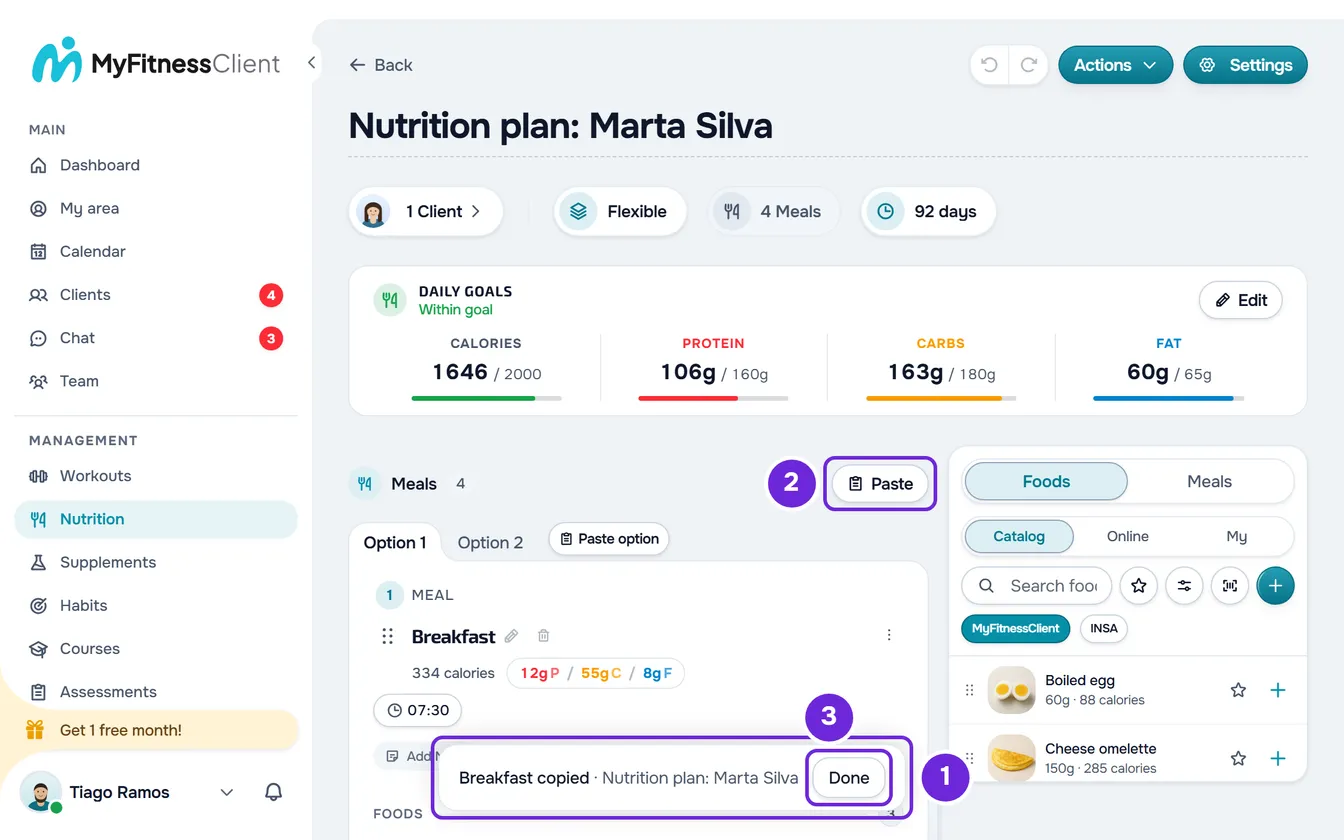
- In the spot where you want the item, select Paste 2, Paste here or Paste option. The spot changes to Pasted.
- Optional: paste the same item in other spots. Each spot accepts one paste per copy.
- Select Done 3 on the bar.
What you pasted stays at the destination, the bar closes and the copy is emptied.
Meal plans
| What you copy | How you copy it | Where you paste it |
|---|---|---|
| A meal, with all its options | Copy in the meal's ⋮ menu, or by right-clicking the card or an option tab | In a plan of any mode. In the flexible, weekly and sequential modes, Paste in the Meals header (in the last two, on the day chosen in the tabs). In the calendar, Paste on the day, or in the period when periods are turned on. |
| The meal as an option of another | The same Copy | Paste option, in place of the + of a meal's option tabs, in the flexible, weekly and sequential modes. The option that was open when you copied is the one that comes in. |
| A food, with its substitutions | Copy in the food's ⋮ menu, or by right-clicking the row | Paste here before, between or after the foods of the open option of any meal. In the calendar, open the meal to see them. |
| A day, in the weekly and sequential modes | Copy day in the Meals header, with the day chosen in the tabs (it only appears on a day with meals) | In a plan of the same mode: choose the day in the tabs and select Paste. |
| A week or several days, in calendar mode | The Copy week icon in the week's header or by right-clicking that header; or Select, the days and Copy on the selection bar | In a calendar plan: Paste on a day, which receives the first copied day, with the others after it; or Paste as a new week. |
- Pasting adds to what is already in the plan and never replaces it. Days bring their meals and, in calendar and weekly modes, each day's goals.
- Days only paste into a plan of the same mode. In another mode, the bar says where they paste, for example “Only into a weekly plan”. A meal and a food paste into any mode, but never into a workout program.
- In the calendar, pasting after the end makes the plan grow and shows, for example, “The plan is now 28 days”. Copy takes up to 70 days at a time: with more, “You can copy up to 70 days at a time.” appears. Each paste of days can include up to 500 meals, and nothing goes past day 365. Days that would go past it show “Duration can be up to 365 days.” and aren't pasted.
- A meal pasted into a calendar period that isn't the one for its time loses its time, with the notice “Time removed (period changed).”
- A meal accepts up to 51 options, including itself, and each meal or option up to 500 foods.
- After a paste, the plan's Undo history starts over: to remove what you pasted, delete it. See The meal plan editor: autosave and Undo.
Meal library
- To copy, select Copy in the row's ⋮ menu or in the right-click menu. Being able to view the library is enough.
- To bring in a meal from a plan or from the library itself, select Paste next to Create Meal. A new meal comes in with the option that was open when you copied, because the library has no options.
- A copied food pastes inside a meal's window, in Paste here, and is saved when you save the meal.
- In the library, each pasted food keeps up to 20 substitutions; the others are left out.
- Pasting a meal requires the Nutrition > Create permission.
Supplements
- To copy, select the copy icon in the supplement's header, next to the remove icon, or Copy by right-clicking the card.
- The whole supplement is copied: name, brand, photo, reason, purchase link, notes, periods, amounts and doses. Nothing that belongs to each client goes with it.
- In the destination plan, select Paste here before, between or after the supplements.
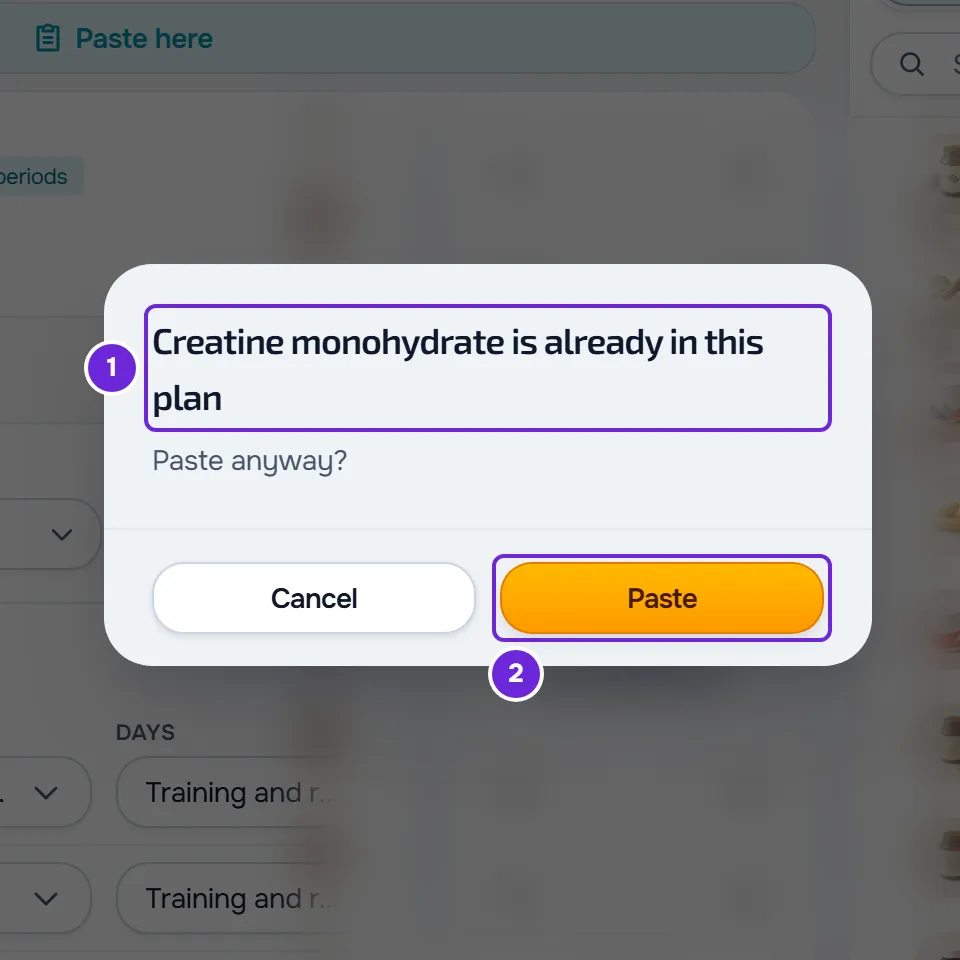
- If the plan already has that supplement, from the library or with the same name, the page asks, for example, “Creatine is already in this plan” and “Paste anyway?”. Select Paste to continue. The question also appears on each later paste of the same copy.
- For clients who have already started the plan, the pasted supplement starts today, in the first period. For a client who starts later, it starts on their first day.
- If the supplement doesn't stay in the chosen position, it goes to the end of the plan and “Pasted at the end of the plan” appears.
- Copying and pasting require the Supplements > Edit permission. With Preview on, there is nowhere to paste.
Questionnaires
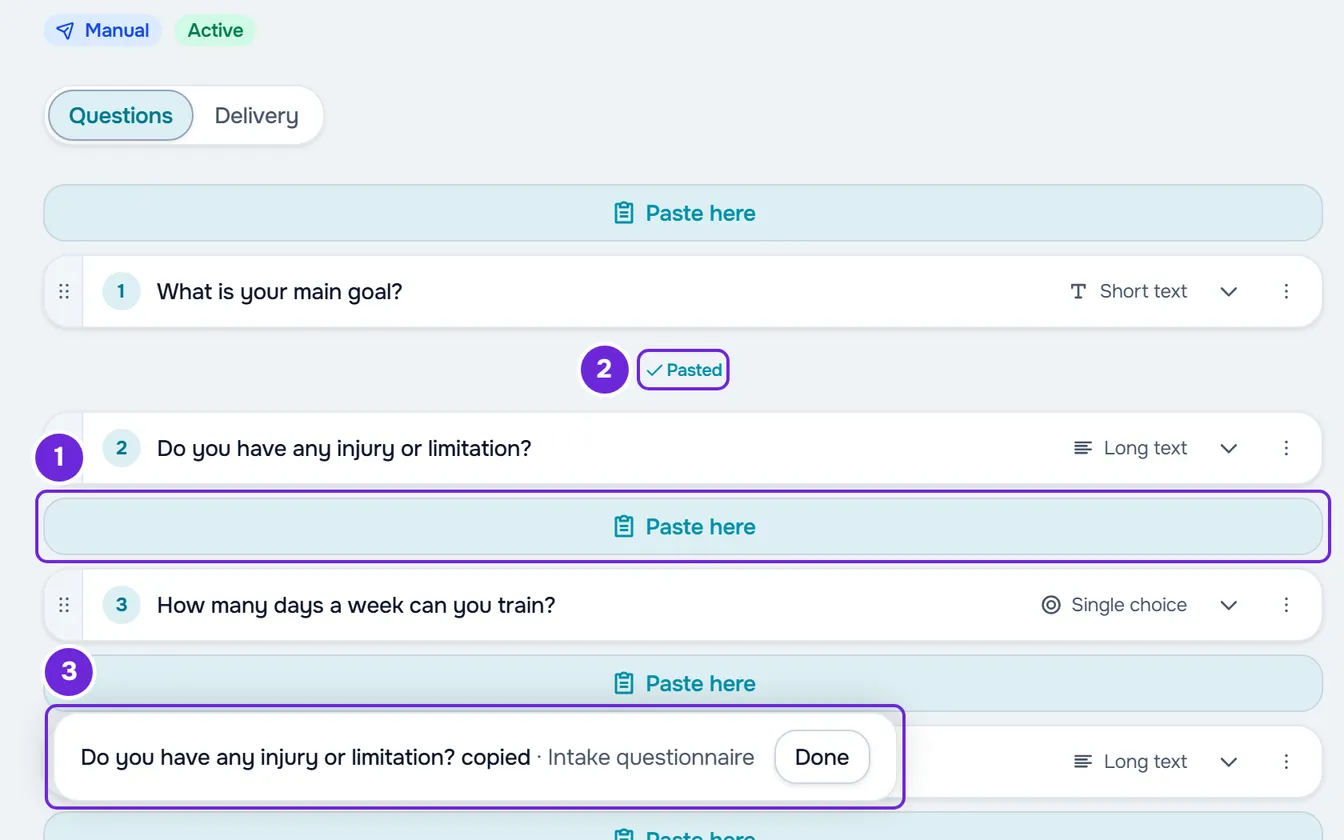
- To copy a question, select Copy in its card's ⋮ menu or in the right-click menu. Text and page blocks aren't copied.
- In the destination questionnaire, on the Questions tab and in the original language, select Paste here before, between or after the blocks.
- The pasted question is new: it takes the text, the type, the options, the scale, the limits and whether it is required, plus the translations for the languages the destination questionnaire uses. It doesn't take the condition that shows it or the link to the check-in measurements.
- A questionnaire has at most 200 blocks. When it is full, there is nowhere to paste and the bar says “This questionnaire already has 200 blocks”.
- Copying and pasting require the Questionnaires > Create permission.
Courses
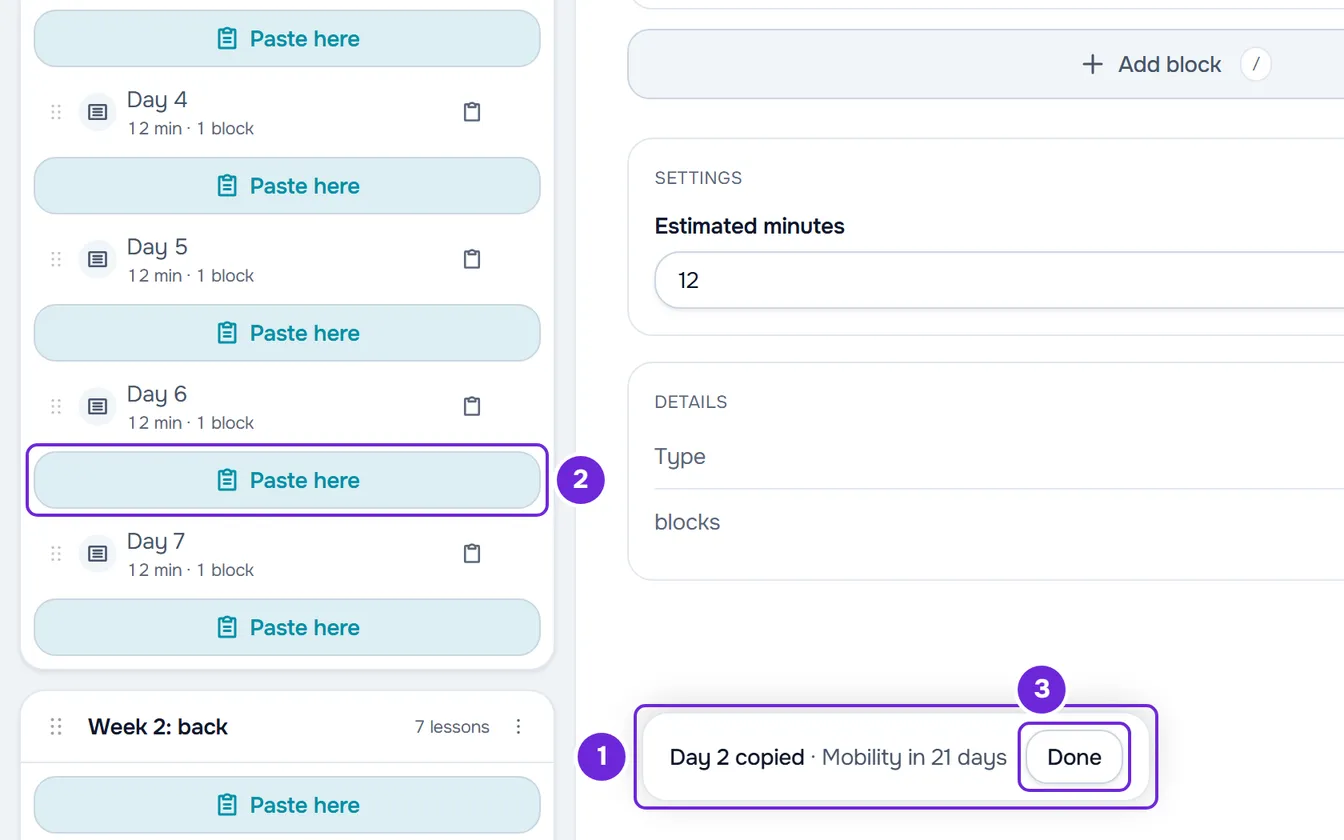
- To copy a lesson, select the copy icon on the lesson's row, or Copy in the right-click menu. To copy a module, select Copy in the module's ⋮ menu or by right-clicking its header.
- In the same course or another one, select Paste here: between the lessons of any module, for a lesson; between the modules, for a module. In a course without modules, the lesson goes into a new module, “New module”.
- The content is read from the source course at the moment of pasting. A lesson from another course, on its own or inside a module, arrives without a free preview, so that it isn't left open on the destination course's sales page.
- Clients only see what you pasted after you publish the course.
- A course accepts up to 100 modules, 500 lessons and 200 lessons per module. When a paste goes past a limit, a message appears, for example “This course has reached the 500-lesson limit.”
Common problems
Neither the bar nor Paste appears
The open page doesn't accept what you copied (a meal doesn't paste into a program, for example), the copy has expired, or you're missing a permission. See each cause in The “Paste” button doesn't appear or pasting is refused.
The bar says “Only into a weekly plan”
You copied days from a weekly plan and the open plan is in another mode. Days only paste into a plan of the same mode (calendar, weekly or sequential), and the same applies to “Only into a calendar plan” and “Only into a sequential plan”: open a plan in that mode, or copy the meals one by one, which paste into any mode.
Pasting shows an error
The source was deleted, or the paste goes past a limit on days, meals, options, foods, lessons or modules. In a course, a deleted source shows “What you copied no longer exists.” Copy again from an item that exists, or paste less at a time.
Questions
Can I copy a whole meal plan?
Not in one go. A whole plan, questionnaire or course is duplicated in the list: see Duplicate a meal plan. In a calendar plan, you can copy up to 70 days at once and paste them into another calendar plan.
If I change the source after copying, what comes in?
Meals, days, lessons and modules are read from the source at the moment of pasting, so what it has at that moment comes in. Foods, supplements and questions come in as they were when you copied them. Pasting never changes the source.
Are clients notified?
In a meal plan or a supplement plan, pasting doesn’t send a notification: clients see the change in the plan they already have. In a course, they only see what you pasted after you publish.