
Before you start
- The client must be Active or Scheduled. For a client who is Pending, Ended or Archived, the tab shows “This client's coaching is closed. Reactivate them to make changes.” and does not let you assign.
- A client has only one meal plan of yours at a time. If they already have one, the Assign button does not appear: first remove the current plan (section “Remove the plan from the client”) or assign the new one from the plan itself, which takes the client off the previous one in the same operation. See Assign a meal plan to one or more clients.
- In a team workspace, you need the Nutrition > Edit permission to assign, change the dates and remove the plan, and Nutrition > Create to create a new plan from the profile. Without Nutrition > View, the tab shows “You do not have access to this area”. The workspace owner always has these permissions.
Interactive tutorial
Opens in the app and needs you to be signed in.
Steps
To assign a meal plan to a client:
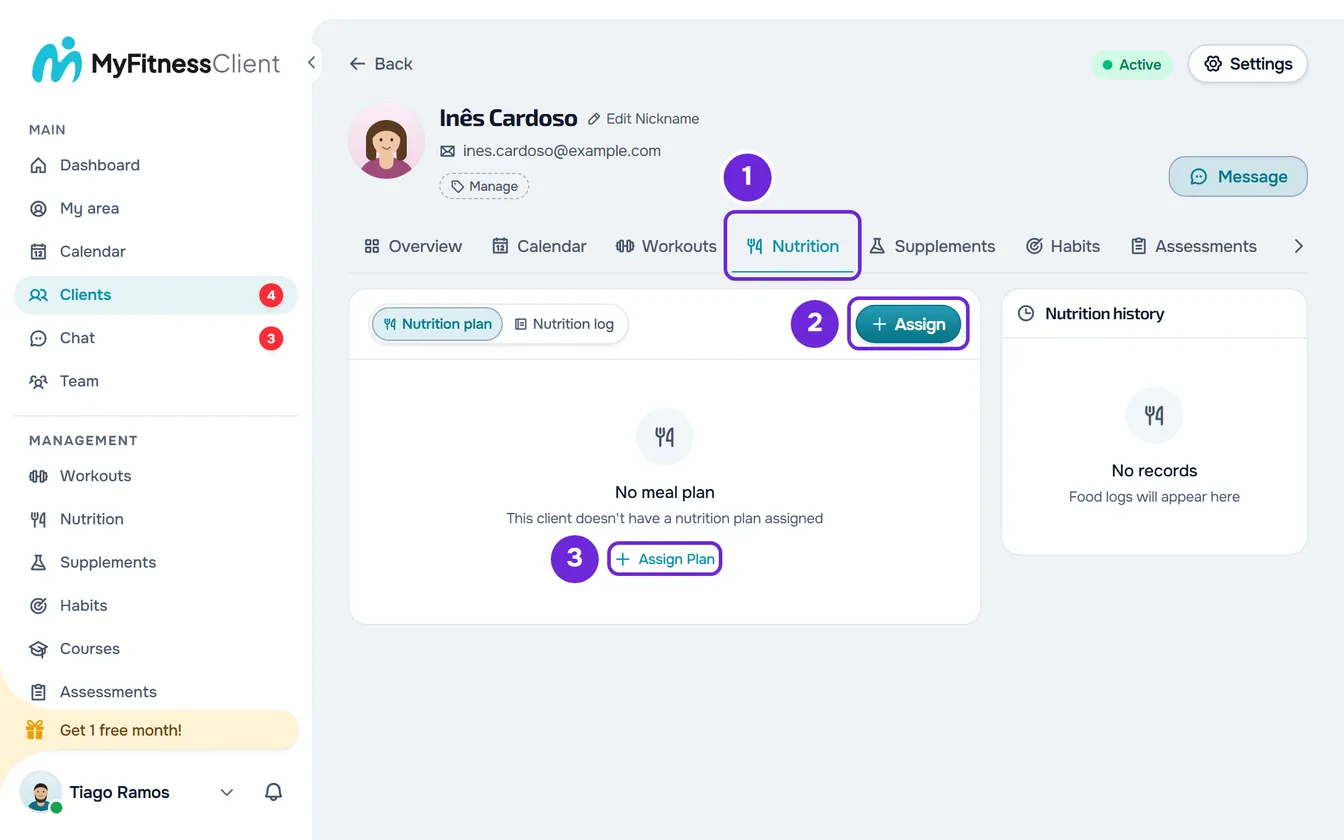
- In the side menu, select Clients and open the client's profile.
- Select the Nutrition 1 tab. It opens on the Nutrition plan sub-tab, which says “No meal plan” while the client has no plan.
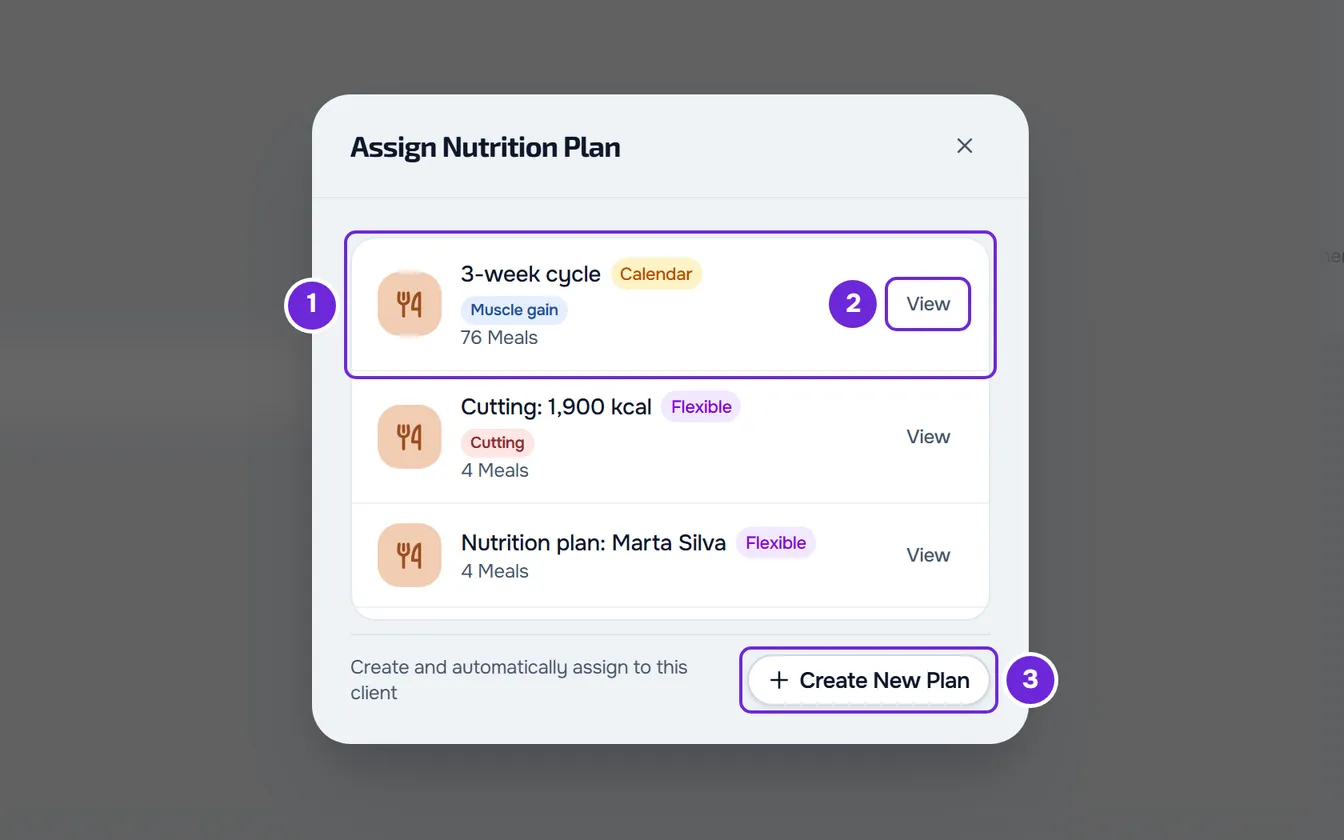
- Select Assign 2 or Assign Plan 3. The Assign Nutrition Plan window opens, with your meal plans and the mode and number of meals of each one.
- Select the plan 1. With more than 5 plans, a search by name and a tag filter appear. To look at a plan before choosing it, select View 2 on its row: the plan opens in another browser tab.
- In the dates step, which shows the client's name, confirm the Start 1 under Access dates. It comes set to today, or to the day their access opens if the client is scheduled, and it does not accept past days.
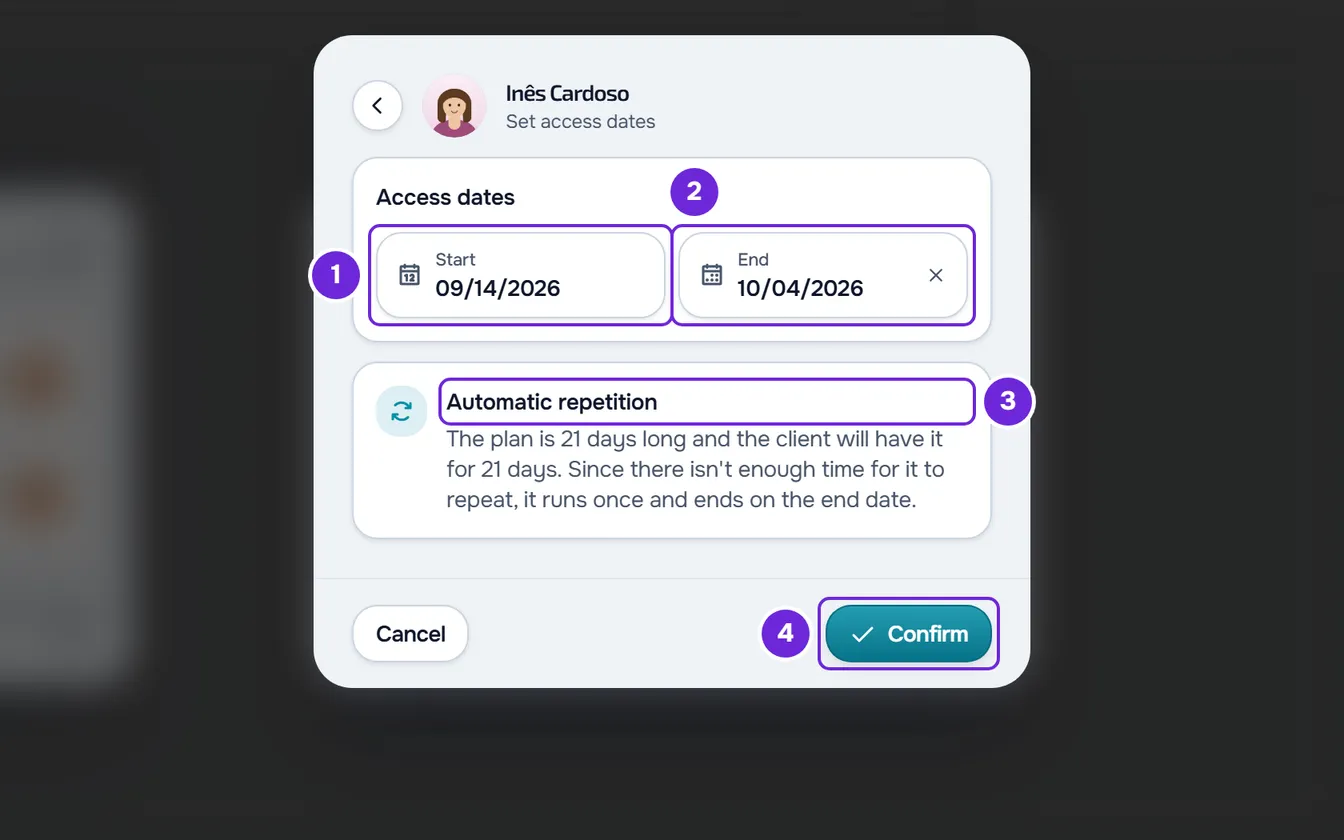
- Optional: choose or change the End 2. If the plan has a duration, the end comes filled in to cover it; with no date, the field says “No end” and the plan has no time limit. The Automatic repetition 3 card explains what happens between the two dates, for example how many times the client repeats the plan. If the end goes past the end of the client's access, “The plan outlasts this client's access window.” appears: it is only a warning, and you can still confirm. With a monthly fee that renews, the warning does not appear.
- Select Confirm 4.
“Meal plan assigned” appears and the card now shows the client's plan.
What the client receives
- An active client immediately receives the “New meal plan” notification, with the name of the plan, and sees the plan in Nutrition, in the app, between the start and the end.
- A scheduled client receives nothing at that moment: they are notified when their access opens. The plan never starts before that day, even if you choose an earlier start.
- A client whose monthly plan or pack does not include Nutrition keeps the assigned plan, but is not notified.
- Restricted mode is not chosen when assigning. If the client had a meal plan of yours that ended, it stays as it was on that plan; a client with no previous plan, or whose plan you removed with Unassign, starts with it off. To change it, open Settings, at the top of the profile, and turn Restricted mode (nutrition) on or off.
What the client sees each day, depending on the plan's mode, is in What the client sees and gets from the meal plan.
Create and assign a new plan in one go
If no plan fits, in the Assign Nutrition Plan window select Create New Plan, at the end of the list, and fill in:
- Name: 2 to 100 characters. With a single letter, “Name too short (minimum 2 characters)” appears and the create button stays inactive.
- Distribution Mode: Flexible, Weekly or Calendar. The difference between the three is in Meal plan modes: Flexible, Weekly and Calendar.
- Daily Goals: calories, protein, carbs and fat. They come with 2000 kcal, 150 g, 200 g and 70 g; calories accept up to 10000 and each macro up to 1000 g. An empty field has no goal.
Select Create & Assign. “Meal plan created” appears and the plan editor opens, still without meals, so you can add them: see Create a meal plan.
This path skips the dates step. The plan is assigned from today, or from the day their access opens: in Calendar mode, the plan has 7 days and the client keeps it for 7 days; in the other modes, it has no end. To change the period, use the dates pencil (section “Change the dates for this client only”). An active client immediately receives the “New meal plan” notification, even with the plan still empty. Restricted mode starts off.
The plan card
With a plan assigned, the Nutrition plan sub-tab shows:
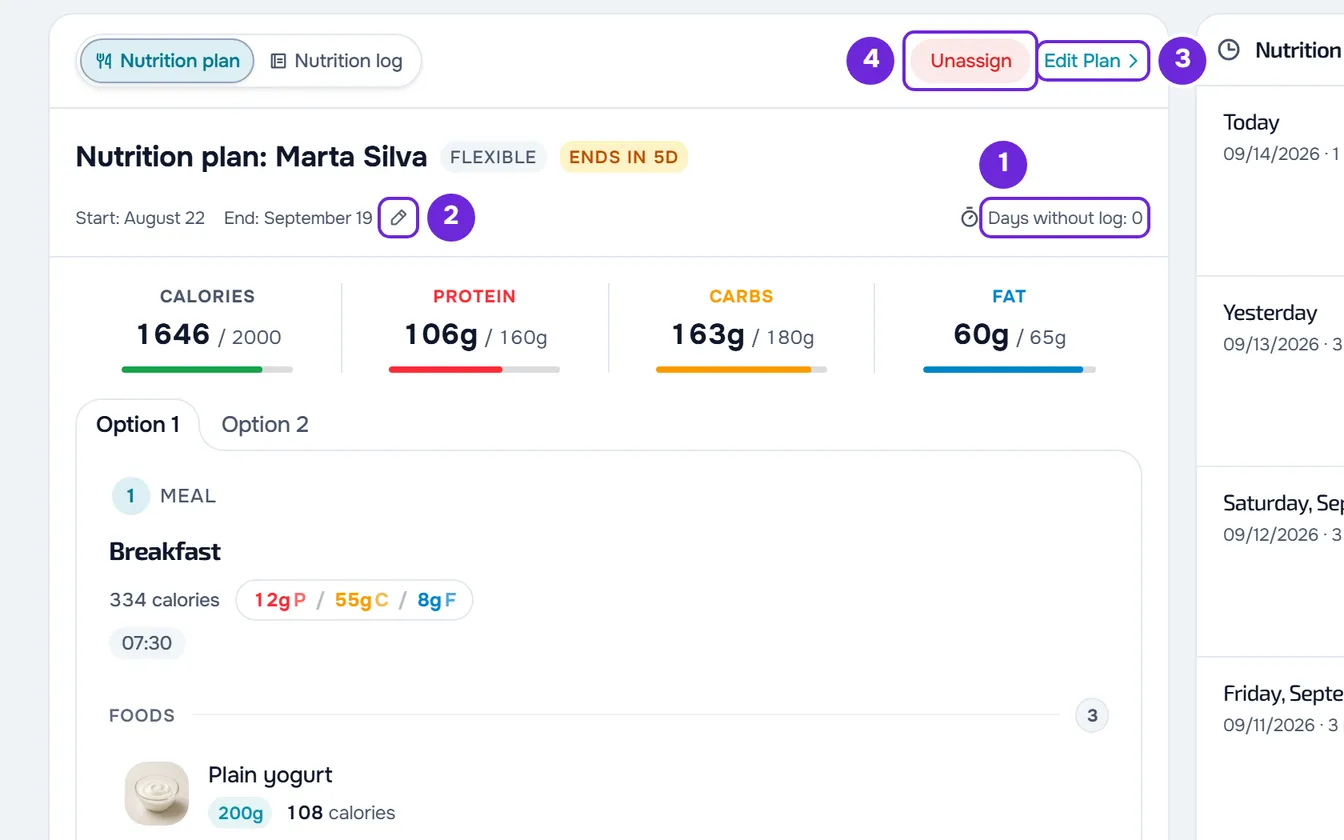
- The name and mode of the plan. In the last 7 days, a badge with the days left also appears, for example “Ends in 5d”, in red when 2 days or fewer are left, and “Ends today” on the last day.
- The client's position in the plan: in Weekly mode, the 7 days of the week; in Calendar mode, the week of the cycle they are in. Next to the start and the end, Days without log counts the days since the client's last log.
- The plan in read-only form: the daily goals, the meals with their foods, the meal options and the substitutions.
When the end date passes, the card says that the plan has ended and on which day. To give them the same plan or another one, select Assign Plan and follow the steps.
Change the dates for this client only
On the plan card, select the pencil next to the dates. The same dates step opens, with the current dates and “Edit access dates”. Change the Start or the End and select Confirm: “Dates updated” appears. The change applies to this client only: the plan and the other clients who have it stay as they are, and the client is not notified.
Edit the client's plan
Edit Plan (on a narrow screen, Edit) opens the plan editor. If the plan is assigned to more than one client, the Edit Nutrition Plan window opens first: Create personal copy gives this client a copy of their own, which then appears on the card, and Edit for everyone opens the shared plan, with the changes reaching every client who has it. See Change dates, split off or remove a client from a meal plan.
Remove the plan from the client
At the top of the card, select Unassign and confirm with Unassign. “Meal plan unassigned” appears and the tab goes back to “No meal plan”.
Unassign only takes the plan away from this client: the client stays on your list, the plan stays in your meal plans and the meal logs the client has already made stay in the history. The client stops seeing the plan and is not notified.
Common problems
The Assign button does not appear
One of these causes:
- You are on the Nutrition log sub-tab. The plan buttons only appear in Nutrition plan.
- The client already has a plan: at the top of the card are Unassign and Edit Plan. Remove the current plan or assign the new one from the plan itself.
- The client's coaching is closed and the tab says “This client's coaching is closed. Reactivate them to make changes.”
- In a team workspace, you are missing the Nutrition > Edit permission. See “No permission to access” and menu items missing for a member.
The plan I am looking for is not on the list
The search only looks in the plan name, the tag filter only shows the plans that have all the chosen tags, and the window lists the 200 most recent plans. If the window says “No existing plans”, you do not have any meal plan yet: select Create New Plan, under that sentence, to create the first one already assigned to this client (section “Create and assign a new plan in one go”).
Create New Plan does not appear
In a team's workspace, creating a plan from the profile requires the Nutrition > Create permission, in addition to Nutrition > Edit. Without it, the window does not show Create New Plan. Ask the workspace owner for it or assign a plan that already exists.
The client does not see the plan
The client only sees the plan between the start and the end. A scheduled client only sees it when their access opens, and a start in the future postpones the plan until that day. Check the dates on the plan card and change them with the pencil, if needed.
If the client's monthly plan or pack does not include Nutrition, the section does not appear for the client and they do not see the plan. Change what that plan includes, as in Create recurring plans and packs for clients.
If this did not solve it, contact support with the client's name, the plan's name and the exact message that appeared.