
Before you start
- Each browser and each app where you sign in to your account has its own session. The list shows the sessions that can still access the account, including the one on the device you're using.
- While you use MyFitnessClient on a device, the session renews by itself: access lasts 15 minutes and is renewed without you having to do anything. If the device goes 30 days without renewing the session, the session ends and you have to sign in again.
- Changing your password, resetting it or confirming a new email ends the sessions on every device, including this one.
Interactive tutorial
Opens in the app and needs you to be signed in.
Steps
To view and end sessions on the web, in the professional dashboard or in the client account:
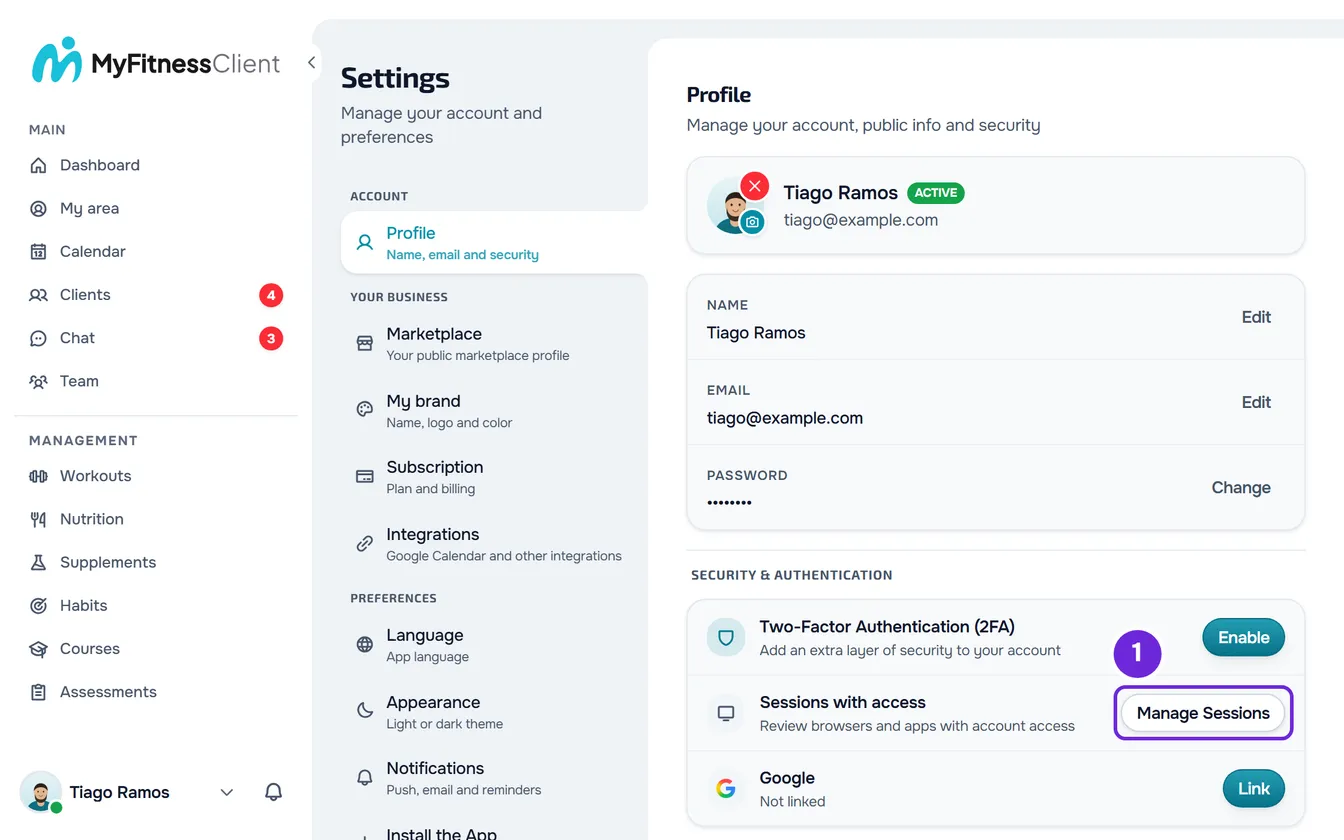
- Open Settings. On a computer, select your photo and name at the bottom of the side menu, then Settings. On a phone, open the menu and select Settings at the bottom of the menu.
- Select Profile.
- In the Security & Authentication block, on the Sessions with access row, select Manage Sessions. The Sessions with account access window opens, with this device's session first, marked This device 1.
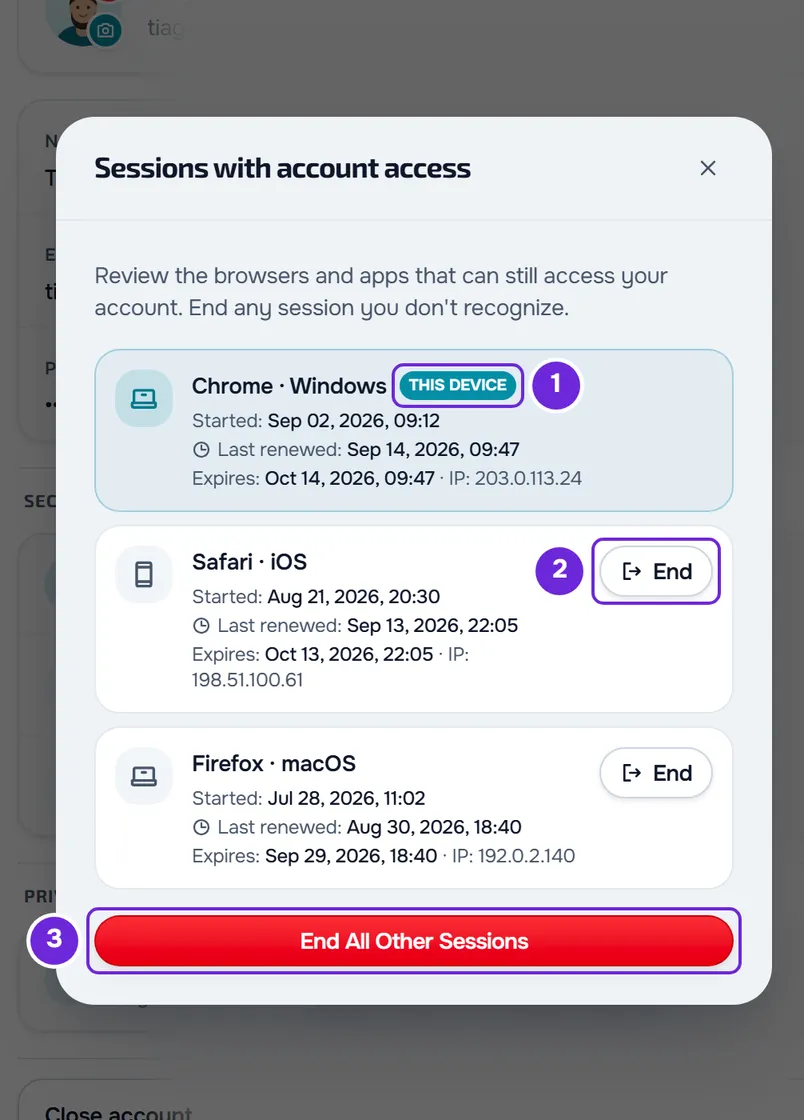
- On each card, read the browser, the system, the dates and the IP to recognize the device.
- On a session you don't recognize, select End 2. On a narrow screen, the button shows only its icon, without the name.
- In the confirmation, select End.
- Optional: if you have more than one other session, select End All Other Sessions 3 at the end of the list and confirm with the button of the same name. All sessions except this device's end at once.
Ended sessions disappear from the list. Each browser or app you ended loses access to the account right away and stops receiving push notifications, and to get back in there you have to sign in again. This device's session stays open.
In the app
- Open the menu with the button in the top-left corner and select your name at the bottom of the menu. In Settings, select the card with your name and email at the top to open Profile.
- In the Security & authentication group, select Sessions with access. The list opens on its own screen, with this device first.
- On a session you don't recognize, select End and confirm with End.
- If you have more than one other session, the button to end them all at once is called End other sessions. If there are no other sessions, the list says “No other sessions have access.”
What each session shows
- The device: the browser and the system, such as “Chrome · Windows” or “Safari · iOS”. The MyFitnessClient app appears as “App · iOS” or “App · Android”. A browser or system that isn't recognized appears as “Unknown” on the web and in the app.
- This device: the session you're using. It's always first and has no End button. The others follow by last renewal, from most recent to oldest.
- Started: the day and time you signed in to the account on that device.
- Last renewed: the last time the session renewed by itself. If it hasn't been renewed yet, “Not renewed yet” appears.
- Expires: the day and time the session ends if the device stops renewing it. Each renewal moves this date to 30 days later.
- IP: the internet address of the last renewal. In its place you may see “Local network” or, if it's missing, “Unknown IP” on the web and in the app.
Common problems
“Couldn't load the sessions.”
The list didn't reach your device. In the app, the message reads “Couldn't load sessions.” Check your internet connection and select Try again.
“Couldn't end the session. Try again.”
On the web, the request to end the session failed, for example because there was no connection, and the session stays open. The message appears in the confirmation: check your internet connection and select End again. In the app, the same failure shows “An unexpected error occurred…” under the list.
“Not found.” when ending a session
On the web, the session ended after you opened the list, for example because you ended it on another device or someone signed out of the account on that device. Close the confirmation and select Try again, at the top of the list, to refresh it.
The session on this device has no End button
The session marked This device can't be ended in this list. To sign out of the account on this device, sign out on the device itself: see Sign in and sign out.
Questions
I see a session I don't recognize. What do I do?
End it and change your password, which ends the session on every device and stops new sign-ins with the old password: see Change or set your account password. For more protection, turn on two-factor authentication.
I ended a session and it came back. Why?
An ended session doesn't come back: what appears is a new session, because someone signed in to the account again in that browser or app, you or someone else. Ending a session doesn't change the password: if it wasn't you, change it.
Why does the Expires date change?
The session renews by itself while you use that device, and each renewal moves the end to 30 days later. On a device you haven't used for a long time, the date stays the same and the session eventually ends.