
Before you start
- Nutrition has to be part of your coaching with your professional. If you can't find it in the menu, see “Not in your plan”: a section of the app has disappeared.
- History only shows the meals you marked as eaten. A meal you changed without marking it is left out. See Log what you ate by marking the meal as eaten.
- In History, you look up what you ate and can delete a whole day. To log or correct a day, use Nutrition.
Interactive tutorial
Opens in the app and needs you to be signed in.
Steps
To look up what you ate on other days:
- In the menu, select Nutrition.
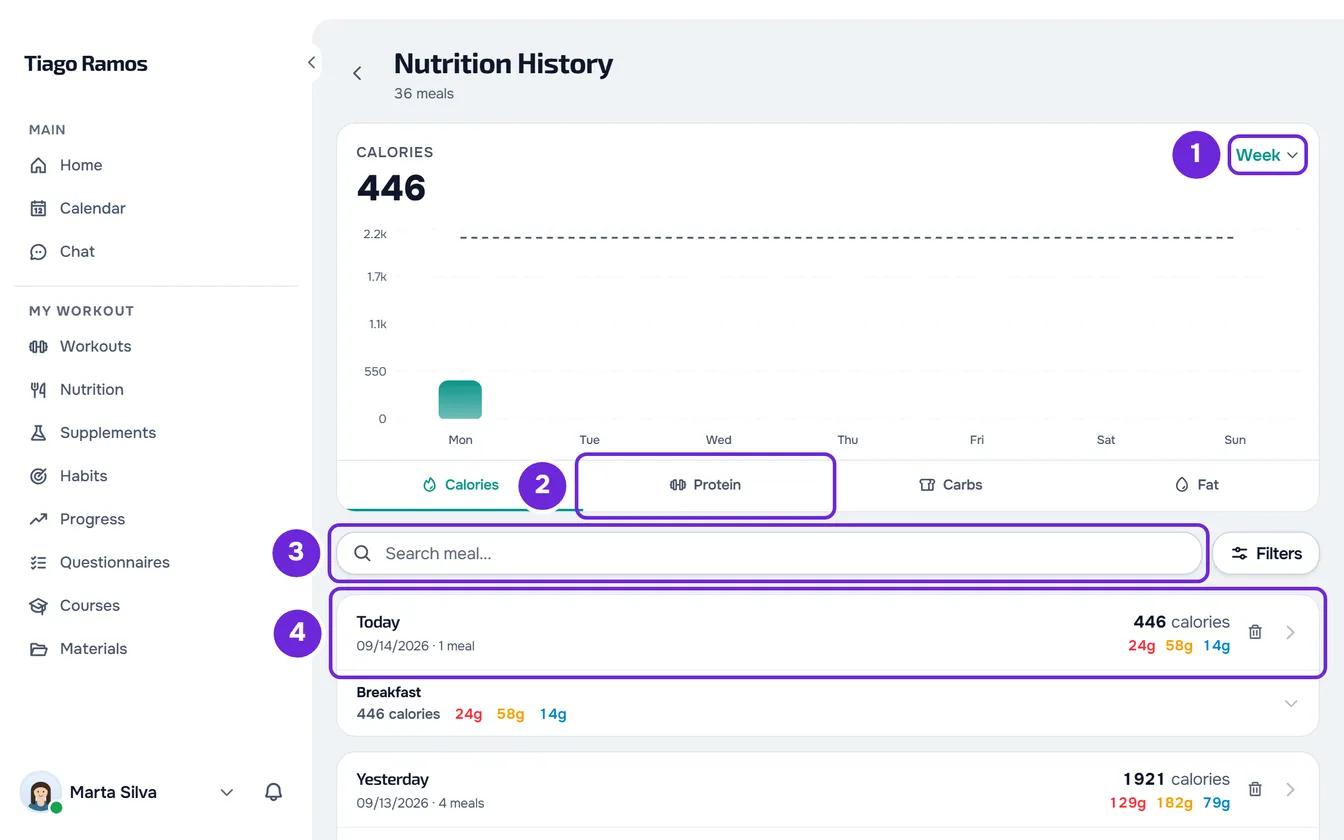
- On a wide screen, select History at the top of the Meal plan screen. On a narrow screen, such as a phone's, open Actions and select History, or select View full history at the end of the list of meals. The Nutrition History screen opens.
- In the chart, open the list of periods 1 and choose Week, Month, 6 Months, Year or All. The chart always opens on Week.
- Under the chart, choose the value you want to see: Calories, Protein 2, Carbs or Fat. The big number on the chart becomes the sum of that value over the period.
- Optional: point at a bar, or select it on a touch screen, to see its day or period and the value. On Week, when your plan has a target for that day, the Target also appears.
- To find a meal by name, type in the Search meal... 3 field and wait for the list to update.
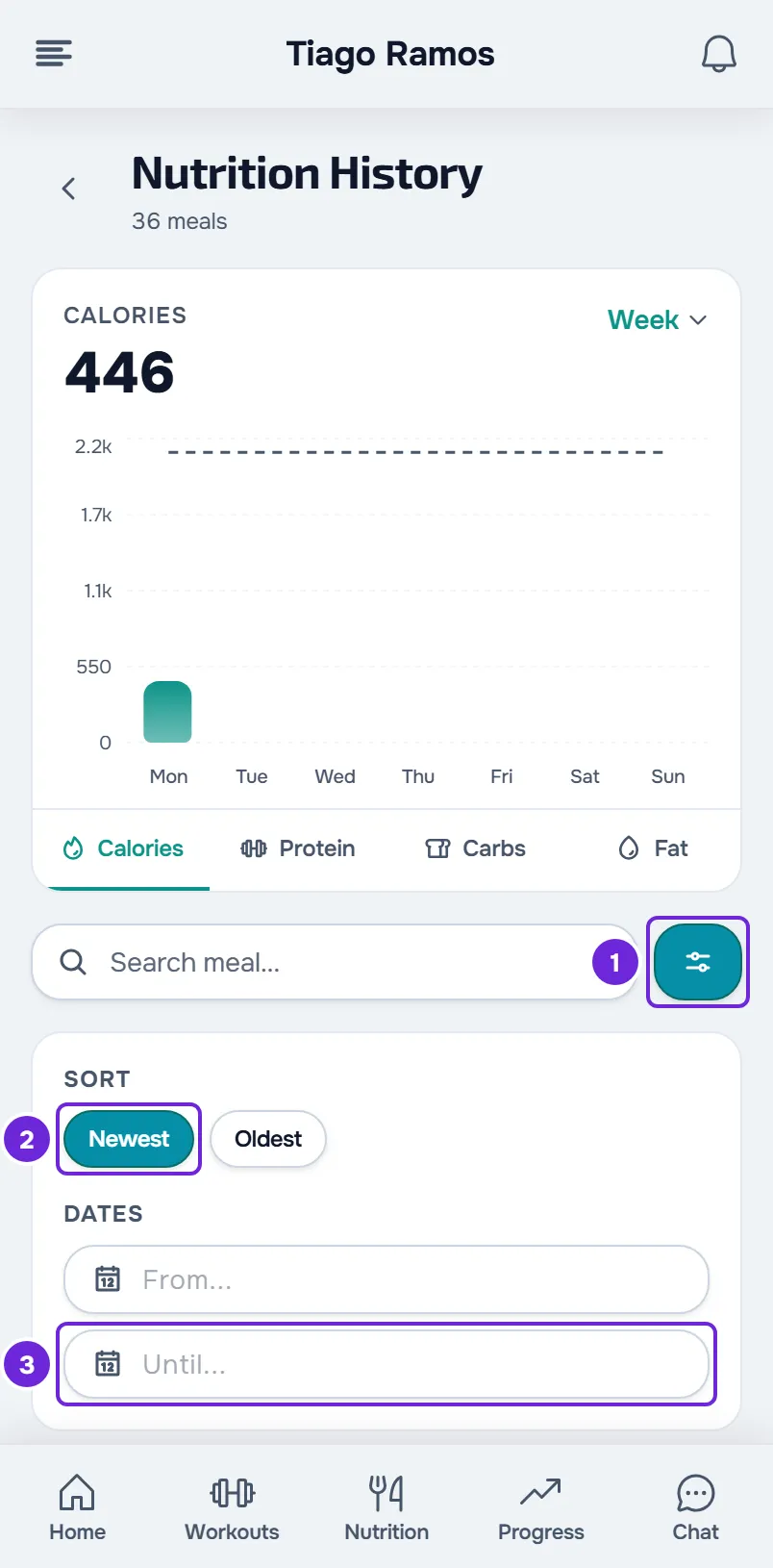
- Optional: select Filters 1 (on a narrow screen, only the icon). Under Sort, choose Newest 2 or Oldest; under Dates, fill in From... and Until... 3 with the first and the last day.
- Optional: on a day's card, select a meal to see its foods, with the quantity and the calories of each one. Select it again to close it.
- To see a day in detail, select the header of that day's card 4, where the date is.
You see the days on which you marked meals as eaten, with each day's totals. To leave History, select the arrow next to the title.
In the app
- In the Nutrition tab, open Actions with the three-dot button at the top of the screen, and select History. On a wide screen, such as a tablet in landscape, History is a button at the top of the screen.
- The Nutrition history screen opens on today. Change the day with the arrows, or select the date to pick the day in the calendar. It doesn't go past today.
- Underneath, you see that day's totals and the meals. With a plan, each meal of the plan appears as Eaten or Not eaten, and the ones you added and marked as eaten appear as Extra. Without a plan, only the meals marked as eaten appear. A meal with a log has a bin icon, which opens Delete meal. Once you confirm, the log is deleted: a meal of the plan goes back to Not eaten and an extra meal disappears.
- With an internet connection, the chart comes next, with the periods Week, Month, 6 months, Year and All time, and with kcal, Protein, Carbs and Fat under the bars.
- After the chart comes the History list, with Search meals…, the funnel button, which opens Filters with only the order (Newest first or Oldest first), and the From and To buttons, which open the calendar. Select a day in the list to open it at the top of the screen. Load more loads more days.
- Without a connection, the chart and the list disappear. Recent activity stays, with up to 14 days that your phone stored. A day your phone didn't store shows “No internet connection” and Try again.
How to read the chart
- The chart appears after you mark your first meal as eaten, and it only counts the meals marked as eaten.
- The big number is the sum of the chosen value across all the bars of the period, not the daily average. From 10,000 on, it is shortened, for example “12.4k”.
- Week: 7 bars, from Monday to Sunday of the current week.
- Month: the current month in blocks of 7 days (“1-7”, “8-14” and so on), with 4 or 5 bars.
- 6 Months and Year: one bar per month, ending in the current month.
- All: one bar for each month in which you have meals marked as eaten.
- The chart doesn't move back or forward, and it doesn't change with the search or the filters. To see older days, use the list's Dates.
- The dashed line is your plan's target for each day; when you point at a bar, it appears as Target. It only appears on Week, when your plan has a target for the chosen value, and only on the days within the plan's dates. The daily goal you set yourself in Nutrition doesn't draw this line.
- “-” appears instead of the sum when a food in the period has no declared amount for that value, because the sum would be incomplete.
The list of days
- Each card is a day: Today, Yesterday or the date, with the number of meals, the calories and the grams of protein, carbs and fat of that day.
- The most recent days come first. When you reach the end of the list, more days load on their own.
- The search looks in the meal's name, not in the names of the foods. The X in the field clears the search.
- With dates chosen, the Filters button shows a number and Clear appears, which resets the order and the dates but doesn't clear the search.
- Nothing is kept when you reload the page: History goes back to Week, Calories and the Newest order, with no search and no dates.
- To delete a whole day, select the bin icon on that day's card, or right-click the day's header. See Edit, restore or delete a meal or a whole day.
A day's detail
The detail view opens with the title Today, Yesterday or the full date, with the year.
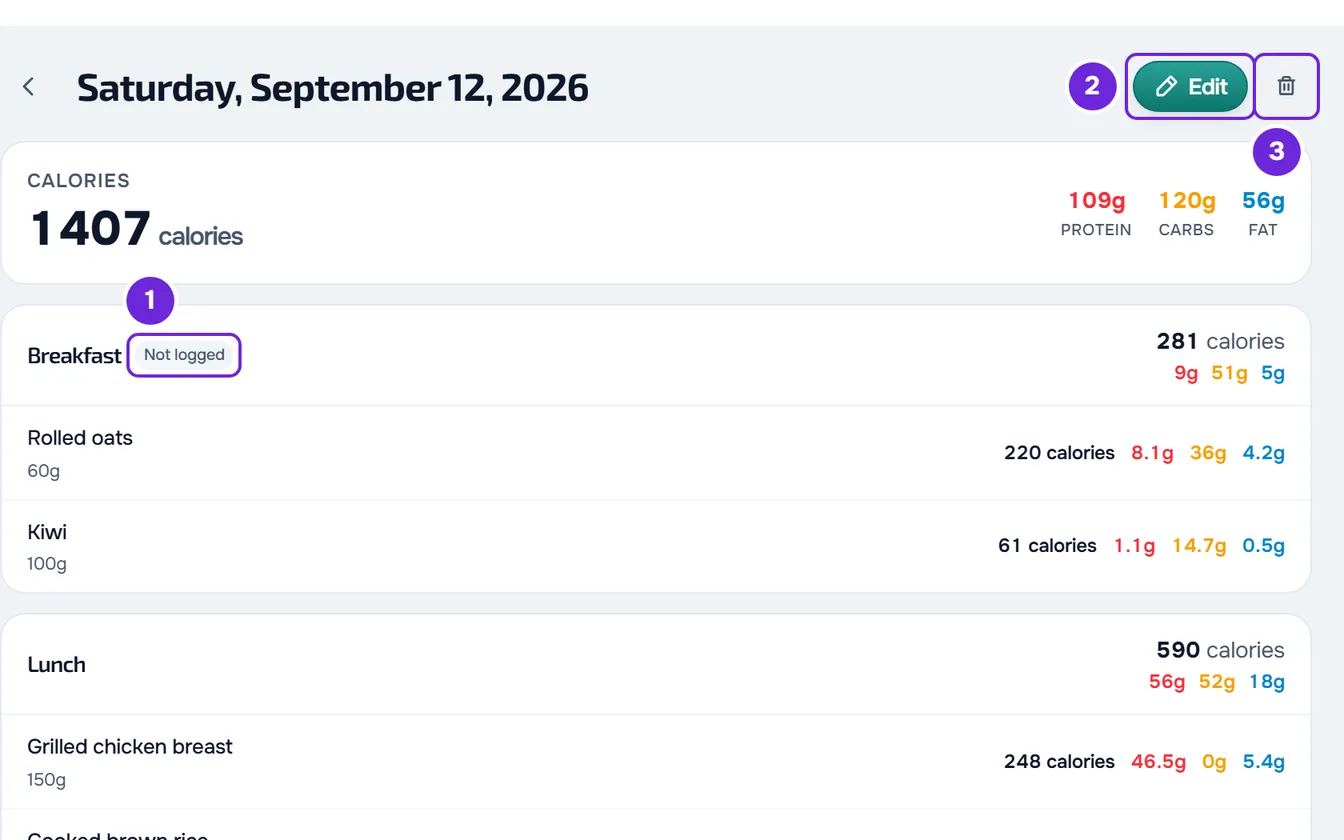
- The first card has the calories and the grams of protein, carbs and fat of the day. Only the meals marked as eaten count.
- Underneath, each meal shows its totals and its foods, each with the quantity, the calories and the macros.
- The meals you changed or added that day without marking them as eaten also appear, with the Not logged tag. They don't count toward the day's total.
- If you left a note on a meal, it appears on that meal, under Your note.
- Edit opens Nutrition on that day. A day that has passed opens read-only: see Correct a day that has passed.
- The bin icon next to Edit deletes the whole day, after a confirmation. There is no way to undo it.
Common problems
History is empty or a day is missing
Only the meals marked as eaten are included. A meal in which you only changed the foods, or that you marked and then unmarked, is left out, and a day with no marked meals doesn't appear. Mark the meal in Nutrition; for a day that has passed, see Correct a day that has passed.
I can't see the dashed target line
The line only appears in the Week period and only with a plan that has a target for the chosen value. On the website, it only appears on the days within the plan's dates.
The week's total looks small
The big number only adds up the days of the current week, starting on Monday, and only the meals marked as eaten. At the start of the week, it adds up few days.
“Couldn't load the data.”
History couldn't read your logs, for example because there is no connection. Check your connection and select Try again. If it keeps happening, see Common Nutrition problems and error messages.