
Your professional decides how the meal plan spreads the meals across the days, the dates it applies to and whether you can add other meals and foods. On each day, Nutrition shows only that day's meals. Without a plan, or after it ends, you can still log what you eat.
How the plan spreads the meals across the days
The Nutrition screen does not show the name of the mode: you recognize each one by what you see from one day to the next.
| Plan mode | What you see in Nutrition |
|---|---|
| Flexible | The same meals every day. |
| Weekly | The meals for that day of the week. Each week repeats the previous one. |
| Calendar | The meals for each day of the cycle, counted from the first day of the plan. The list title shows the week of the cycle and the number of meals, for example “Meals · Week 2 (4)”. At the end of the cycle, it goes back to week 1. |
| Sequential, only in older plans | One numbered plan day at a time, the same on every date, until you mark all the meals of that day. |
All modes follow the plan's dates: the first day and, when there is one, the last day, which is still part of the plan. Outside those dates, the day has no plan meals, but, unless the plan is locked, you can log what you ate.
Days without meals and “Free day”
When a day has no meals, Nutrition says why:
- “Free day”, with a moon: the plan is weekly or calendar-based and your professional did not put any meals on that day. The sentence under it says that no meals are set for that day and that you can log what you eat, if you want.
- “No meals planned for this day”: the day is outside the plan's dates, or the plan has no meals yet.
In both cases, on a day you can edit, the New meal button adds a meal to the day, except in a locked plan. See Add extra meals: new, quick, saved or from yesterday. On a day that has passed when you have not logged anything, “Nothing logged on this day” appears (in the app, “Free day” or “No meals planned for this day”, as on other days); select Edit this day to see the plan meals (Correct a day that has passed).
Sequential mode
Sequential plans have numbered days that you follow in order. This mode can no longer be chosen, but an older plan may still use it.
- On any date within the plan's dates, Nutrition shows the plan day you are on.
- When you mark all the meals of that plan day as eaten, on the same date, you move on to the next plan day. After the last day, you go back to the first.
- If a meal was left unmarked on a date, you stay on the same plan day on the next date. A meal you deleted on that date is left out of the count: you move on to the next plan day when you mark all the others. If you delete them all, you do not move on.
- When you move on to the next plan day, Nutrition shows it on every date, including today. The meals you marked on the plan day you finished no longer appear in Nutrition, but they stay in History. See Browse your nutrition history.
Locked plan
Your professional can assign you the plan as locked, so that you follow only the meals and foods they set. The choice is made for you: someone else with the same plan may have it unlocked. In a locked plan, a note that starts with “This plan is locked” appears under the meals title.
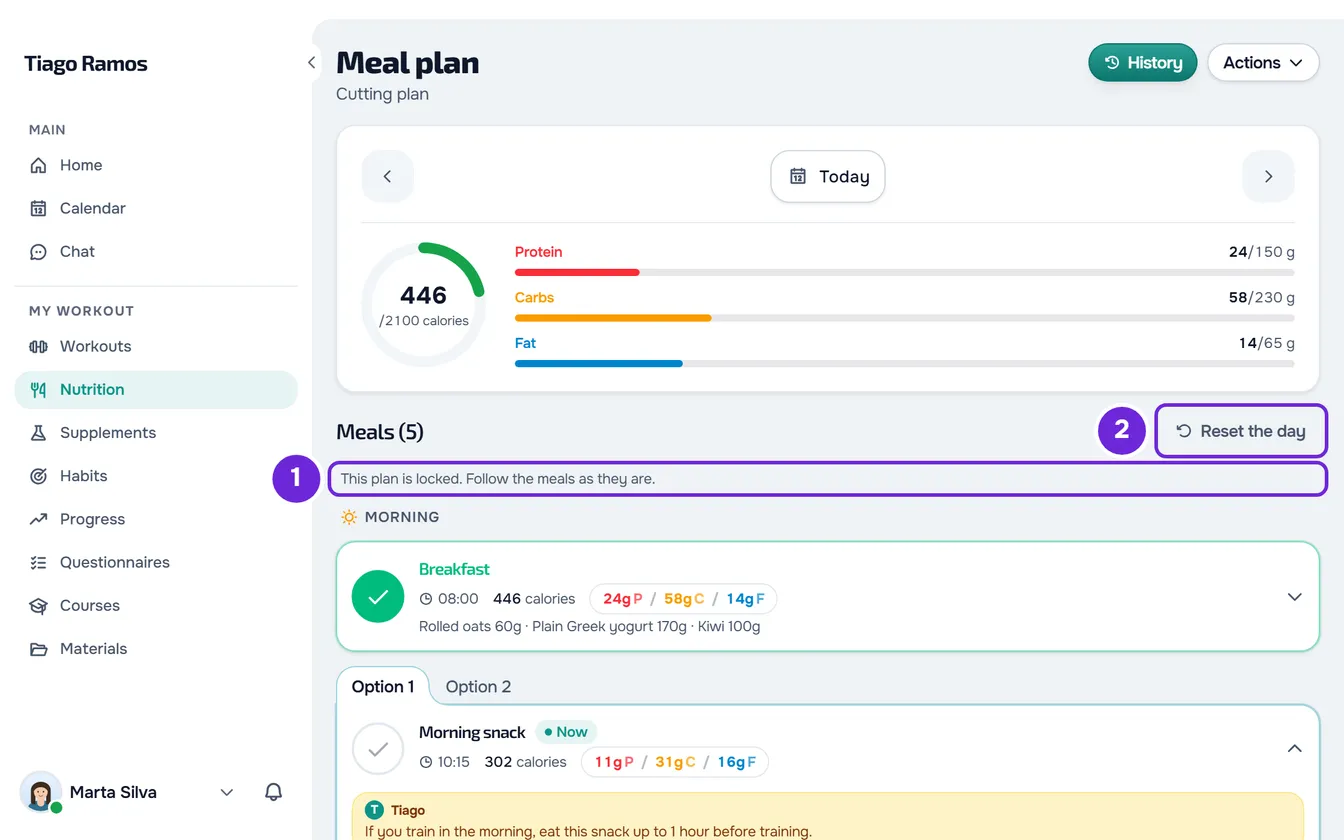
In a locked plan, you do not have:
- the buttons to add meals: Add, New meal and, in the app, the + button;
- the meals' ⋮ menu, where you change the name and time, or save, restore or delete a meal;
- the Add Food button (in the app, Add food) and editing or deleting foods, including their quantity;
- creating your own foods and saved meals to repeat.
You can still:
- mark and unmark meals (Log what you ate by marking the meal as eaten);
- choose the option of the meal you ate, when your professional prepared more than one;
- open each food's details;
- swap a food, but only for the substitutions your professional gave it (Swap a food for an equivalent one);
- reset the day with Reset the day (in the app, Reset plan);
- use Copy yesterday's meals, which copies only the plan meals;
- correct a day that has passed with Edit this day.
The server applies the same rules. For example, if your professional locks the plan while you have Nutrition open and you try to add a meal, “This plan only allows logging the meals your professional set.” appears. In the app, this message appears on a record to review (Record “to review” or “The server did not accept this record”). For other messages, see Common Nutrition problems and error messages. Your professional is not bound by these rules: they can add meals and foods to your day.
When the plan ends
When the plan has a last day, it ends at the end of that day, in your account's time zone.
- Usually the first time you open Nutrition after that, the card “The plan "…" has ended” appears, with the plan's name, the day it ended and “Talk to your professional to get a new plan.”
- At the same time, you get the “Meal plan ended” notice. See Nutrition reminders, notices and what your professional sees.
- The card appears only once. When Nutrition loads again, for example when you reload the page or, in the app, when you pull the screen down, it works without a plan, as in “Without a plan”.
- If your professional opens your nutrition before you do, the card may no longer appear, but you still get the notice.
- On the days of the plan that ended, Nutrition no longer shows the plan meals. The ones you marked as eaten stay in History.
Without a plan
With no plan assigned, the Meal plan screen (in the app, Meal Plan) still opens, without a plan name, so you can log what you eat.
- On a day with no records, “No meal plan” appears, with the sentence “You don't have a plan assigned yet. Log what you eat here: it all goes into your history.” and, on a day you can edit, the New meal button.
- Without a plan, the ring uses your own daily goal. If you do not have one yet, select Set goal. See View your meal plan for the day and your goals.
- The reset button is called Clear records and deletes the day's records.
- The shopping list and the plan export disappear from the Actions menu, because they need a plan. History and Copy yesterday's meals remain.
- There are no meal reminders: only a plan's meals have them.
- Nothing is locked: you can add any meals and foods you want.
- If your coaching has not started yet, has ended or is inactive, the notice about your access appears instead of “No meal plan”. See Access statuses: scheduled, ended and inactive.