
Before you start
- Marking a payment as paid does not make a payment. It lets your professional know that you have already paid them outside MyFitnessClient, for example in cash or by bank transfer; they confirm it when they receive it. To pay online, see Pay what you owe your professional online with Pay now.
- You can only mark a Pending or Overdue payment. To see your payments and the status of each one, see View your payments, filter them and export them to CSV.
- If you opened the Stripe payment page and left without paying, you can still mark the payment: that page stops working when you mark it, so you do not pay twice.
Interactive tutorial
Opens in the app and needs you to be signed in.
Steps
To mark a payment as paid:
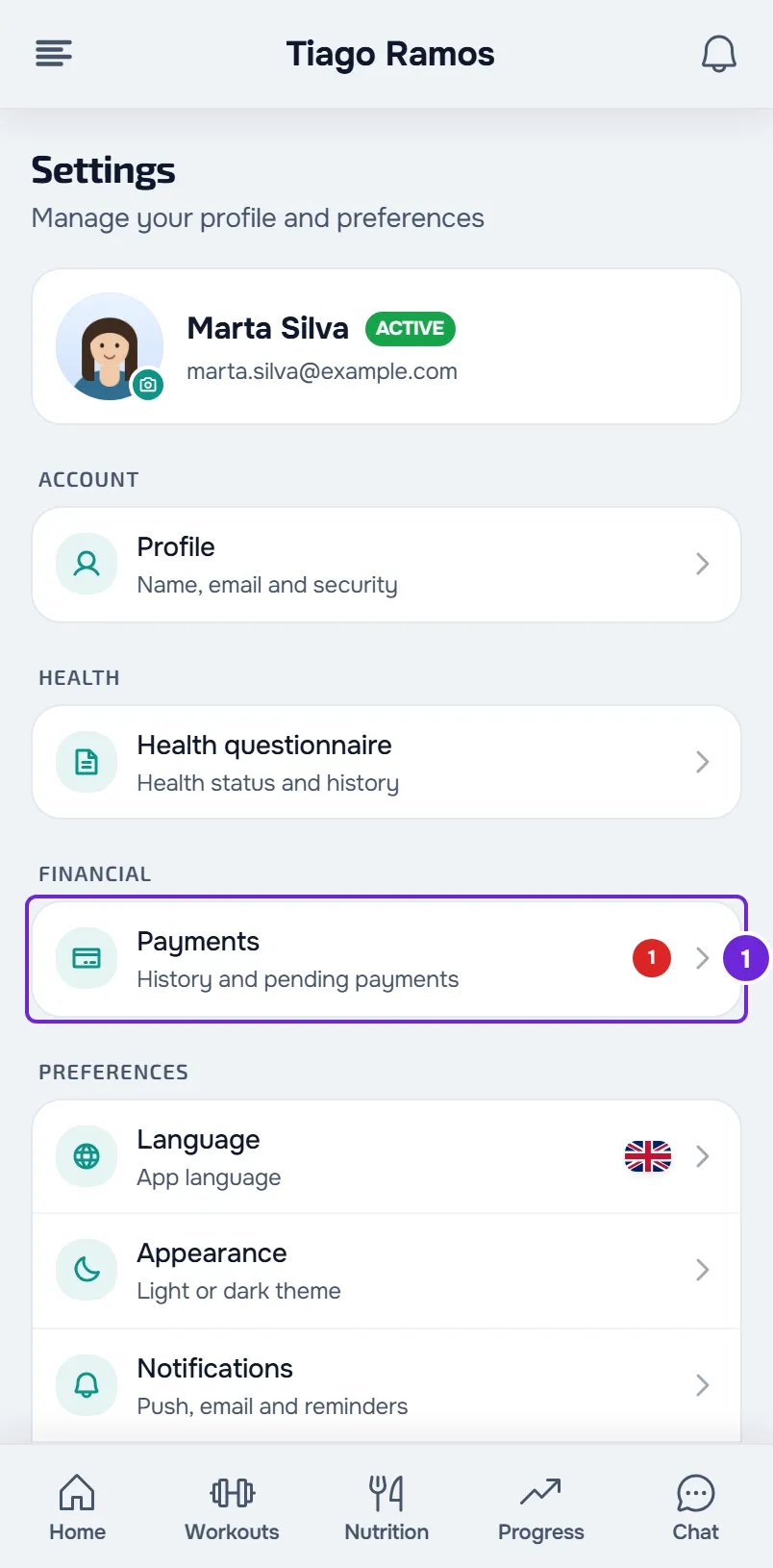
- Open Settings and select Payments 1. If you do not know where Settings is, see Client settings: where to find each option.
- On the payment card, select Mark as paid. The same button is in the payment details, which open when you select the card.
- Under How did you pay?, choose the method: MB Way, Bizum, Transfer, Cash, Multibanco, Card or Other. MB Way and Multibanco only appear when your professional's country is Portugal, and Bizum when it is Spain.
- Under When did you pay?, choose the day you paid. The field starts with today's date and does not accept future days.
- Optional: under Reference or note, enter the payment reference or a note for your professional, up to 500 characters.
- Select Mark as paid. The button only becomes active after you choose the method.
The message “Payment marked. Awaiting confirmation.” appears and the payment changes to Awaiting confirmation, with “Reported as” followed by the method and the date and, underneath, your note, if you wrote one. Your professional gets a notification to confirm it.
On the web
- If you choose a future day, the date goes back to today and “The date can't be in the future.” appears.
- If you close the window after choosing the method, changing the date or writing a note, “Save before leaving?” appears. Save and leave marks the payment, if you have already chosen the method; Discard closes the window without marking it.
In the app
- The methods appear as buttons, and the When did you pay? calendar does not let you choose future days.
- If you close after choosing the method, changing the date or writing a note, “Discard what you entered?” appears. Discard closes without marking; Keep editing takes you back to the form.
After you mark it
The payment stays Awaiting confirmation until your professional confirms or rejects it. When they decide, you get a notification:
- If they confirm it, the payment changes to Paid, with the date and the method you entered, unless they correct them when confirming.
- If they reject it, the payment goes back to Pending, or to Overdue if the due date has passed, and shows “This payment wasn't confirmed” with the reason they wrote. Fix what they point out and mark it again, or select Pay now if the button appears. When you mark it again, the reason disappears.
While it awaits confirmation, the payment still counts as unpaid. If you have actions paused because of an overdue payment, they only come back after your professional confirms it. See Payment overdue: what is paused and how to settle it.
Correct or undo the mark
While the payment is Awaiting confirmation, select Unmark payment on the card or in the details and confirm with Unmark. “Unmarked.” appears and the payment goes back to Pending, or to Overdue if the due date has passed. Your professional gets a notice that you unmarked it.
To correct the method, the date or the note, unmark the payment and mark it again. After your professional confirms it, you can no longer unmark it: talk to them.
Common problems
Mark as paid does not appear
The button only appears on a Pending or Overdue payment. On an Awaiting confirmation payment you have already marked it, so you see Unmark payment instead. There is nothing to mark on a Paid or Cancelled payment.
“An online payment is in progress. Wait a few minutes and try again.”
This happens when you started paying this payment online and that payment has not finished yet, for example an unpaid Multibanco reference or a payment that Stripe is still confirming. It also happens when MyFitnessClient cannot verify that online payment. Wait a few minutes and try again. If the online payment goes through, the payment changes to Paid without you having to mark it. See Fix payment problems: Pay now, confirmation and plan.
“This payment changed in the meantime. Reload and try again.”
The payment changed while you were marking it, for example because your professional edited it at that moment. If the payment had already been paid, cancelled, deleted or marked on another device while you had the page open, the message on the website is “Not found.” and in the app it starts with “An unexpected error occurred.” Reload the page (in the app, pull the screen down) and check the payment status. If it is still Pending or Overdue, mark it again.
Questions
How long does confirmation take?
It depends on your professional: MyFitnessClient does not set a deadline. If it takes a while, talk to them.
Do I have to mark a payment I made with Pay now?
No. A payment made with Pay now changes to Paid on its own when Stripe confirms it.