
Before you start
- The correction applies only to that meal, on that day. Your professional's plan does not change, and from then on they see that day's meal with the foods as you left them.
- On a locked plan you can't edit or delete foods. See Meal plan modes, locked plan and days without a plan.
- On a day that has passed, first select Edit this day and confirm. See Correct a day that has passed.
Interactive tutorial
Opens in the app and needs you to be signed in.
Steps
To correct a food on the website:
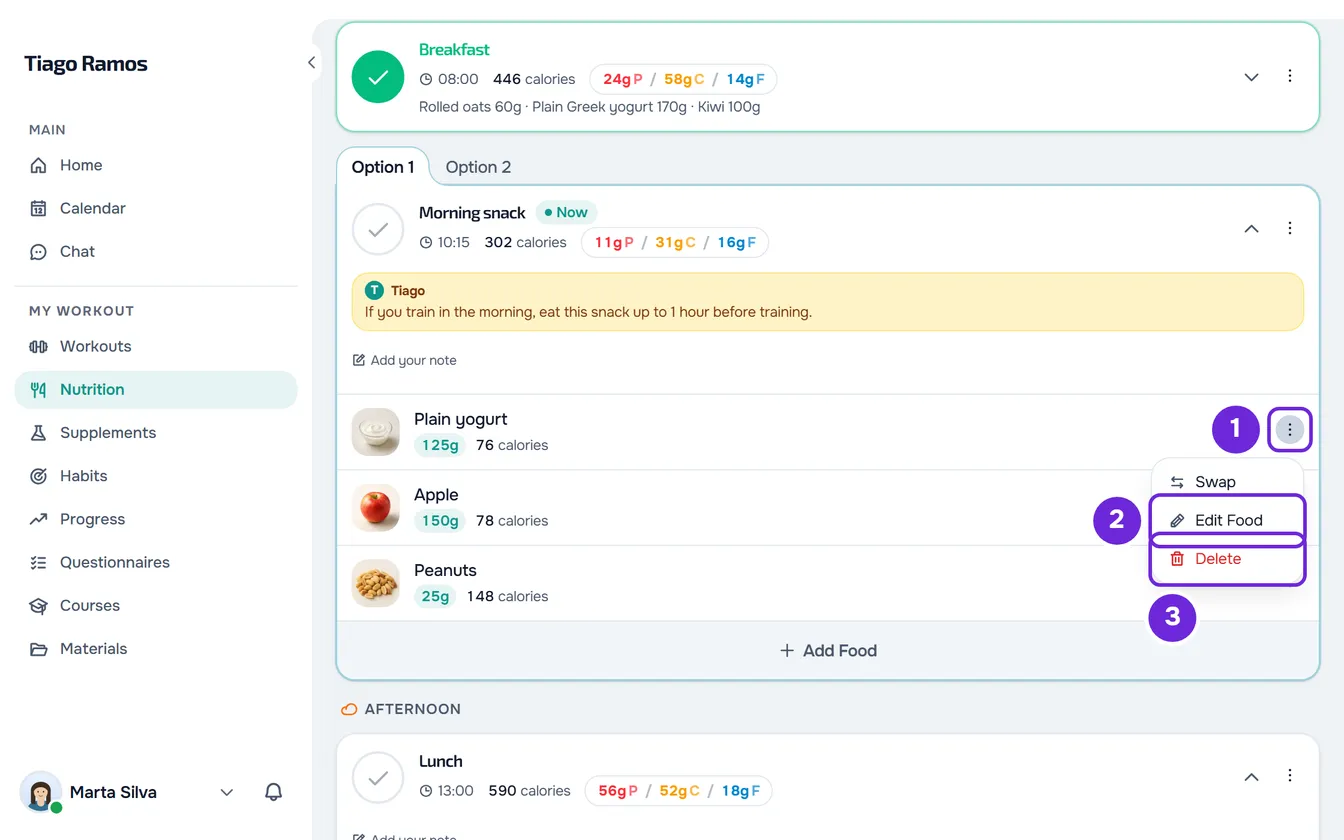
- In Nutrition, choose the day and find the meal. A meal marked as eaten appears collapsed: select its name to open it.
- On the food's row, open the ⋮ menu 1 and select Edit Food 2. You can also right-click anywhere on the row, or select the food and, on the card that opens, select Edit Food.
- Change the Name, the Quantity 1 or the Unit 2. A new quantity recalculates the calories and macros in the same proportion. A new unit converts the quantity and keeps the same portion of food.
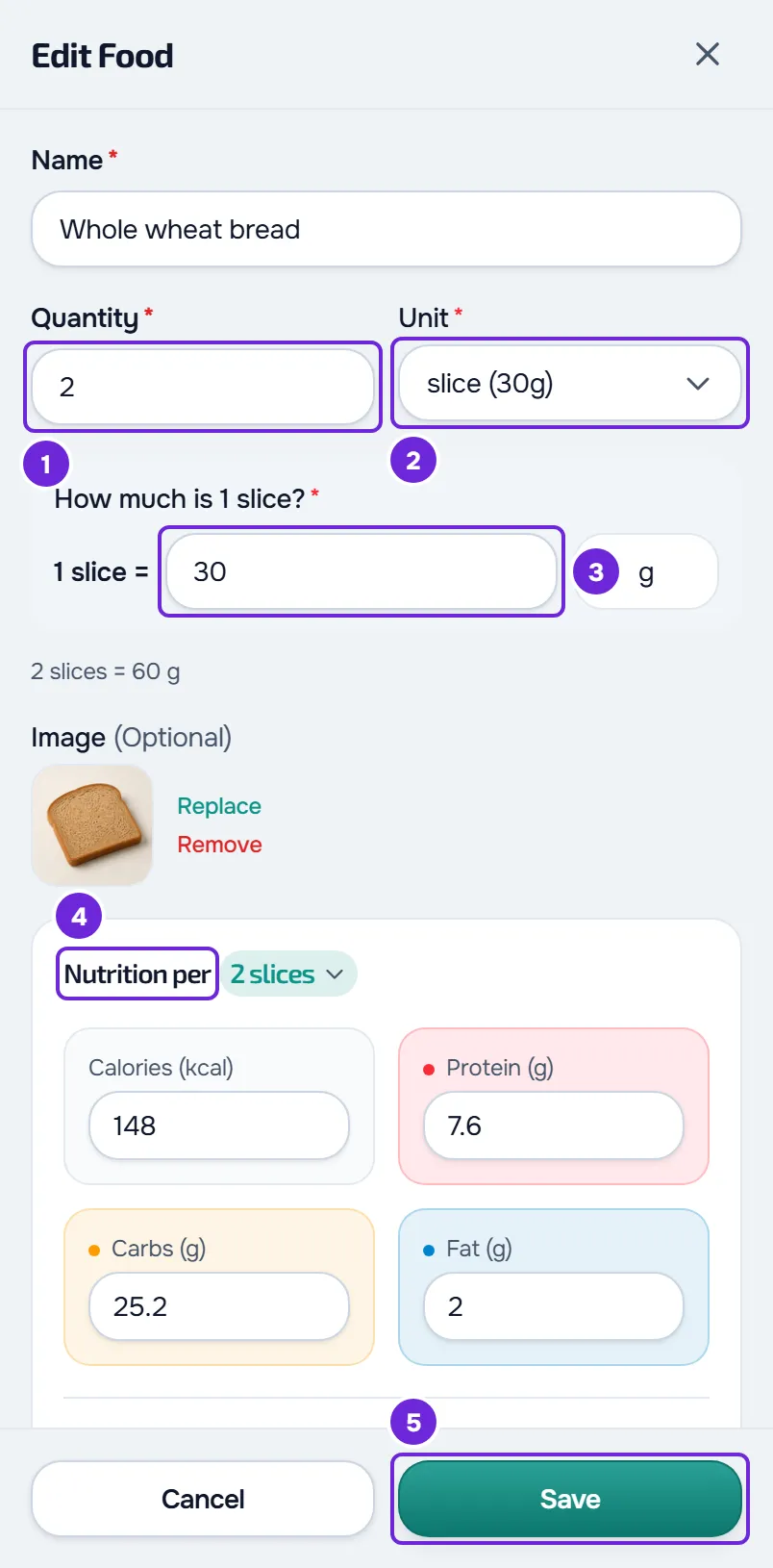
- If the unit is not g, ml, kg, l or mg, confirm how much one unit weighs in the field that appears, for example “How much is 1 slice?” 3. A unit chosen from All starts with that field empty, and Save only becomes active once you fill it in.
- Optional: in Image, upload a photo of the food, replace it or remove it. The photo is only stored when you save.
- Optional: in Nutrition per 4, correct the calories, protein, carbs, fat and optional nutrients. The numbers are first shown for the meal's quantity; when the heading has a menu, you can switch to 100 g or 100 ml, and what you already typed is converted. After you choose a unit from All, they become per 100 g or 100 ml.
- Select Save 5.
The window closes and the “Food updated” notice appears. The food's row shows the new quantity and calories. If you close the window with unsaved changes, the website asks “Save before leaving?”.
In the app
- Select the food and, on its card, select Edit. You can also open the row's ⋮ and select Edit.
- The Edit food sheet has the same fields. The values are always shown for the meal's quantity, and sugar, salt, fiber, saturated fat and potassium are under Optional nutrients.
- When the app doesn't know how much one unit of the food weighs, the Unit is locked: type the weight in the “How much is 1 …?” field to be able to change it.
- You need an internet connection to change the photo.
- Select Save. The “Food updated” notice appears. If you close the sheet with unsaved changes, the app asks “Discard changes?”.
What each field accepts
- Name: up to 100 characters.
- Quantity: greater than zero. On the website, it goes up to 10,000.
- Unit: the food's own unit, with the weight of one unit, the base in g or ml, and the others under All. A food measured in g does not offer ml or l, and one measured in ml does not offer g, kg or mg. You can also type your own unit, up to 20 characters, starting with a letter and without parentheses.
- Values: a blank field has no declared value and the card shows “-”. A negative number becomes 0. On the website, each value has a maximum: 900 kcal; 100 g of protein, carbs, fat, sugar, salt, fiber or saturated fat; and 10,000 mg of potassium. When the values are for a quantity greater than 100 g or 100 ml, the maximum grows in the same proportion. A number greater than the maximum becomes the maximum.
The food card
Selecting a food opens its card, which is read-only:
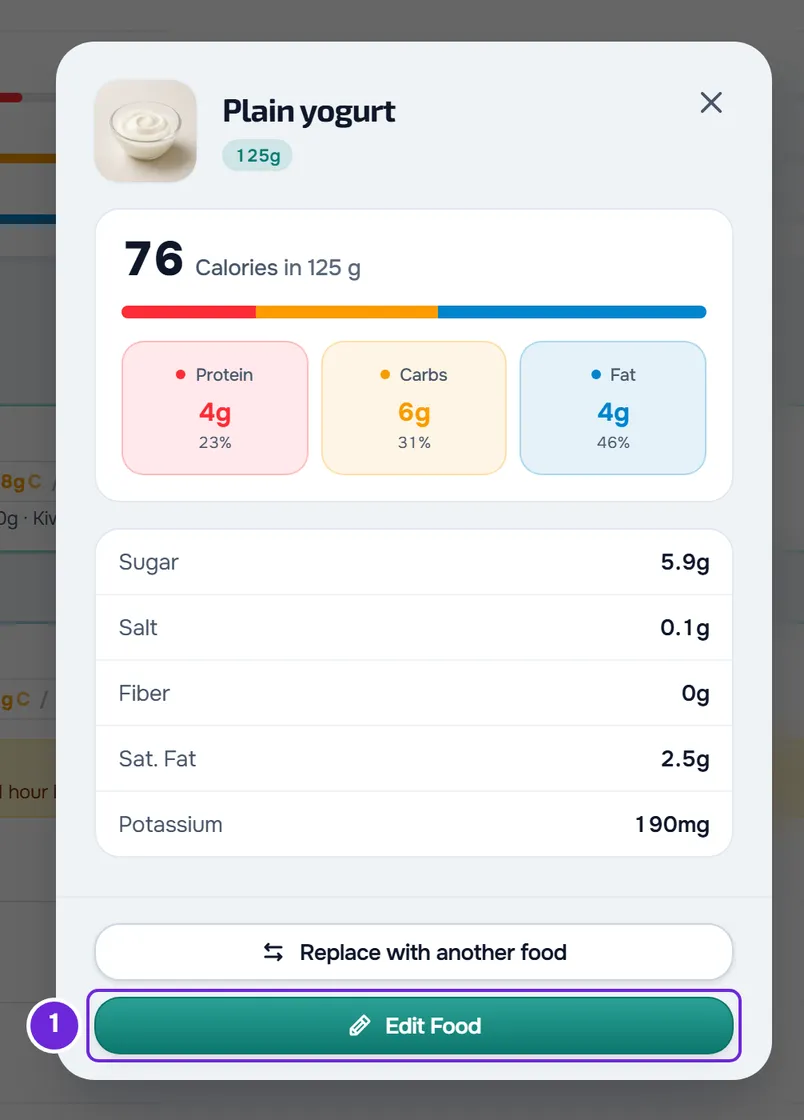
- the photo, the name and the quantity;
- the calories for that quantity and a bar with the share of energy that comes from protein, carbs and fat (4, 4 and 9 kcal per gram), with the grams of each. The bar only fills in, and the percentages only appear, when the food declares all three;
- sugar, salt, fiber, saturated fat and potassium, with “-” when the food does not declare the value;
- for foods from the INSA table, the note with the source of the values.
At the bottom of the card are Replace with another food and Edit Food on the website, or Add substitutions and Edit in the app. On a locked plan the card has no edit button, and on a past day you have not opened yet it has no buttons at all. To swap the food for another one, see Swap a food for an equivalent one.
Delete a food
- On the website, on the food's row, open the ⋮ menu or right-click, and select Delete. The Delete Food window asks, for example, “Are you sure you want to delete ‘Rice’?”. Confirm with Delete.
- In the app, open the row's ⋮ and select Delete. The Delete food window asks for confirmation: select Delete.
- The “Food deleted” notice appears and the food leaves the meal on that day.
- Deleting the last food leaves the meal empty, with “No foods”, but the meal stays on the day. To delete the whole meal, or to go back to the plan's foods with Restore meal, see Edit, restore or delete a meal or a whole day.
On a touch screen, on the website, you can also drag the food's row toward the left edge of the screen. Two buttons appear: Swap, in amber, which opens the food swap, and Delete, in red. With a mouse the gesture does not exist, and it also does not work while the food's list of substitutions is open. The app does not have this gesture: use the ⋮.
Common problems
The food's ⋮ menu does not appear
The plan is locked, or the day has passed and you have not selected Edit this day yet. On a past day, select Edit this day and confirm. On a locked plan, talk to your professional.
The Save button is gray
The food's name is missing, or the “How much is 1 …?” field was left empty after you chose a unit from All or cleared it. In the app, the button also turns gray when a value is not a number, and that field gets a red border. Fill in what is missing.
“Quantity must be greater than zero.”
On the website, the quantity is 0 or blank and nothing was saved. In the app, the same message appears under the field. Type a quantity greater than zero and select Save again.
“The meal changed in the meantime. Try again.”
On the website, the food changed while the window was open, for example because you changed it on another device or because your professional changed the plan. Nothing was saved or deleted. Close the window, open the food again and repeat the correction.
Questions
Does correcting a food change my plan?
No. It only changes that meal, on that day. On the other days, the meal keeps the plan's foods.
If my professional changes the plan, do I lose my correction?
No. The meal you corrected keeps your foods on that day. To go back to the plan's foods, use Restore meal.