
Before you start
- Nutrition must be part of your coaching with your professional. If you can’t find it, see “Not in your plan”: a section of the app has disappeared.
- You create and manage your own foods in a meal’s Add Food window. On a locked plan the button that opens it doesn’t appear, so you can’t create or change your own foods. See Meal plan modes, locked plan and days without a plan.
- On a day that has passed, first select Edit this day. See Correct a day that has passed.
- You can have up to 500 foods of your own. Your professional doesn’t see this list: they only see the foods you add to meals, in each day’s log.
Steps
To create a food and save it to your foods:
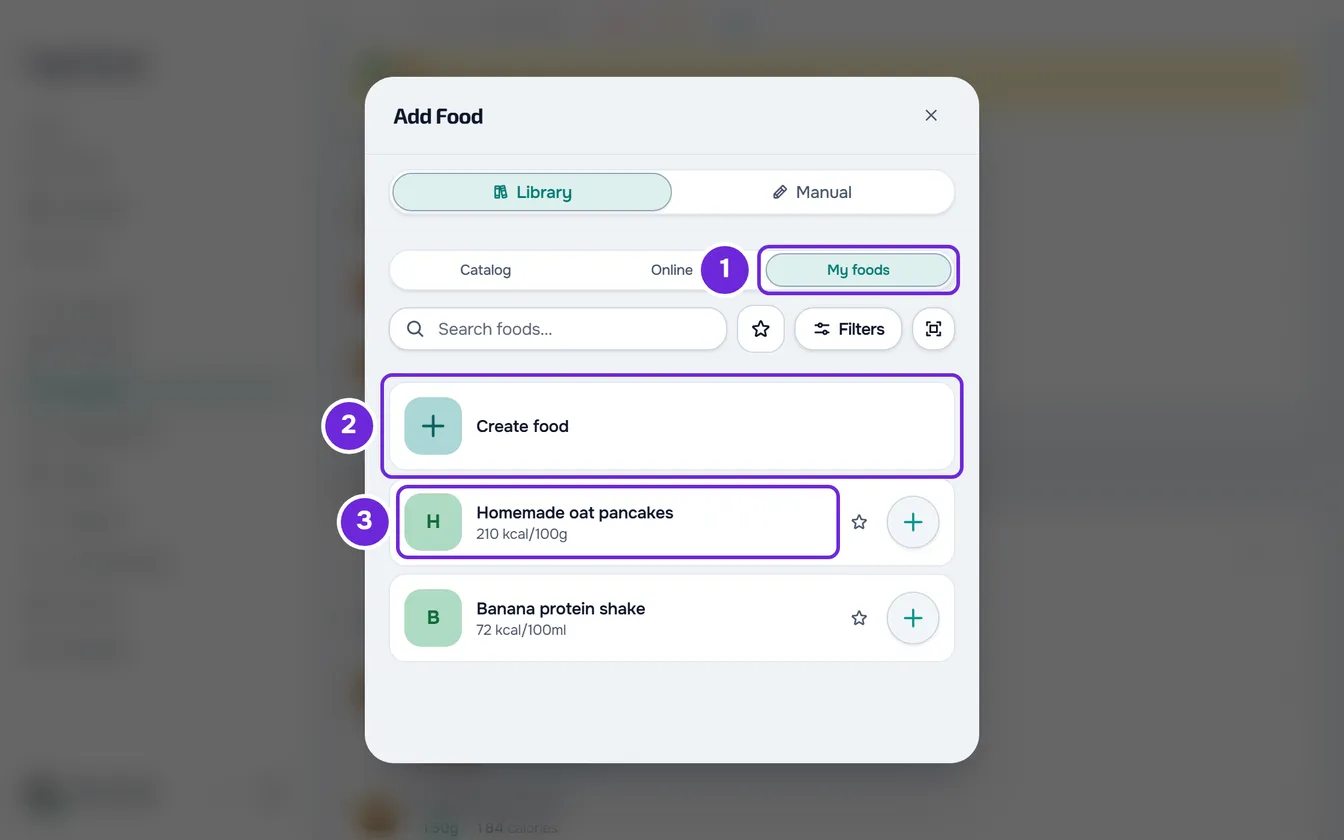
- In Nutrition, in a meal of the day, select Add Food.
- In Library, open My foods 1 (on narrow screens, My).
- Select Create food 2: it is the first row of the list or, if you don’t have any foods yet, the button on the empty screen. The Manual tab opens with Save to my foods already on.
- Type the food’s Name.
- In Quantity and Unit, enter how much you ate, for example 150 g. For a unit that isn’t g, ml, kg, l or mg, also type how much one weighs, in g or ml, in the “How much is 1 …?” field.
- Optional: choose the Category, type the Brand and, in Image, select Upload File to add a photo.
- In Nutrition per 2, confirm which amount the values you are about to type are for: the quantity you entered, which is the starting choice, or 100 g or 100 ml, as on most labels. Changing this choice converts the numbers you have already typed.
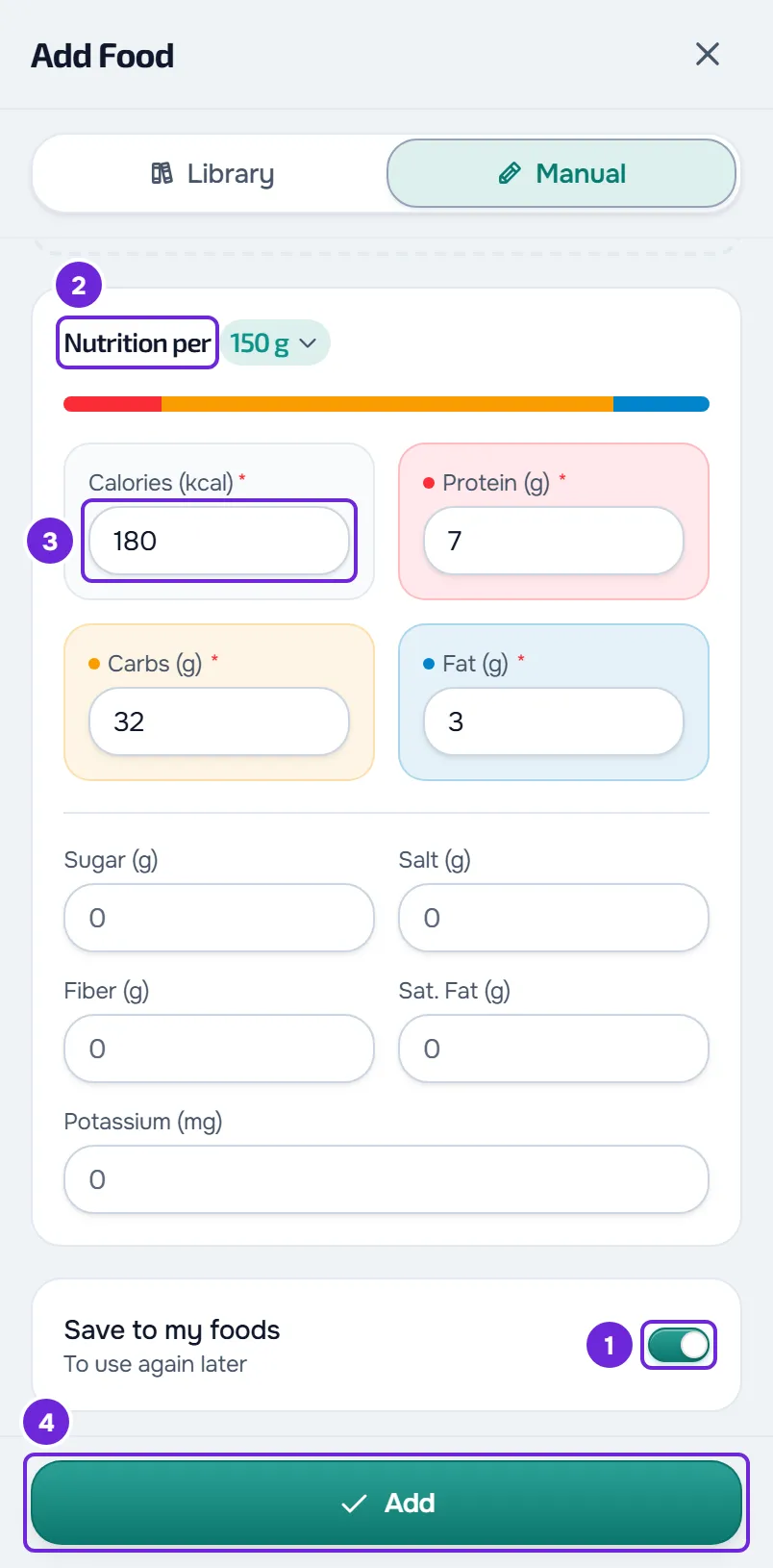
- Type the calories 3, protein, carbs and fat. All four are required: if the food doesn’t have one of them, type 0.
- Optional: type the sugar, salt, fiber, saturated fat and potassium. An empty field is left with no stated value.
- Select Add 4. If a value doesn’t make sense, a message shows the rule that failed and nothing is saved.
The window closes, the food goes into the meal and “Meal updated” appears. If you had already chosen other foods in the list, they are added at the same time. The food stays in My foods, ready to choose in other meals; if the unit was g or ml, it opens next time with the quantity you entered.
For a food you only eat this once, open the Manual tab and check that Save to my foods is off: the food goes into that meal only. With a brand, the meal shows the name followed by the brand in brackets.
In the app
- The Add food sheet has the Library and Manual tabs. In Library, My foods sits next to Catalogue and Online, and Create food is the first row of the list, under Favourites and Recent when you have them, or the button on the empty screen.
- You type the name in Food name and the brand in Brand (optional). The photo field only appears with Save to my foods on.
- The Add button is only disabled when there is no name or while the photo is uploading. If one of the four required values is missing, the app shows “Fill in the name and the 4 macros.” and marks the field with “Required”. The rules for the values are the website’s, with shorter messages, such as “Calories per 100 cannot exceed 900.”
- At the end you see “Food added”.
- With no internet connection, Manual, My foods and Create food show “This needs an internet connection.” See The app says “Offline” or takes a long time to load.
Edit or delete one of your foods
In Library > My foods you find the foods you created and the products you saved from the online search or from a barcode (see Scan barcodes and search for products online). There you can also search, filter by category and mark favorites.
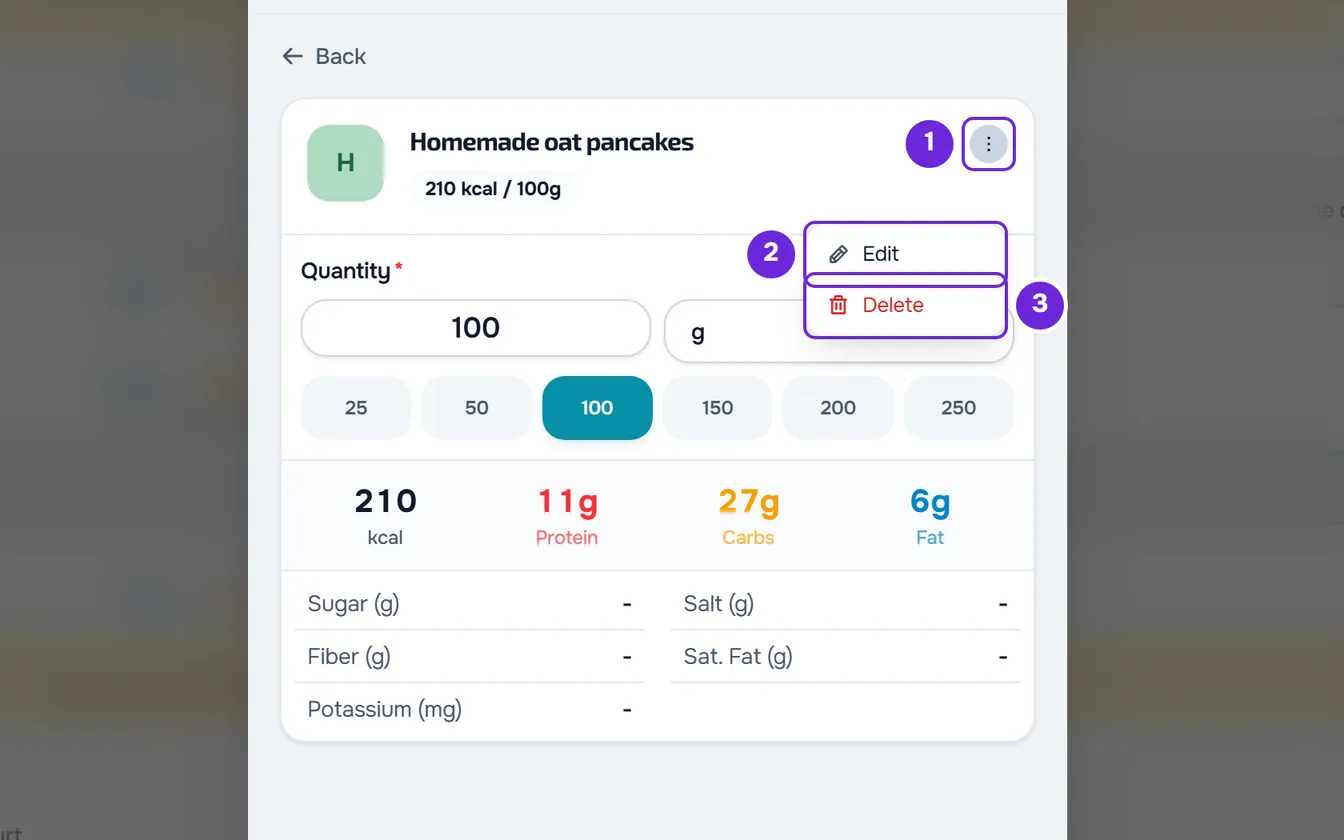
- On the website, select the food to open its details and open the ⋮ menu next to its name, or right-click the details. The menu has Edit and Delete.
- Edit opens the form with the title Edit food and the saved values, for the food’s serving. Change what you need and select Save: “Food saved” appears and you go back to My foods. Cancel leaves without saving.
- Delete opens the Delete food window, with the food’s name. Confirm with Delete: “Food deleted” appears and the food is also removed from your favorites.
- In the app, select the food and, in the quantity sheet, open the ⋮ menu, which has Edit and Delete. Delete asks for confirmation in the Delete food window. The ⋮ menu only appears with an internet connection.
Editing or deleting one of your foods doesn’t change the meals where you already used it: each meal keeps the values the food had when you added it. To correct a food in a meal, see Edit or delete a food in your meal.
Values the form rejects
Before saving, the form checks the values and shows the first rule that fails. On the website, the message includes your numbers; in the app, it is shorter. The maximums count per 100 g or 100 ml: if you typed the values for the quantity, they are converted before being checked.
| Value | Rule |
|---|---|
| Any value | It can’t be negative. |
| Calories | Up to 900 kcal per 100 g or 100 ml. |
| Protein, carbs, fat, saturated fat, fiber and sugar | Up to 100 g each, per 100 g or 100 ml. |
| Salt | Up to 50 g per 100 g or 100 ml. |
| Potassium | Up to 10,000 mg per 100 g or 100 ml. |
| Protein, carbs and fat added together | Up to 100.5 g per 100 g or 100 ml. |
| Saturated fat | It can’t be more than the fat. |
| Sugar | It can’t be more than the carbs. |
| Calories, compared with protein and fat | At least 90% of 4 kcal per gram of protein plus 9 kcal per gram of fat, minus 2 kcal. Carbs are left out of this calculation. |
Common problems
The Add button is grayed out
On the website, the name or one of the four required values (calories, protein, carbs and fat) is missing, or a field has an incomplete number, for example just a decimal point. A 0 counts as a value. In the app, the button is only grayed out when there is no name or while the photo is uploading.
“You've reached the limit of 500 foods.”
You already have 500 foods of your own and the new one wasn’t saved or added to the meal. Delete one of your foods that you no longer use and try again, or turn off Save to my foods to add it to this meal only.
“Invalid data. Check the fields.” or “Name too short.”
To save a food, the name needs at least 2 characters. On the website the first message appears and the food isn’t added; in the app the second one appears. Type a longer name and try again. On the website, if the name is right and you added a photo, remove the photo and try again.
I don’t see Create food or the ⋮ menu
On a locked plan there is no Add Food button, and in the window for swapping a food you can only choose your own foods, not create or change them. In the app, with no internet connection, creating shows “This needs an internet connection.” and the ⋮ menu doesn’t appear. While you search or show only favorites, the Create food row no longer appears at the top of the list (in the app, also with a category chosen): clear the search or the filter. If it keeps happening, see Common Nutrition problems and error messages.