
Before you start
- Nutrition has to be part of your coaching with your professional. If you can't find it, see “Not in your plan”: a section of the app has disappeared.
- A day that has passed is any day before today. It always opens in read-only mode, so you don't change anything by mistake.
- If your professional has locked the plan, you can still correct the day by marking the meals, but you can't add meals or foods. See Meal plan modes, locked plan and days without a plan.
Steps
To mark the meals you forgot to log on a day that has passed:
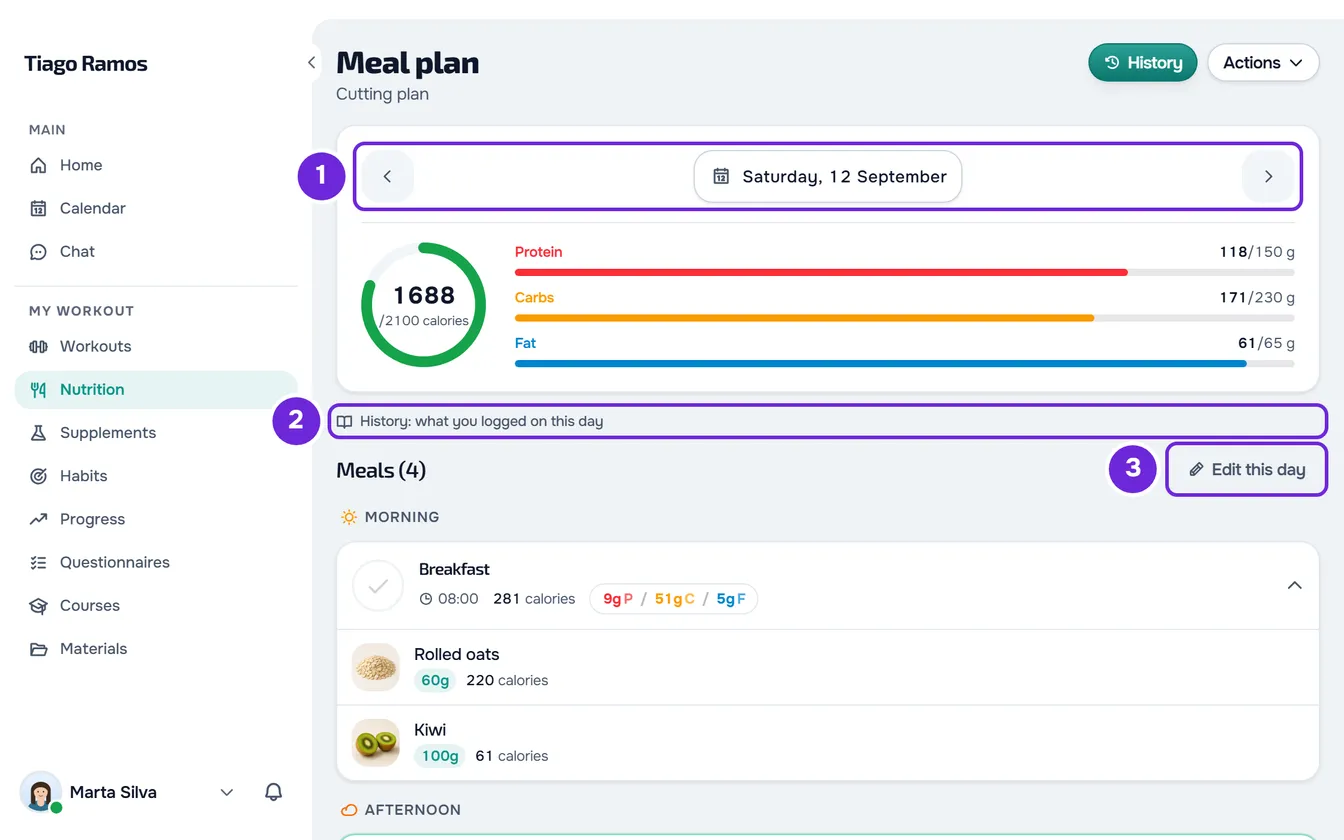
- In Nutrition, open the day you want to correct 1. To change the day, see View your meal plan for the day and your goals. The day opens with the note “History: what you logged on this day” 2 and shows only the meals that have a log.
- Select Edit this day 3, next to the meals heading.
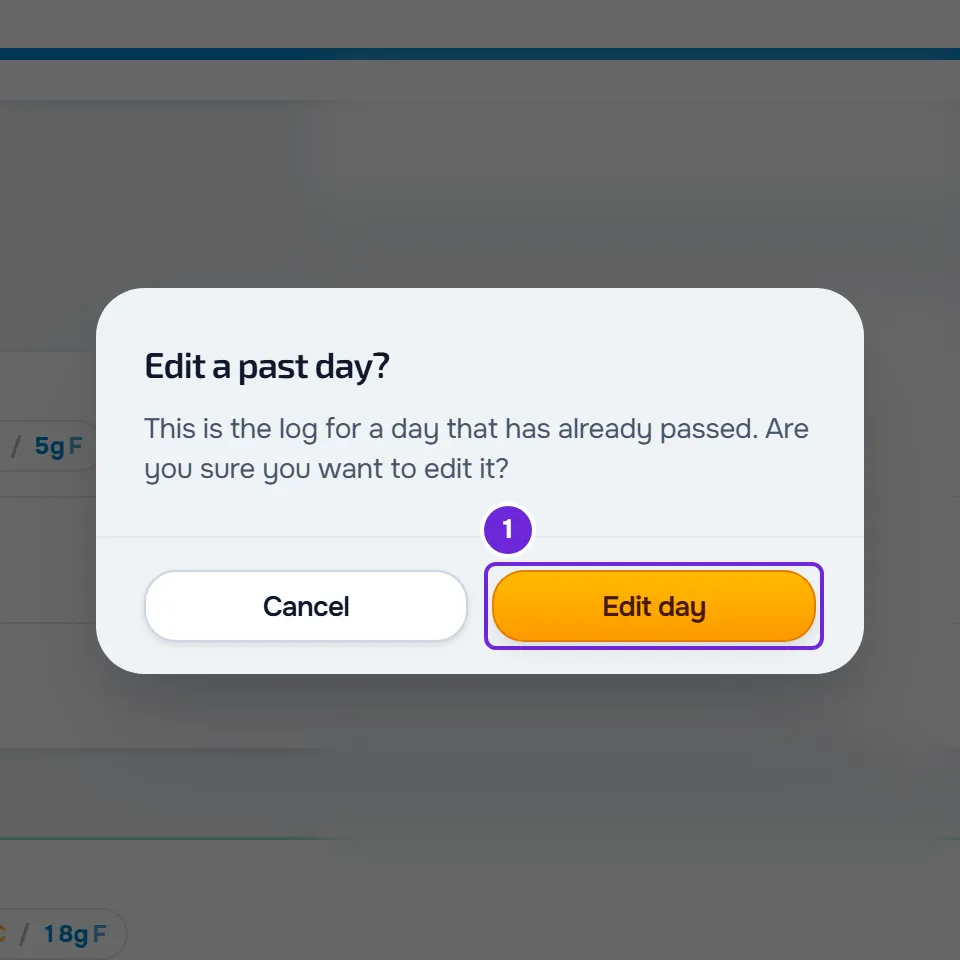
- In the Edit a past day? window, select Edit day 1. The meals your plan has for that day that were left unmarked come back, and the note changes to “Editing this day: tick anything you ate but forgot to log”.
- Select the circle at the start of the card of each meal you ate. See Log what you ate by marking the meal as eaten.
- Optional: to log a meal that wasn't in the plan, select Add 1. See Add extra meals: new, quick, saved or from yesterday.
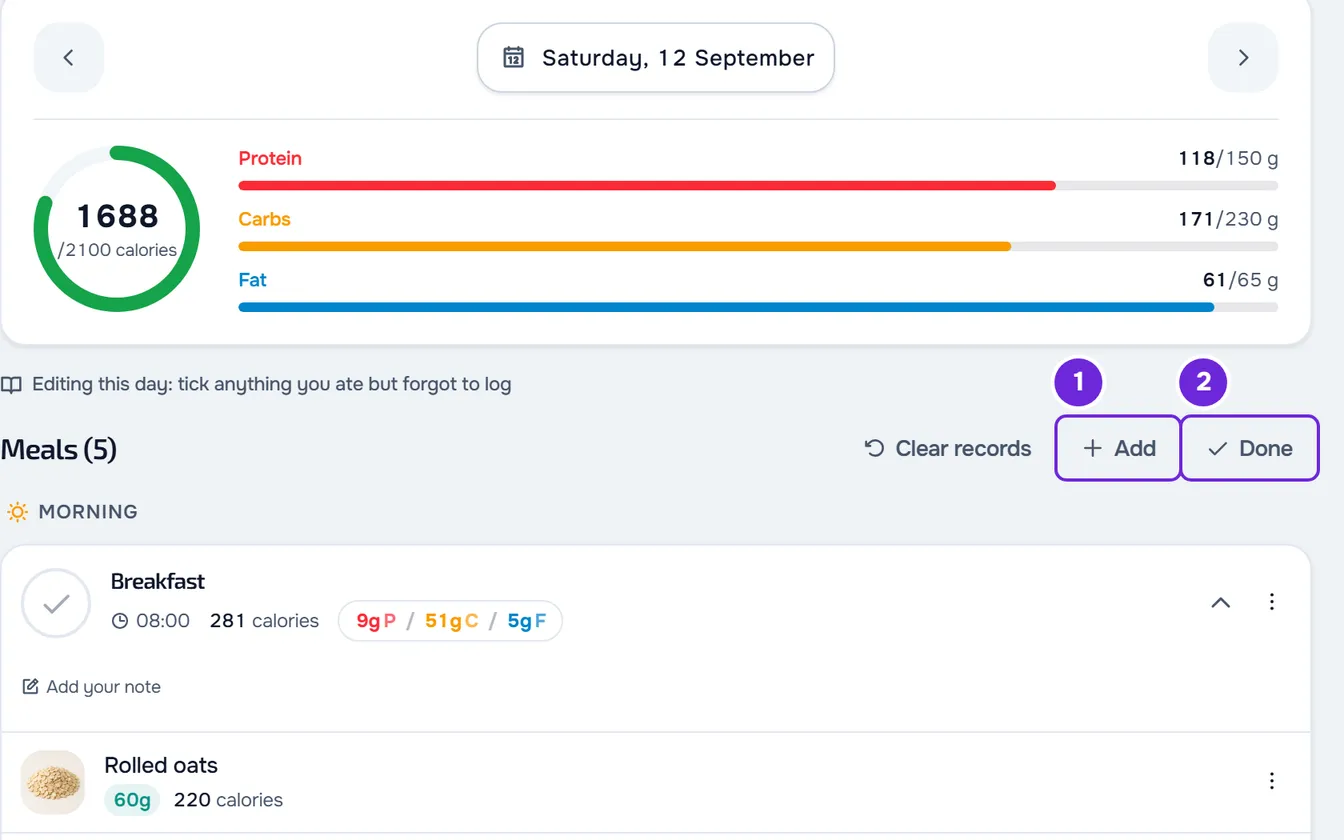
- When you're finished, select Done 2. The day goes back to read-only mode.
The day keeps the meals you marked: the ring and the bars add them up, your professional sees them in your log for that day, and they appear in Nutrition History. Each change is saved as you make it; Done only closes editing.
In the app
- Open the day from the week strip or the calendar, at the top of the Meal Plan screen.
- The path is the same: Edit this day and, in the confirmation, Edit day. In edit mode, the note says “Editing this day: tick anything you ate but forgot to log”.
- To add a meal, use the + button or Add, depending on the screen size. When you're finished, select Done.
- The ring and the bars add up only the meals marked as eaten, on past days too.
What changes between reading and editing the day
- In read-only mode, you only see the meals with a log on that day: the ones you marked, the ones you changed and the ones you created. The circle doesn't respond, there is no Add, no ⋮ menu on the meals and no option tabs, and the foods open for viewing only.
- In edit mode, you mark and unmark, switch options, edit foods, add meals and use the ⋮ menu, just like on the current day.
- In edit mode, if the day already has logs, Clear records appears. Once you confirm, it deletes all the logs for that day, with no way to undo. See Edit, restore or delete a meal or a whole day.
- Editing closes when you switch to another day and, on the website, when you reload the page. What you have already changed stays saved.
- On the website, the ring and the bars of a past day add up all the meals with a log on that day, marked or not. Nutrition History only shows the ones you marked as eaten.
Correct from History
On the website, Nutrition History also takes you to the day. Select the day's header to open its detail and select Edit: Nutrition opens on that day, still in read-only mode. Select Edit this day and confirm, as in the steps. In the app, History doesn't have this shortcut: open the day in Nutrition. See Browse your nutrition history.
Common problems
The circle won't let me mark the meal
The day has passed and is in read-only mode. Select Edit this day and confirm with Edit day.
The meal I forgot doesn't appear
In read-only mode, only the meals with a log appear. On a day when you logged nothing, the list says “Nothing logged on this day”. In the app, it says “No meals planned for this day” or, in a weekly or calendar plan, “Free day”. Select Edit this day and confirm: the meals your plan has for that day appear again. If the day is before the start of the plan you have now, or after its end, the plan has no meals for that day and none come back: log what you ate with Add.
The day I want to correct isn't in History
Nutrition History only shows the days with meals marked as eaten. Open the day in Nutrition, as in the steps.
In the app, the day shows “No internet connection”
In the app, without internet, only the days the phone has already saved will open. A day it has not saved shows “No internet connection” and “This page needs a connection. It'll refresh on its own as soon as you're back online.” Connect to the internet: the day opens when the connection comes back. See The app says “Offline” or takes a long time to load.
Questions
How many days back can I correct?
Any day before today: Nutrition sets no limit on past days. In the app, without internet, only the days the phone has already saved.
Does my professional see what I correct?
Yes. They see the meals you mark in your log for that day.
Can I log a day that hasn't come yet?
Yes. Upcoming days open like today, without read-only mode. See View your meal plan for the day and your goals.