
How it looks in each place
On the professional website, when you create, edit or open an assessment with videos, each video appears in the Videos card with its first image, the browser's bar and its label under it. The video starts when you play it, with sound, and stops when it ends.
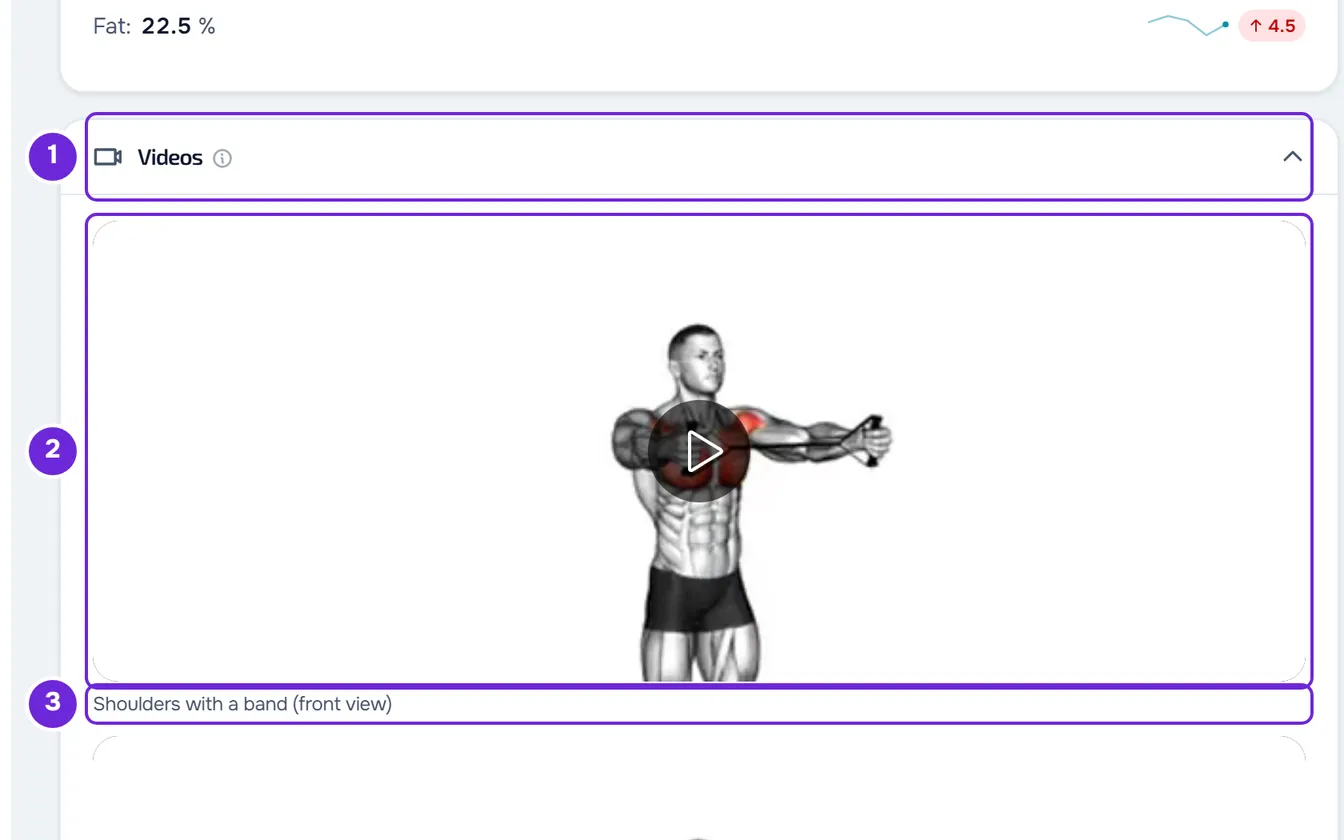
With the browser's bar you play, pause, change the video's position and the volume. Full screen, speed and the rest depend on the browser. When the assessment opens, the browser loads only what it needs to show each video's first image; the rest loads when you play it.
The same video can be seen in three ways:
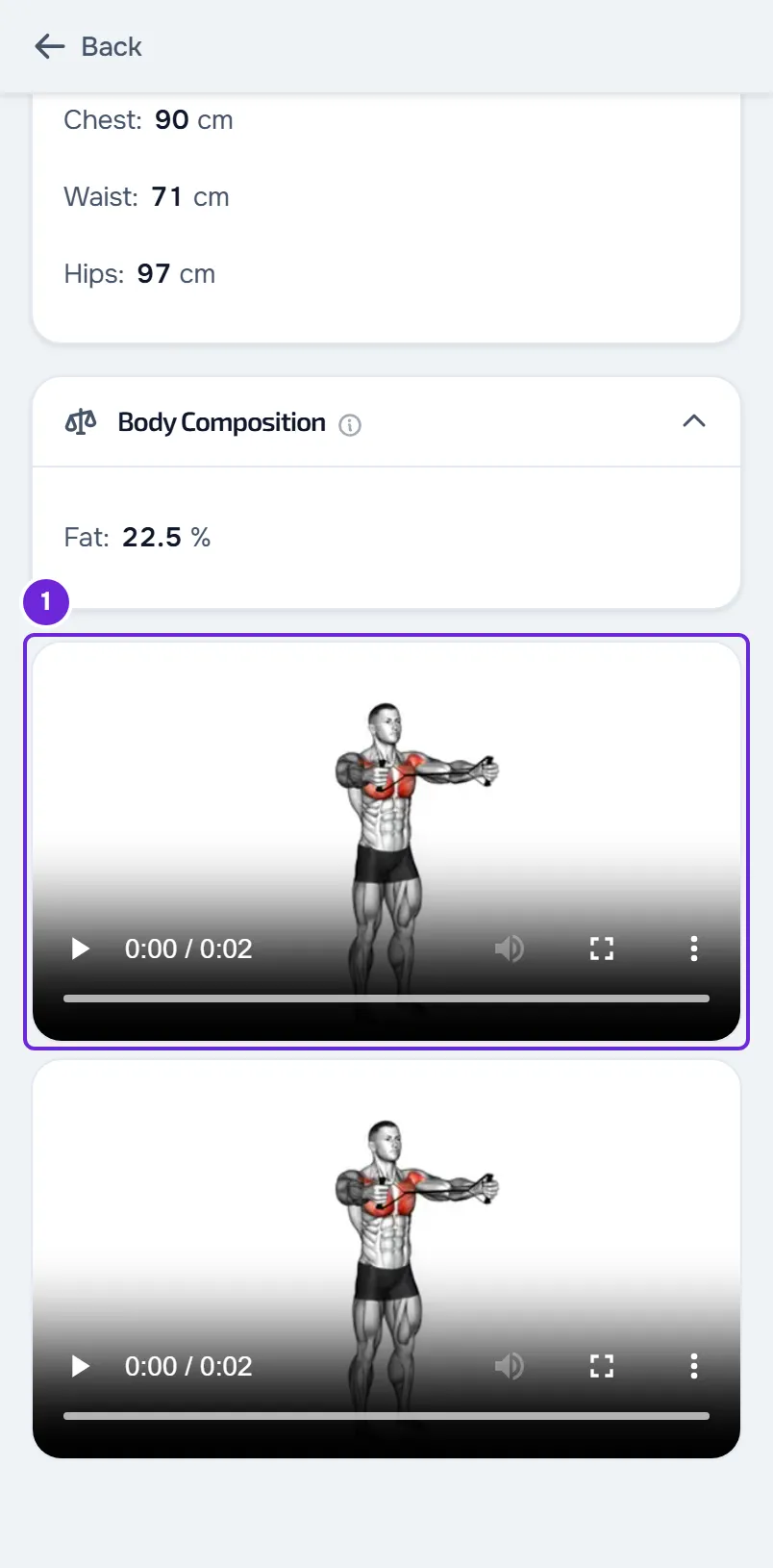
| Behavior | Professional website | Client website | App |
|---|---|---|---|
| Starts | When you play it | When the client plays it | When the video is selected: it opens in full screen and starts right away |
| Sound | Yes | Yes | Yes |
| Repeats | No | No | No |
| Controls | The browser's bar | The browser's bar | Back 10 seconds, play or pause, forward 10 seconds, video position and close |
| Full screen | Depends on the browser | Depends on the browser | Always |
| Label | Under the video | Not shown | On the video's row |
| Several videos | Each one plays when you play it | Each one plays when the client plays it | One opens at a time |
On the client website, the videos are at the end of the assessment, after the photos and with no title. In the app, they are in the Videos section, one per row. While watching a video in the app, selecting the image shows or hides the controls, which hide by themselves 3 seconds after the last action while the video plays. To close it, use the close button or drag the video down.
The video won't play
When the browser can't open a video, the video stays as a dark box with no image and doesn't start when you play it. Some browsers show a crossed-out play symbol. The warning is the browser's own, on the professional website and on the client website.
To fix it:
- Check your internet connection and reload the page.
- If the video still doesn't play, the browser can't read the file. Edit the assessment, remove the video, attach it again with Add video, preferably as MP4, and save.
When you attach a video, the browser converts it to MP4 when the video wouldn't play everywhere and the browser can convert it. When it can't, it sends the original file.
In the app, a video that doesn't open shows “This video could not be played.” and the Try again button.
The client doesn't see the videos
Check, in this order:
- The videos are in a saved physical assessment. Videos are attached only on the professional website, when creating or editing the assessment, and they only stay in it after you save it. The client doesn't attach videos to assessments.
- In the client's profile, on the Assessments tab, the client's access is View only or View and fill out (with the selector closed, Views or Fills out). With No access, the client doesn't see any assessment.
- If the client has a plan with you, that plan includes Progress and check-ins. Without that section, the client can't open assessments.
- The client opens the assessment in Progress > Assessments. On the website, the videos are at the end of the assessment; in the app, in the Videos section.
- In the app, the client has the latest version of the app.
The client doesn't see the video label
The label you write on each video, such as “Squat, side view”, appears on the professional website and in the app. On the client website it doesn't appear: it only serves as a name for screen readers. Without a label, the app shows “Videos 1”, “Videos 2” and so on.
So the client knows which video is which on the website, write it in the Notes for the client field, in the assessment's Observations card. On the website, the client reads that note under Notes from your professional.
Compare, PDF and download
- Comparing assessments doesn't include the videos. To review them, open each assessment.
- The assessment PDF doesn't include the videos. When the assessment has photos or videos, the PDF ends with the sentence “The photos and videos of this assessment are in the app.”
- The professional website and the app have no button to download the video. On the client website, the video bar is the browser's and what it offers depends on the browser.
If this did not solve it
If you are the client, talk to your professional first: they attach the videos and decide your access to assessments.
For a problem with the website or the app, write to the MyFitnessClient team using the contact shown at the end of the Help Center home page (in the app, on the “Problems with the app” line). Include:
- the client's name and the date of the assessment;
- where you see the video: on the professional website, on the client website or in the app;
- what happens and the exact message, if one appears;
- the browser or the phone model.