
Interactive tutorial
Opens in the app and needs you to be signed in.
Home is the first MyFitnessClient screen for clients, on the web and in the app. It lets you see at a glance what you have for today and open each section from its card. To go back to it, select Home in the side menu or in the first tab of the bottom bar.
What you see, from top to bottom
A section's card only appears when that section is part of the plan you have with your professional.
On the web
- The greeting, with what you still have to do today or with notices about your access.
- Notices, only when they apply: A few details are missing for your assessment, if your date of birth or your height is missing (you can hide it for 7 days in this browser with Not now), and Action required, if your health questionnaire is still to be filled in.
- What you still have to do: the check-in, an assessment requested by your professional and the questionnaires still to answer.
- The Weight and Calories figures and, on a computer, also Protein and Payments.
- Today's Workout, with the workouts scheduled for today.
- Supplements, with today's doses.
- Today's Habits, with the first 4 habits of the day.
- Nutrition Plan, with your plan's daily goals for calories, protein, carbs and fat.
- My Progress, which opens the Progress page.
- Your professional, with the Message button.
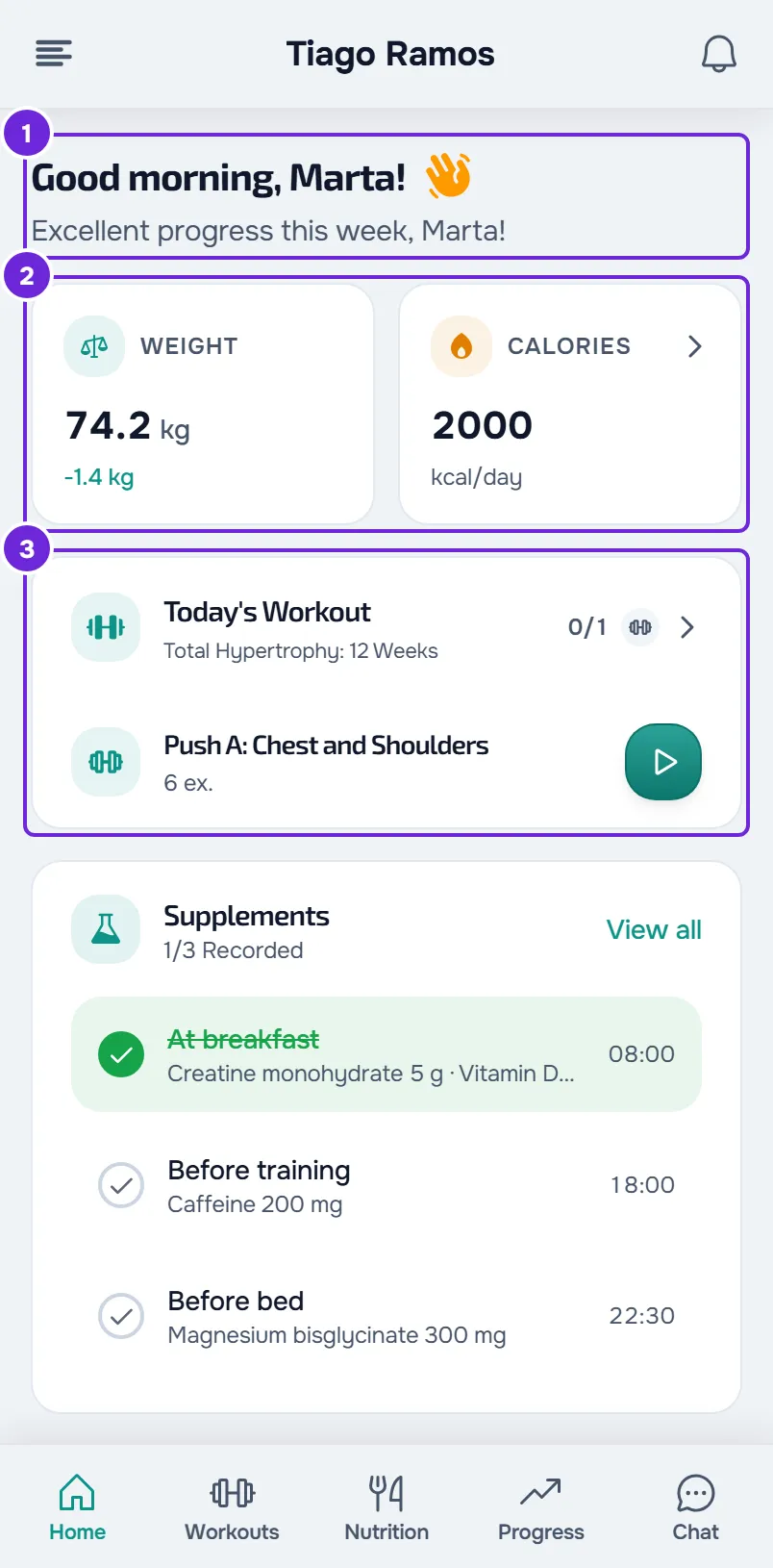
In the app
- The greeting, with a short phrase or with notices about your access.
- An invitation from a professional, when you have one waiting for your reply.
- To do, with what is pending: the health questionnaire, missing profile details, a requested assessment, the questionnaires and the check-in.
- The Weight, Calories/day and Streak figures and, when you have outstanding payments, Pending payments.
- Today's workouts, with the workouts scheduled for today.
- Supplements, with today's doses.
- Today's habits, with the first 4 habits of the day.
- Meal plan, with the calories and macros of the meals you have already marked today, compared with the plan's goals.
- Your professional's card, with the Message button.
The greeting and what appears under it
The greeting uses the time on your device's clock and your first name: “Good morning” from midnight to 11:59 am, “Good afternoon” from noon to 6:59 pm and “Good evening” from 7:00 pm. On the web, if your account has no name, “Client” appears.
Under it, on the web, you see what you still have to do today: the first of today's workouts you haven't done yet and today's habits you haven't marked yet (a habit with a weekly target counts until you reach the week's target), for example “You have Workout A and 2 habits today”. When you have done everything, or have nothing for today, this line doesn't appear. In the app, “Here's today's summary.” appears.
When your coaching or a plan from your professional has an end date, a line also appears with that date and the days left, or with the day the plan renews. In the last week before the end, or when you have an unpaid plan, two lines about your access appear instead of what you still have to do today (in the app, instead of the phrase), the first one in amber.
On the web and in the latest version of the app, you also see the next check-in, when it is not today, and the next assessment your professional has scheduled in the calendar, for example “Your next check-in is tomorrow”.
What changes with your plan and your access
Your professional chooses which sections are in your plan. A section that is not included disappears from Home, without leaving an empty card or an error.
| Section not in the plan | What disappears from Home |
|---|---|
| Workouts | The card with today's workouts and, on the web, the workout in the line under the greeting. |
| Nutrition | Calories, protein (on the web) and the meal plan card. |
| Progress | Weight, the check-in and the next check-in line, the requested assessment, the streak (in the app) and My Progress (on the web). |
| Supplements | The supplements card. |
| Questionnaires | The questionnaires still to answer. |
Habits always stay: the card appears when you have habits for today. See “Not in your plan”: a section of the app has disappeared.
Your access status also changes the screen:
- When your coaching is scheduled, ended or inactive, Home shows a card with the status, such as Coaching ended, instead of the day's cards. On the web, when coaching has ended, the card also has the See plans button if your professional has plans for you. See Access statuses: scheduled, ended and inactive.
- Without a linked professional, Home shows the invitation waiting for you, the request you sent to a professional until they reply, or the You don't have a professional yet card, with what you can do. See “You don't have a professional yet”: what to do.
- If you have an overdue payment and your professional has chosen this, some actions are paused, such as sending the check-in. On the web, Home then shows the View only card. See Payment overdue: what is paused and how to settle it.
Your professional's card
After the day's cards comes your professional's card, with their photo and name. It has a single button, Message, which opens the chat. The card only appears when you have a linked professional.
When Home updates
Home updates differently on the web and in the app.
On the web
- Every time you open Home, the page loads again.
- While it is open, your access status, the sections in your plan, requested assessments and questionnaires still to answer are read again every minute and when you come back to the browser tab.
- A payment notification or a professional's reply to one of your requests updates your access status straight away.
- A new questionnaire or an assessment request appears on Home as soon as the notification arrives.
- If the day changes while Home is open, the page reloads by itself.
- To see a new workout, habit or figure straight away, reload the page.
In the app
- When you go back to Home, the app updates the day's summary and the check-in.
- A new questionnaire or check-in request appears on Home as soon as the notification arrives.
- To update everything, pull the screen down.
Common problems
“We could not load this information” or “Couldn't load the dashboard.”
The day's summary did not arrive from the server. The first message is the web one and the second is the app one. On the web, when the server is at fault, the same card says “Service temporarily unavailable”. Select Try again. If the error happens again, see “We could not load this information” and other error cards.
“No internet connection”
With no data saved on the phone, the app needs a connection to load Home. When the connection comes back, the screen updates by itself; you can also select Try again. On the web, the same case shows “You are offline”. See The app says “Offline” or takes a long time to load.
A card you expected is missing
A card disappears from Home when the section is not part of your plan or when there is nothing for today. For example, the Supplements card only appears with daily doses for today, and the check-in only appears if your professional has set up a check-in. If you expected a workout today, see My workouts are missing or I see “Workout not found”.
The greeting does not match the time
The greeting follows the clock of the device where you open MyFitnessClient. If the device's time or time zone is wrong, correct it in the system settings.
Questions
Why does the line under the greeting disappear?
On the web, that line shows what you still have to do today. When you do today's workouts and mark today's habits, it disappears. It also doesn't appear when you have nothing for today.
Why don't I see all my supplements on Home?
Home shows up to 4 moments with daily doses for today. Weekly goal and As needed doses only appear on the Supplements page.
Can I mark habits and supplements from Home?
Yes. On the web, select the circle next to the habit or supplement; in the app, select the row. To unmark it, select it again. A habit with a weekly target can't be marked this way: on the web, open the Habits page and, in the app, open the value log. A dose calculated from your weight can only be marked with an up-to-date weight. See “Your weight is needed to calculate the amount”.