
Before you start
- The program is between professionals: you invite other professionals to MyFitnessClient, not your clients. The code and the link only work for professional accounts.
- To create the code and invite, you need an active paid plan on your account. The free trial of a paid plan and a granted plan also count. Without one, the page shows “You need a paid plan” and has neither the code nor the share buttons. If you already had a code, you still see the counters and the list. To subscribe, see Upgrade your plan and pay for your subscription.
- The page always belongs to your personal account, even inside a team's workspace: your plan is the one that counts, not the workspace's.
- If the page is called Affiliates and offers you a percentage for every professional you invite, the affiliate program is open: see the “With the affiliate program open” section.
Interactive tutorial
Opens in the app and needs you to be signed in.
Steps
To invite another professional:
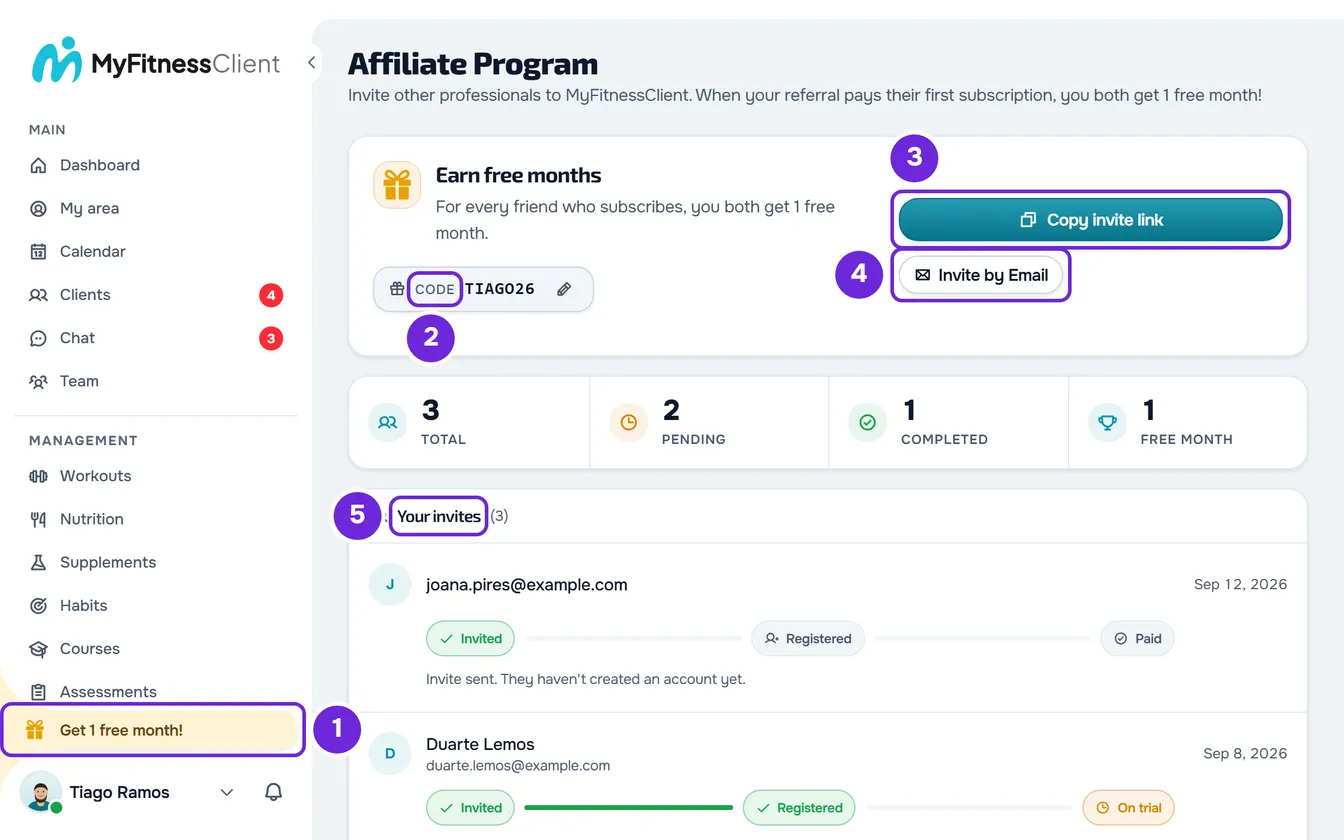
- In the sidebar, select Get 1 free month 1 (with the sidebar collapsed, it is the gift icon; on a phone, it is at the end of the side menu). The Affiliate Program page opens.
- In the Code field 2, enter the code you want to use, with 3 to 20 letters, numbers or hyphens.
- Select Save. The code now appears with a pencil next to it, and the buttons to share it appear.
- Select Copy invite link 3 and send the link to the professional you want to invite, by message or wherever you prefer.
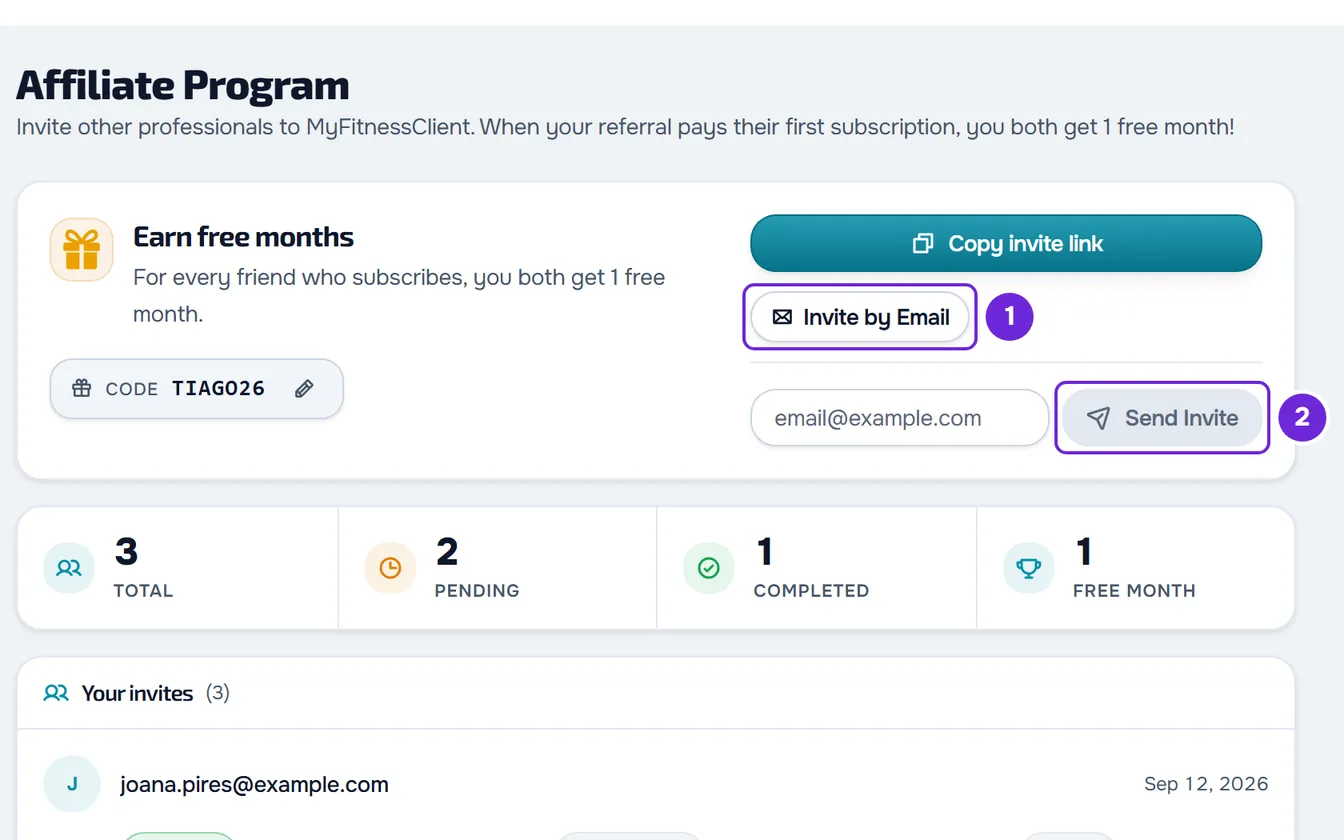
- Optional: to send the invite by email, select Invite by Email 1, enter the professional's email and select Send Invite 2.
- Follow each invite in the Your invites 5 list.
An email invite enters the list right away, at the Invited step; someone who uses your link appears when they create their account and confirm its email. Each invite moves on to Registered and Paid as the person confirms the account and pays their first subscription.
Your code
- It has 3 to 20 characters: letters without accents, numbers and hyphens. The field converts letters to uppercase and ignores any other characters. Save only becomes active once there are 3 characters.
- It has to be yours alone: it can't be another professional's code or the code of a MyFitnessClient partner. Some words are reserved, such as ADMIN, TEST or the field's example, ABC123.
- To change it, select the pencil next to the code, enter the new one and select Save. The X cancels the change. You can save up to 5 times per minute.
Share the link
The link opens the MyFitnessClient professional sign-up with your code already filled in, and the browser of whoever opens it keeps the code for 30 days. If, within those 30 days, the person had already opened someone else's invite link, the code from that first link stays, as long as it is valid. After you select Copy invite link, the button shows “Link copied” for 2 seconds and the Share link box appears with the full address. In browsers that have the system share feature, such as phone browsers, Share also appears, and it opens the device's share window.
Invite by email
- Half a second after you stop typing, the page checks the email. If it already has an account, “This email already has a MyFitnessClient account” appears and Send Invite is disabled.
- When the invite goes out, “Invite sent” appears, the field is cleared and the invite enters the list as Invited. If the email can't go out, “Failed to send invite” appears: the address stays free and what you typed stays in the field so you can try again.
- Each address only receives one invite across all of MyFitnessClient, from anyone, and stays taken even if the person doesn't respond. You can send up to 5 times per hour, refused attempts included; after that, you see “Too many requests. Wait a moment.”
- The invite moves on when the person creates the account with that email and your code, which the button in the email already carries. If they create the account without your code, the invite stays at Invited until they use the code in “Have a code?”.
- The invitee receives an email with your name and the Create account button, which opens the sign-up with your code. At the end of the email there is a link to opt out: whoever confirms it stops receiving invites like this one, from any professional, and MyFitnessClient news. Invites to become a professional's client or to join a team still arrive.
The counters and the list
The page shows four counters, in this order:
- Total: all the invites in the list.
- Pending: people who haven't created an account yet and people who have but haven't paid their first subscription yet.
- Completed: people who have already paid their first subscription.
- Free months: the credits you actually received. A completed invite that gave you no credit doesn't count here.
When the number is 1, the last counter shows its name in the singular: Free month.
In the Your invites list, from newest to oldest, each row shows the date and the person's name, once they have confirmed their email, or “Invite no.” and a number. An email invite nobody has used yet shows the email you typed. The email of someone who signs up through your link never appears, and the sign-up page tells whoever uses your code that you see their name. Then come the Invited, Registered and Paid steps and a sentence that says where the invite stands:
| Sentence | When it appears |
|---|---|
| “Hasn't signed up yet.” | You invited by email and the person hasn't signed up yet. |
| “No plan yet.” | The person created an account but doesn't have a paid plan yet. |
| “On trial until” and the date | The person is on the free trial of a paid plan. Until the first payment, the last step says On trial. |
| “Waiting for the first payment.” | The person has a paid plan, but the first payment hasn't been confirmed yet. |
| “Paid their first subscription on” and the date | The invite is complete. If you received credit, “+1 free month for you” and the amount follow. |
Invites can't be canceled, resent or deleted. An invite to an email that now belongs to a client account leaves the list and the counts.
When you earn the free month
- The credit arrives when the invitee pays the plan's first invoice with an amount greater than 0. The free trial doesn't count: with a trial, the credit only arrives after the trial ends and the first payment goes through. Invoices for add-on services, such as My app, don't count either.
- Each of you receives a credit equal to the monthly price of your own plan at that moment, even if you pay yearly. A custom plan gives no credit.
- If you don't have an active paid plan at that moment, you receive neither credit nor a notice. The invitee receives theirs and the invite is complete.
- Each invitee gives only one reward.
- When you receive the credit, you get the notification “You earned 1 free month”, with the name of the person who paid; it opens this page.
- The credit is deducted automatically from the next invoices. You see the amount in Settings > Subscription, on the plan card, and on the Invoices tab, under Next charge. See View your invoices and update the card for your subscription.
- If the invitee's first payment is fully refunded or lost in a dispute, the reward is left for the MyFitnessClient team to review.
Program rules
Invite only professionals you know who are expecting your invitation. The credit has no cash value and cannot be passed to another person. It can be cancelled in the case of self-referral (inviting your own account) or duplicate accounts; if the invitee's payment is refunded or disputed, the team reviews the credit. The full rules are in the Terms of Service, section 8, where the program is called the Referral program.
With the affiliate program open
When MyFitnessClient opens the affiliate program, you also receive a commission on the invoices of every professional you invite, usually 30% for 24 months, and the free month from each invite carries on. The sidebar shortcut then reads, for example, “Receive 30% commission”, or “Your affiliates” once you have joined, and the page is called Affiliates:
- If you haven't joined yet, the page shows the offer with the percentage and the term. Join the program opens “Sign in to Affiliates”: select Continue to enter the affiliate area with your account, and accept the program's Terms there. You can join on any plan, the free one included. Your code stays the same and the free months you have already received remain yours.
- Once you have joined, the page shows your affiliate card with the code, the link and your terms, Copy link, the ⋮ menu with Edit code and Invite by email, and Open the affiliate area. The counters and the invite list no longer appear on this page: your invites and earnings are in the affiliate area.
- While you are in a challenge, the ⋮ menu doesn't appear: you can't change your code or invite by email until the challenge ends.
- If you left the program, or your affiliate account was suspended or excluded, the page only shows Affiliate area, which opens the area with the reason.
The affiliate area is at affiliates.myfitnessclient.com, in Portuguese or English. It has Home, Invitees, Earnings, the Challenge when one is running, with its rules, and Settings, where you choose how you get paid, add your NIF and can leave the program.
Common problems
“This email already has a MyFitnessClient account”
The email invite is only for people who don't have an account yet. A professional who already has an account and doesn't have a paid plan yet can use your code in Settings > Subscription > Change plan, under “Have a code?”. See Apply a referral code, a partner code or a coupon. If it is a client account, the program doesn't apply.
“This email can't receive an invitation. You can share your invite link instead.”
That address has already received an invite, from you or from another professional, or no longer accepts MyFitnessClient emails because it opted out or bounced them. It can't receive another invite: send the person your link by message.
“This code is already in use.” or “This code is reserved. Choose another one.”
Another professional or a MyFitnessClient partner already uses that code, or it is a reserved word. Enter another one and select Save.
I earned a free month and I'm still being charged
The credit doesn't pause the subscription: it is deducted from the amount of the next invoices until it runs out. If the invoice is larger than the credit, as on a yearly plan, you pay the difference. Other billing problems are in Subscription problems.
If this did not solve it, contact support with your account email and the email of the professional you invited.
Questions
The invite says they paid, but the Free months counter didn't go up. Why?
When the invitee paid, you didn't have an active paid plan or your plan is custom. In those cases the invite is complete without credit for you, and the Free months counter only counts the credits you received.
Can my clients use my code?
No. The code and the link only work for professional accounts, and the email invite doesn't reach a client's email.