
Before you start
- In a team workspace, you need the Nutrition > Create permission. Without it, the New Plan button doesn't appear.
- You don't need to have clients: the plan starts with none, and you assign it later, to one or several, as in Assign a meal plan to one or more clients.
- Choose the mode based on how the client will eat: Flexible, with no set order; Weekly, with meals for each day of the week; Calendar, day by day over a cycle. You can change it later. The differences are in Meal plan modes: Flexible, Weekly and Calendar.
Interactive tutorial
Opens in the app and needs you to be signed in.
Steps
To create a meal plan:
- In the side menu, select Nutrition. The page opens on the Meal Plans tab (Plans on a phone).
- Select New Plan. On a computer, the button is in the same row as the search box, after the filters button; on a phone, it sits in a row of its own on top of the search box.
- In Plan name 1, type a name of 2 to 100 characters.
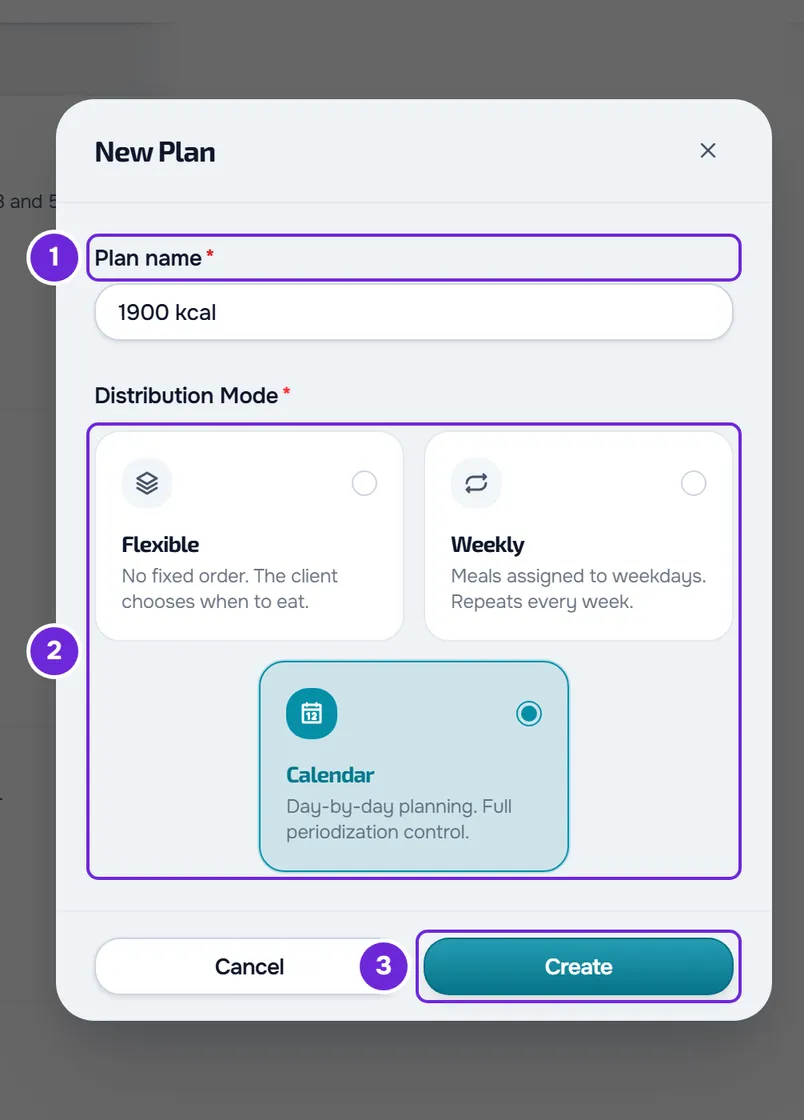
- Under Distribution mode 2, choose Flexible, Weekly or Calendar. The window opens with Flexible selected.
- Select Create 3, or press Enter in the name field.
The window closes, “Meal plan created” appears and the plan editor opens, still with no meals, no goals and no clients. A Calendar plan starts with a duration of 7 days, which you can change as in Change a meal plan's name, cover and duration.
If you close the window after typing a name or changing the mode, “Save before leaving?” appears. Discard closes the window without creating the plan, and Save and leave creates it, as long as the name has at least 2 characters.
What to do next
- Set each day's calories and macros: Set a plan's daily calorie and macro goals.
- Add the meals: Add and organize the meals in a meal plan. For a Calendar plan, see Build a meal plan by weeks in Calendar mode.
- Add the foods to each meal: Add, edit and remove foods in a meal.
- Assign the plan to clients: Assign a meal plan to one or more clients.
Create the plan from a client's profile
In the profile of a client with no current meal plan, on the Nutrition tab, Assign (or Assign Plan, in the middle of the tab) opens the Assign Nutrition Plan window, which has the Create New Plan button, even when you have no plans yet. In a team workspace, the button only appears with the Nutrition > Create permission. That button opens a form of its own, which creates the plan and assigns it to that client in one action:
- It asks for a name of at least 2 characters, the mode and the Daily goals, which start at 2000 kcal, 150 g of protein, 200 g of carbs and 70 g of fat. A field left empty or at 0 has no goal.
- Create & Assign creates the plan, assigns it to the client and opens the plan editor.
- With no plans in the workspace, the window shows “No existing plans” and, under it, the line “Create and automatically assign to this client” with Create New Plan.
- Assign and Assign Plan only appear for a client who is active or has scheduled access. When coaching is closed, the tab shows “This client's coaching is closed. Reactivate them to make changes.”
- In a team workspace, you need the Nutrition > Create and Nutrition > Edit permissions.
The steps are in Assign a meal plan to a client from their profile.
Common problems
The Create button is disabled
The name has fewer than 2 characters; spaces at the start and end don't count. With 1 character, when you leave the field or press Enter, “Name too short (minimum 2 characters)” appears. Type a longer name.
I can't see the New Plan button
Check that you're on the Meal Plans tab. In a team workspace, the button only appears with the Nutrition > Create permission: ask whoever manages the team for it. See “No permission to access” and menu items missing for a member.
“You have more active clients than your plan allows. Choose which to keep or upgrade your plan.”
The workspace has more active clients than the subscription allows and, while that is the case, MyFitnessClient refuses to create plans. See You have more active clients than your plan allows.
“Server error.”
The plan wasn't created. Select Create again. If the message is “Connection error.”, check your internet connection before you try again.
If that didn't solve it, contact support with the plan name, the mode you chose and the exact message that appeared.
Questions
Can I change the mode after creating the plan?
Yes. In the editor, the mode chip, under the plan name, opens the window where you change it. What happens to the meals is in Meal plan modes: Flexible, Weekly and Calendar.
Can I start from a plan I already have?
Yes. Duplicate it: the copy includes the meals, the foods and the goals, without clients. See Duplicate a meal plan.
Why is there no Sequential mode, as in training programs?
New meal plans can only be created in the Flexible, Weekly and Calendar modes. Older plans in Sequential mode keep working.
How do I save what I do in the editor?
The plan is saved when you select Create. What saves on its own in the editor, and what needs Save, is in The meal plan editor: autosave and Undo.